Mac Mini M4 for Gaming: What Actually Works
The questionWhere do these come from?
Thinking of switching to Mac Mini due to reduced gaming needs
Hey all, considering switching from a Windows gaming PC to a Mac Mini and would love to hear from people who've made a similar move. My gaming has dropped a lot, which makes me get buyers remorse over the gaming PC.
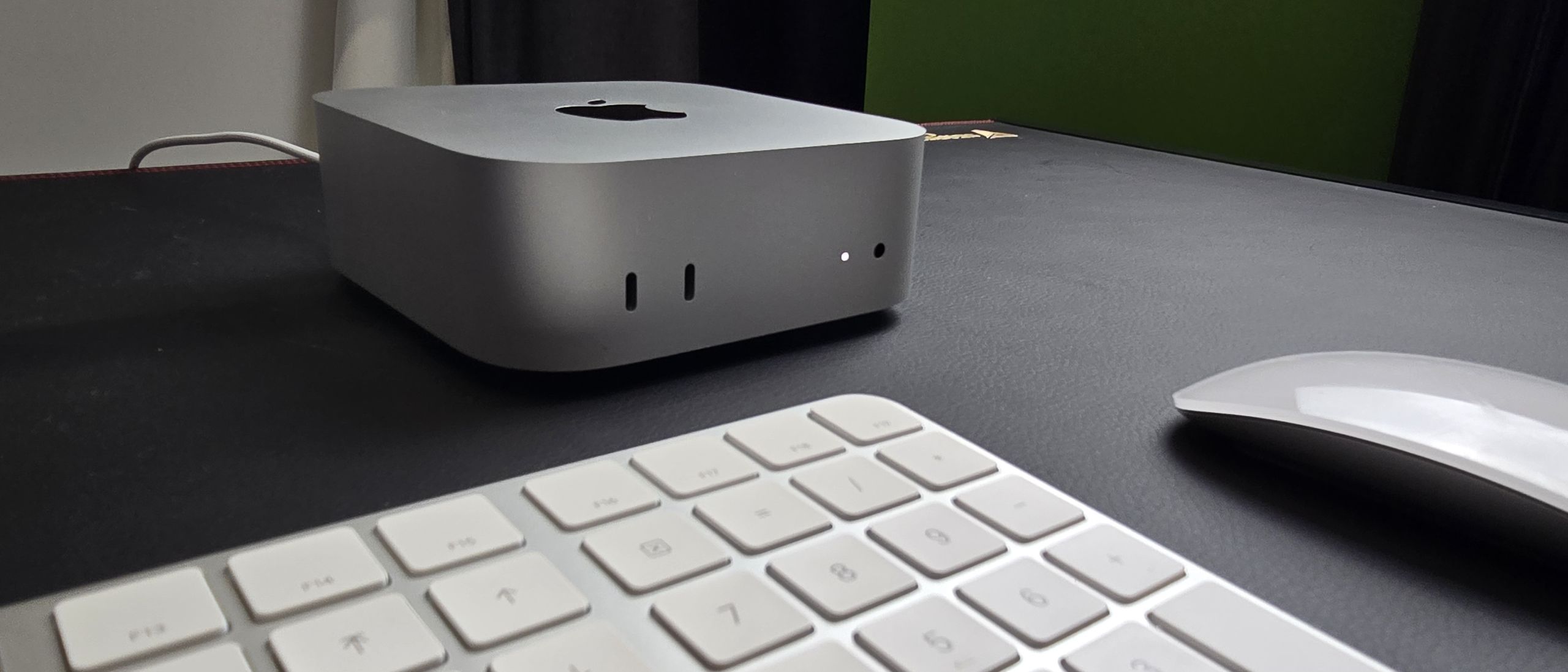
A Mac mini M4 with 24GB RAM is fine for Mac-native and lighter gaming, but it is not a clean Windows gaming PC replacement.
A Mac mini M4 with 24GB of unified memory is fine for Mac-native and lighter gaming. It is not a clean replacement for a Windows gaming PC: the deciding limit is game compatibility, not whether the M4 has enough raw power.
The verdict by gaming scenario
| Gaming situation | Verdict |
|---|---|
| Mac-native games, Apple Arcade, or older Steam titles with macOS support | The Mac mini M4 24GB/512GB handles this well |
| Windows-only games, kernel-level anti-cheat, or heavy mod loaders | Keep the Windows PC; the Mac will not run these acceptably |
| Games that depend on a discrete Nvidia or AMD GPU | Keep the PC; Apple silicon has no eGPU upgrade path |
| Occasional gaming alongside browsing, office work, development, and media | The Mac mini M4 is the right machine |
The M4 can also cover emulation within legal limits and streaming from another computer or console. What it cannot do is turn an existing Windows library into a Mac-compatible one. That distinction should be settled game by game before buying the hardware.
The compatibility check that decides the purchase
Start with the must-play games rather than the Mac mini specifications. Search each title’s Steam, App Store, Battle.net, Epic, GOG, or publisher page and check four things:
- Is there a macOS version?
- Does it support Apple silicon, or is there a known compatible translation path?
- Does its multiplayer mode require anti-cheat that blocks macOS or compatibility layers?
- Does the game depend on Windows-only mods, launchers, or peripheral software?
If three must-play games are Windows-only multiplayer titles, the Mac mini M4 is the wrong replacement regardless of its memory configuration. If most of the library is Mac-native, older, or streamed remotely, the 24GB model becomes a sensible compact desktop.
This check has a hard limit: no general article can certify a private game library in advance. Compatibility can also change with game, launcher, anti-cheat, and macOS updates. A title-specific check is therefore more reliable than a blanket claim that a game will work because Steam itself runs on macOS.
What the base M4 hardware can handle
Apple lists the base M4 Mac mini with a 10-core CPU, 10-core GPU, hardware-accelerated ray tracing, 120GB/s memory bandwidth, and configurable 24GB unified memory and 512GB SSD storage in the official Mac mini technical specifications.
That is not an office-only specification, but it remains an integrated-GPU desktop. There is no discrete graphics card and no later upgrade path to one. For Mac-native and lighter games, target 1080p or 1440p with tuned settings rather than maxed-out 4K in demanding titles.
A practical starting point is Medium settings. Reduce or disable ray tracing when available, enable MetalFX upscaling when the game supports it, and cap the frame rate if delivery feels uneven. A stable 60 fps cap is generally preferable to an uncapped rate that swings sharply.
Mac-native games and Apple Arcade
The Mac mini M4 24GB/512GB is a good fit when gaming is casual to moderate and the games have proper Mac versions. That includes Mac-native releases, Apple Arcade, older 64-bit Steam games with macOS support, and lighter titles that do not require a dedicated GPU.
macOS Game Mode is worth enabling. Apple says it requires Apple silicon and macOS Sonoma 14 or later, and it activates automatically when a supported game enters macOS full-screen mode. In macOS Sonoma 14 and Sequoia 15, its control appears in the Game menu in the menu bar while the game is full screen. In macOS Tahoe 26 or later, Apple moved it to Game Overlay, opened with Command-Esc or the Game icon, according to Apple’s Game Mode support page.
When Game Mode does not appear, check the conditions in order: update macOS, use the green-button full-screen mode rather than a borderless window, and confirm that the launcher is not preventing the game from handing full-screen control to macOS.
Where Windows compatibility breaks
Steam being available for macOS does not make every Steam game compatible. Valve’s Steam support note for macOS Catalina explains that macOS 10.15 and newer can buy and play only 64-bit Mac applications. Older 32-bit Mac games require an older macOS release or another supported platform, which still matters when assessing an old library.
Boot Camp is not an escape hatch on the M4 Mac mini. The machine uses Apple silicon, while Apple’s Boot Camp history is tied to Intel Macs. If a game requires native Windows, assume it will not run acceptably unless that specific title is known to work through translation or virtualization.
Just want the recommendation?
Skip to the picksParallels, CrossOver, Whisky, and Apple’s Game Porting Toolkit ecosystem can make some Windows games usable. They remain game-specific compatibility workarounds, not substitutes for Windows support and not guarantees that anti-cheat, launchers, mods, or future updates will cooperate.
| Capability | Mac mini M4 24GB/512GB | Windows gaming PC |
|---|---|---|
| Mac-native games | Good | Limited unless dual-platform |
| Windows-only Steam games | Poor | Good |
| Anti-cheat-heavy multiplayer | Poor | Good |
| Hardware GPU upgrades | No | Yes |
| Desk noise and size | Very good | Good to poor |
There is no realistic eGPU fallback either. Apple’s eGPU support page says an Intel processor is required, so the built-in M4 GPU should be treated as the machine’s permanent graphics ceiling. If an existing PC has a discrete RTX or Radeon card and the games continue to use it heavily, keep that PC or choose a gaming desktop.
The configuration worth buying
For this mixed-use case, the base M4 Mac mini with 24GB unified memory and a 512GB SSD is the best balance. Unified memory is shared by the CPU, GPU, and system, and it cannot be upgraded later. Memory is therefore the more important internal upgrade when gaming will coexist with a browser, Discord, Steam, a launcher, and other desktop applications.
| Configuration | Gaming fit | Better reason to choose it |
|---|---|---|
| 16GB unified memory | Light gaming | Small game library and basic desktop use |
| 24GB unified memory | Best balance | Gaming plus everyday multitasking |
| 32GB unified memory | Extra headroom | Development, content work, VMs, or heavy multitasking |
| M4 Pro with 24GB or more | Stronger gaming fit | Higher GPU ceiling and more external-display headroom |
Choose 24GB unless the Mac will also run heavy creative applications, local AI tools, large development containers, or virtual machines. Those workloads provide a stronger reason to move to 32GB. The 16GB model can handle lighter games, but it leaves less shared-memory headroom once the game and supporting applications are open.
For broader non-gaming tradeoffs, Mac Mini vs MacBook Pro for Developers covers the same memory and desktop-versus-mobile decision.
Storage is the practical compromise
A 512GB internal SSD is sufficient for macOS, applications, and a modest game library, but large games can consume it quickly. Keep actively played games internally and move archived installers, captures, and media to external storage.
Do not assume every game will perform well from a slow USB drive. If the working library must remain outside the Mac, use a fast external USB-C or Thunderbolt SSD.
Displays and controllers
Apple lists support on the base M4 Mac mini for two displays consisting of one screen up to 5K at 60Hz over Thunderbolt and another up to 8K at 60Hz or 4K at 240Hz over Thunderbolt or HDMI. In a three-display configuration, it supports two displays up to 6K at 60Hz over Thunderbolt and a third up to 5K at 60Hz over Thunderbolt or 4K at 60Hz over HDMI.
The useful gaming arrangement is simpler: connect one primary display directly through HDMI or USB-C/DisplayPort, choose its refresh rate under System Settings > Displays, and launch the game full screen. Ultrawide and high-refresh problems commonly come down to the cable, scaling choice, or selected refresh rate. The Dell U4025QW Mac setup guide covers that type of Mac display tuning.
Apple’s controller guide says compatible controllers can connect through Bluetooth or wired USB, with button customization under System Settings > Game Controllers after connection. Wired USB is the cleaner low-latency and troubleshooting baseline, particularly for rhythm games, fighting games, and competitive play. Game Mode can reduce Bluetooth input latency, but it cannot eliminate every wireless variable.
What remains unresolved
The first unresolved variable is the exact game library. Storefront support badges, publisher notes, anti-cheat requirements, and reliable title-specific compatibility reports have to decide that question. The M4 specification alone cannot.
The second is the expected role of the machine. The Mac mini makes sense as a quiet desktop for browsing, office work, development, and media that also plays compatible games. It does not make sense when the requirement is the same role and library as a gaming PC in a smaller enclosure.
For that requirement, keep the Windows PC, buy a console, or use the Mac mini alongside cloud or remote play. Choose the Mac mini M4 24GB/512GB when gaming is secondary and the checked library is Mac-friendly; do not choose it as a primary Windows gaming PC replacement before every must-play title clears the compatibility check.
The bottom line
Two readings, two answers:
Top pick
It depends
Apple Mac mini M4 24GB unified memory
Apple
The 24GB M4 configuration suits Mac-native and lighter gaming, but Windows-only games, blocking anti-cheat, and the lack of a GPU upgrade path prevent it from replacing a Windows gaming PC.
The configuration this article rules for. Fine for Mac-native and lighter gaming; not a clean replacement for a Windows gaming PC, and the reason is game compatibility rather than raw power.Available at Amazon(paid link) — opens Amazon in a new tab. Price and availability shown there.The alternative
Buy this
Samsung T9 Portable SSD 2TB, USB 3.2 Gen 2x2 External SSD, Up to 2,000 MB/s
Samsung
The article recommends a fast external USB-C or Thunderbolt SSD when the working game library exceeds the practical capacity of the 512GB internal SSD.
A fast external SSD is useful if the Mac mini will hold more than a few large games, captures, or launchers. The drawback is that some games and launchers behave better from internal storage.Available at Amazon(paid link) — opens Amazon in a new tab. Price and availability shown there.
Recommended products
Ordered by how well each one fits the situations above. Each link below is a paid link.
Apple Mac mini M4 24GB unified memory
Apple
It depends — The 24GB M4 configuration suits Mac-native and lighter gaming, but Windows-only games, blocking anti-cheat, and the lack of a GPU upgrade path prevent it from replacing a Windows gaming PC.
The configuration this article rules for. Fine for Mac-native and lighter gaming; not a clean replacement for a Windows gaming PC, and the reason is game compatibility rather than raw power.Available at Amazon(paid link) — opens Amazon in a new tab. Price and availability shown there.Samsung T9 Portable SSD 2TB, USB 3.2 Gen 2x2 External SSD, Up to 2,000 MB/s
Samsung
Buy — The article recommends a fast external USB-C or Thunderbolt SSD when the working game library exceeds the practical capacity of the 512GB internal SSD.
A fast external SSD is useful if the Mac mini will hold more than a few large games, captures, or launchers. The drawback is that some games and launchers behave better from internal storage.Available at Amazon(paid link) — opens Amazon in a new tab. Price and availability shown there.PlayStation DualSense Edge Wireless Controller - Midnight Black
PlayStation
Buy — The article supports compatible controllers connected through Bluetooth or USB and recommends wired USB as the baseline for low latency and troubleshooting.
A widely supported controller for Mac, useful for Apple Arcade, controller-friendly Steam games, and remote play. The drawback is that wired USB is still preferable when troubleshooting latency.Available at Amazon(paid link) — opens Amazon in a new tab. Price and availability shown there.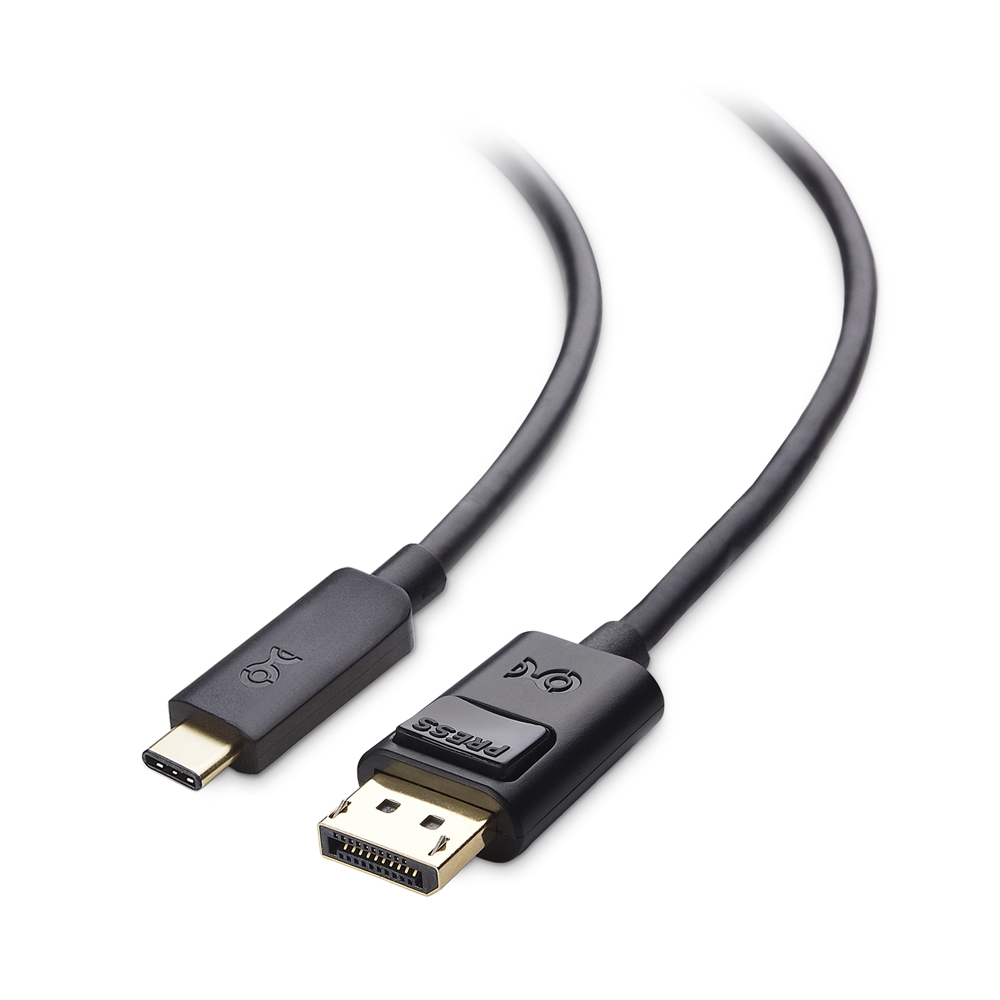
Cable Matters Unidirectional USB C to DisplayPort 1.4 Cable, 6ft
Cable Matters
Buy — The article recommends connecting the primary gaming display directly through HDMI or USB-C/DisplayPort and selecting its refresh rate in System Settings.
Use this when connecting the Mac mini M4 to a high-refresh DisplayPort monitor instead of relying on an adapter chain. The drawback is that it occupies one of the Mac mini’s USB-C/Thunderbolt ports.Available at Amazon(paid link) — opens Amazon in a new tab. Price and availability shown there.


Sources
Pages consulted while researching this article. None of these are affiliate links.
- Mac mini M4 review | Tom's Guide — tomsguide.com
- Apple Mac Mini M4 review — Smaller, faster and louder | Notebookcheck — notebookcheck.net
- Apple Mac mini (M4, 2024) review: smaller, faster, better | TechRadar — techradar.com
- Play Windows games in Parallels Desktop for Mac | Parallels Knowledge Base — kb.parallels.com
- Mac mini (2024) - Tech Specs - Apple Support — support.apple.com
- Use Game Mode on Mac - Apple Support — support.apple.com
- Steam and macOS 10.15 Catalina - Steam Support — help.steampowered.com
- Use an external graphics processor with your Mac - Apple Support — support.apple.com
- Connect a game controller to Mac - Apple Support — support.apple.com
- Using Intel-based apps on a Mac with Apple silicon - Apple Support — support.apple.com