Mac Mini M4 Pro: When 20 GPU Cores Matter
The questionWhere do these come from?
M4 pro mac mini 64GB memory 16-core GPU VS 20-core GPU experience
Just managed to bag a mac mini 64GB and 1 TB storage from the apple refurb store for $2379 cad after tax! Very happy with that! However i later realized that i got the smaller of the gpu-core variants; 16 instead of 20.
The 16-core M4 Pro is enough for local LLMs and most development; choose 20 cores for sustained GPU work or parallel CPU jobs.
Choose the 16-core GPU Mac mini M4 Pro for local LLMs, software development and mixed everyday work. Choose the 20-core version when sustained GPU rendering, image generation, gaming or heavily parallel CPU work is frequent enough that finishing roughly 10–20% sooner matters.
The 20-core model is faster, but it is not a different class of Mac. With equal unified memory, it cannot load a larger language model, and both M4 Pro versions have the same 273GB/s memory bandwidth. For a 64GB, 1TB configuration, four more GPU cores should not be the reason to replace an otherwise suitable 16-core machine.
What “16-core versus 20-core” actually means
The numbers refer to GPU cores. There is no 16-core CPU or 20-core CPU M4 Pro option for the 2024 Mac mini. Apple pairs the 16-core GPU with a 12-core CPU and the 20-core GPU with a 14-core CPU, so this is a CPU-and-GPU upgrade rather than an isolated graphics choice.
| Specification | 16-core GPU configuration | 20-core GPU configuration | Practical effect |
|---|---|---|---|
| CPU | 12 cores: 8 performance, 4 efficiency | 14 cores: 10 performance, 4 efficiency | More parallel CPU throughput |
| GPU | 16 cores | 20 cores | 25% more GPU cores |
| Neural Engine | 16 cores | 16 cores | No Neural Engine increase |
| Memory bandwidth | 273GB/s | 273GB/s | Same data-transfer ceiling |
| Maximum unified memory | 64GB | 64GB | Same maximum model capacity |
Apple’s Mac mini technical specifications confirm both pairings, the 273GB/s bandwidth figure and the shared 64GB memory ceiling. They also show the same hardware ray tracing, media engine, Thunderbolt 5 connections and display support for the two M4 Pro configurations. The 20-core model therefore adds throughput, not another codec engine, additional displays or a larger memory pool.
The measured gain is smaller than the core count suggests
Twenty GPU cores represent a 25% core-count increase over 16, but real performance does not scale perfectly with core count.
Geekbench’s aggregated Mac mini results put the 12-core CPU/16-core GPU configuration at 21,874 in multi-core CPU performance, 60,467 in OpenCL and 102,159 in Metal. The corresponding 14-core CPU/20-core GPU Mac mini averages 24,689, 68,172 and 115,383. Those differences are approximately 13% in all three tests. Single-core CPU results are effectively tied at 3,323 and 3,310, so ordinary lightly threaded work does not gain from the two extra CPU cores. The figures are aggregates of uploaded results rather than a controlled two-machine experiment, but they compare the exact Mac mini configurations.
Notebookcheck’s controlled M4 Pro measurements provide a useful second reference. It recorded 99,055 versus 113,258 in Geekbench Metal and 103.3 versus 125.7fps in GFXBench’s 4K Aztec Ruins test for the 16- and 20-core tiers. That is a gain of about 14% in Metal and 22% in GFXBench, although these particular direct comparisons used MacBook Pro systems rather than two Mac minis. Notebookcheck’s M4 Pro analysis identifies the tested machines beside each result.
The defensible expectation is therefore around 13–22% more speed when a task keeps the GPU fully occupied. Applications that cannot use every GPU core may show less; the core count alone does not justify assuming a 25% improvement.
Local LLMs: 64GB matters more than four GPU cores
For local language models, separate two questions: whether a model fits and how quickly it runs.
Model fit is governed primarily by unified-memory capacity, model size, quantization and context length. Apple’s MLX framework lets the CPU and GPU access the same unified-memory pool. A 64GB 16-core Mac and a 64GB 20-core Mac consequently have the same nominal capacity for weights and the key-value cache. The operating system and applications consume part of that memory, so neither machine makes all 64GB available to a model.
Just want the recommendation?
Skip to the picksCore count affects speed after the model fits. Published Silicon Score records provide a rare direct look at the two M4 Pro tiers using the same Q4_K_M quantization and llamafile runtime on 24GB machines:
| Model | 16-core GPU generation | 20-core GPU generation | Measured gain |
|---|---|---|---|
| Llama 3.2 1B | 110.9 tokens/s | 119.2 tokens/s | 7.5% |
| Llama 3.1 8B | 30.5 tokens/s | 32.5 tokens/s | 6.6% |
| Qwen 2.5 14B | 15.2 tokens/s | 18.0 tokens/s | 18.4% |
These are externally published measurements collected by Silicon Score, not results from a single controlled lab, so they should be treated as indicative rather than guaranteed. The underlying 16-core results and 20-core results nevertheless show the important pattern: four extra GPU cores can help, but interactive token generation does not automatically become 25% faster. The same records show larger gains in prompt processing in these samples, where parallel GPU compute has more room to contribute.
For experimenting with Ollama, llama.cpp, LM Studio or MLX, 64GB with 16 GPU cores is already the more consequential configuration choice. The 20-core option becomes sensible when you repeatedly process long prompts, run concurrent requests, fine-tune models or perform other sustained compute—not merely because you are learning about local AI. Both versions have the same 16-core Neural Engine, and GPU-oriented frameworks such as MLX do not turn the Neural Engine count into a distinguishing feature here.
Where the 20-core version earns its place
Choose 20 GPU cores when the workload is both frequent and demonstrably GPU-bound. That includes long Blender renders, sustained Metal compute, diffusion image generation, complex motion graphics and Mac games whose frame rate is limited by the GPU. A 13–22% measured advantage can accumulate into meaningful saved time across work performed every day.
The paired 14-core CPU also matters for continuous parallel compilation, CPU rendering, simulation and batch exports. Geekbench’s approximately 13% multi-core gap is a reasonable guide to the maximum difference for well-threaded CPU jobs; it is not a promise that an IDE, browser or short build will feel 13% faster.
Video work needs a narrower distinction. Both chips contain the same H.264, HEVC, ProRes, ProRes RAW and AV1 decode hardware listed by Apple. Straight media decoding, encoding or ProRes transcoding therefore does not receive another media engine with the 20-core configuration. Extra GPU cores help when the timeline also contains GPU effects, noise reduction, compositing or 3D work. The broader workstation choices are covered in this Mac mini M4 video-editing setup guide.
Where the 16-core version is already the right machine
Stay with 16 GPU cores for interactive local LLM use, general programming, containers, web development, music production, photo editing and occasional video or 3D work. These workloads either depend more on memory capacity and single-core responsiveness or do not keep all available GPU cores occupied for long periods.
The 64GB configuration is particularly well balanced for development because it leaves room for virtual machines, containers, large projects and local models without changing the chip’s 273GB/s bandwidth. For a comparison of desktop and portable development trade-offs, see Mac Mini vs MacBook Pro for Developers.
A 1TB SSD changes how many model files, projects and caches can be stored locally; it does not increase GPU throughput. When a workload exceeds available unified memory, adding four GPU cores does not solve the capacity problem.
If a 16-core Mac is already in use, open Activity Monitor and choose Window > GPU History while running the slowest real workload. Apple documents that exact path in its Activity Monitor guide. Repeatedly saturated GPU activity, combined with waits that disrupt work, supports choosing 20 cores. Low or brief GPU activity means the additional cores would mostly sit idle.
The clean buying rule is simple: prioritize unified memory first, then choose 20 GPU cores only for recurring compute-bound work. At equal 64GB memory and 1TB storage, the 16-core M4 Pro delivers the same model-fit ceiling, bandwidth, media engine and connectivity; the 20-core version buys a measurable but evolutionary speed increase, not a transformed local-LLM experience.
The bottom line
Both are defensible — the split is what you do with it:
Top pick
Buy this
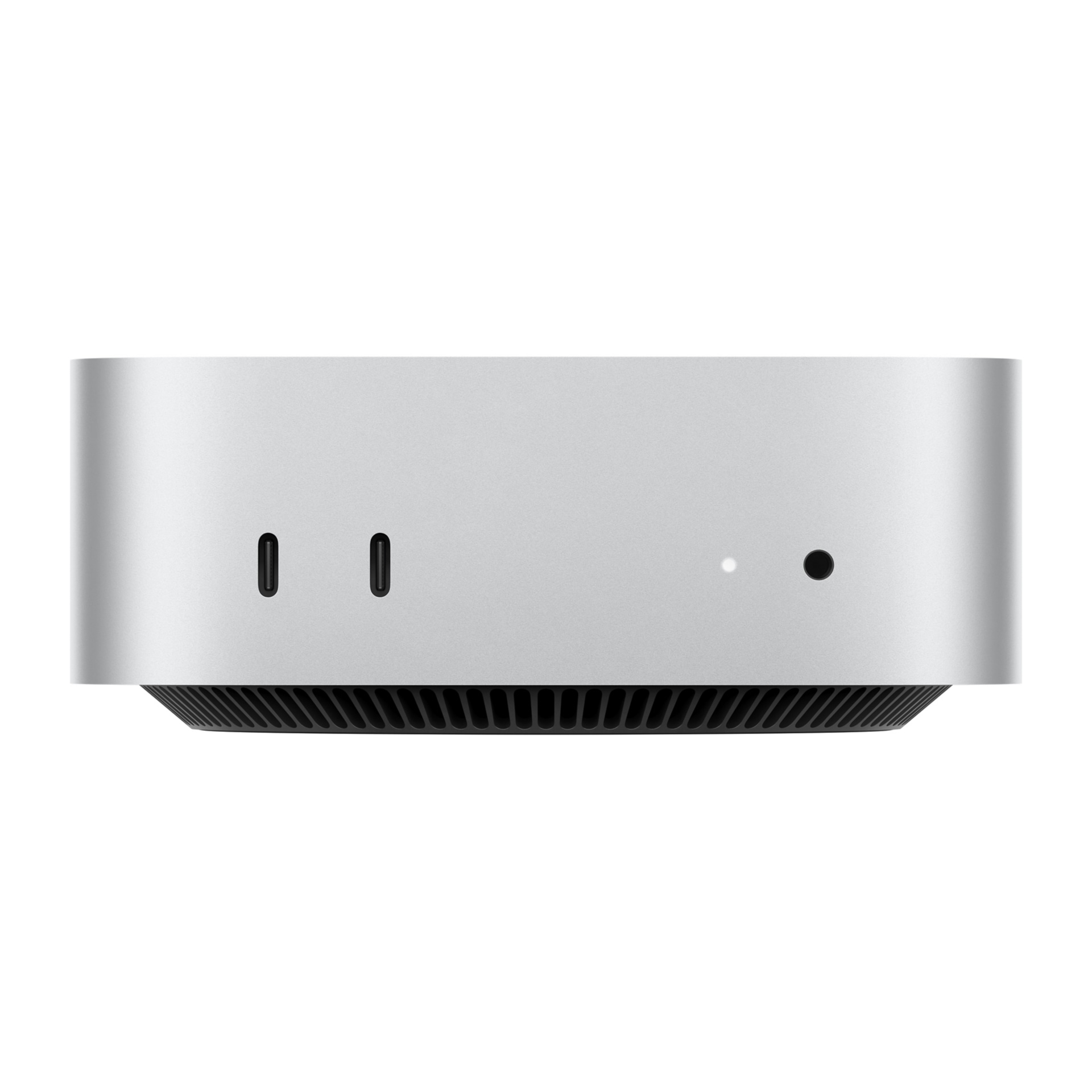
Apple Mac mini M4 Pro 12-core CPU 16-core GPU 64GB unified memory 1TB SSD
Apple
The article recommends this configuration for local LLMs, development and mixed everyday work because it retains the higher tier’s 64GB memory ceiling and 273GB/s bandwidth.
This is the configuration to choose for local LLMs, development and mixed creative work: 64GB determines what can fit, while the 16-core GPU remains fast. Its drawback is roughly 13–22% lower peak GPU performance and two fewer CPU cores than the higher tier.Available at Amazon(paid link) — opens Amazon in a new tab. Price and availability shown there.The alternative
It depends
Apple Mac mini M4 Pro 14-core CPU 20-core GPU 64GB unified memory 1TB SSD
Apple
Choose this configuration only for recurring compute-bound work where roughly 13–22% greater GPU speed matters, since it adds neither memory capacity nor bandwidth.
Choose this configuration for sustained rendering, image generation, long prompt processing or heavily parallel builds. Its drawback is that it retains the same 273GB/s bandwidth and 64GB model-capacity ceiling, so ordinary use will not feel radically different.Available at Amazon(paid link) — opens Amazon in a new tab. Price and availability shown there.
Recommended products
Ordered by how well each one fits the situations above. Each link below is a paid link.
Apple Mac mini M4 Pro 12-core CPU 16-core GPU 64GB unified memory 1TB SSD
Apple
Buy — The article recommends this configuration for local LLMs, development and mixed everyday work because it retains the higher tier’s 64GB memory ceiling and 273GB/s bandwidth.
This is the configuration to choose for local LLMs, development and mixed creative work: 64GB determines what can fit, while the 16-core GPU remains fast. Its drawback is roughly 13–22% lower peak GPU performance and two fewer CPU cores than the higher tier.Available at Amazon(paid link) — opens Amazon in a new tab. Price and availability shown there.Apple Mac mini M4 Pro 14-core CPU 20-core GPU 64GB unified memory 1TB SSD
Apple
It depends — Choose this configuration only for recurring compute-bound work where roughly 13–22% greater GPU speed matters, since it adds neither memory capacity nor bandwidth.
Choose this configuration for sustained rendering, image generation, long prompt processing or heavily parallel builds. Its drawback is that it retains the same 273GB/s bandwidth and 64GB model-capacity ceiling, so ordinary use will not feel radically different.Available at Amazon(paid link) — opens Amazon in a new tab. Price and availability shown there.

Sources
Pages consulted while researching this article. None of these are affiliate links.
- Mac mini (2024) technical specifications — support.apple.com
- Mac mini M4 Pro 12-core benchmarks — browser.geekbench.com
- Mac mini M4 Pro 14-core benchmarks — browser.geekbench.com
- Notebookcheck Apple M4 Pro analysis — notebookcheck.net
- Notebookcheck Mac Mini M4 Pro review — notebookcheck.net
- M4 Pro 16-core GPU local LLM benchmark record — siliconscore.com
- M4 Pro 20-core GPU local LLM benchmark record — siliconscore.com
- MLX unified memory documentation — github.com