Build the Right Mac Mini M4 Video Editing Setup
The questionWhere do these come from?
Help Me, Seriously Confused ! Mac Mini / Macbook / 16gb / 24gb / 13 in / 15 in
I want to get a machine primarily for video editing.
Pair the 16GB/512GB M4 Mac mini with a 2TB external SSD and two directly wired displays for capable 4K editing and OBS within clear limits.
The right setup is the Mac mini M4 with 16GB of unified memory and a 512GB SSD, plus a 2TB USB 3.2 Gen 2 external SSD for active media and two displays connected directly—one through Thunderbolt/USB-C and the other through HDMI. It is a sensible machine for mainstream 4K editing, Photoshop and 1080p OBS streaming, but 16GB becomes the constraint when all those workloads run together.
Apple’s base M4 provides a 10-core CPU, 10-core GPU and hardware acceleration for H.264, HEVC, ProRes and ProRes RAW. The machine also has three rear Thunderbolt 4 ports, two front 10Gbps USB-C ports, HDMI and Gigabit Ethernet. Those connections are sufficient for this setup without an expensive dock. The box contains only the Mac mini and its power lead, so budget desk space for a keyboard, mouse, displays, webcam and microphone where required. Apple’s Mac mini technical specifications document the complete configuration.
The storage split for single-camera 4K editing
Use the internal 512GB SSD for macOS, applications and temporary application data. Put camera originals, Final Cut libraries or Premiere project media, render files and finished exports on the external SSD. This prevents one large project from consuming the system drive and leaves macOS room for application caches and memory swap.
A practical port layout is:
-
Rear Thunderbolt 4 port: main editing display over USB-C, or through a USB-C-to-DisplayPort 1.4 cable.
-
HDMI: second display.
-
Front 10Gbps USB-C port: 2TB working SSD.
-
Gigabit Ethernet: router or network switch, especially when streaming.
-
Remaining ports: card reader, webcam, microphone, capture card or legacy-device hub.
The Samsung T7 Shield 2TB is an appropriate interface match because it uses USB 3.2 Gen 2 at 10Gbps. Samsung specifies maximum sequential speeds of 1,050MB/s read and 1,000MB/s write, although actual speed depends on the cable, workload and drive temperature. Samsung’s T7 Shield specifications provide the exact limits.
For Final Cut Pro, erase the working SSD as APFS in Disk Utility before placing a library on it. Formatting erases everything already on the drive. Apple specifically recommends APFS for Final Cut storage and warns that a Final Cut library cannot live on a drive used for Time Machine. Apple’s Final Cut storage guidance confirms both restrictions.
Then select the library in Final Cut and open File > Library Properties or press Control-Command-J. Choose Modify Settings, place Media and Cache on the external SSD, and place Backups somewhere else. Apple’s library storage-location instructions explain what each location contains.
Start by editing the original footage. If multicamera clips, noise reduction or compressed camera footage cause uneven playback, select the clips and use File > Transcode Media. A 50% ProRes Proxy is a reasonable starting point; H.264 Proxy uses less storage. Before the final export, switch the viewer’s Media Playback option back to Optimized/Original. Apple documents the available proxy formats and sizes in its Final Cut proxy guide.
For Premiere, install the application on the internal SSD and keep active media on the external SSD. Adobe’s current recommendation for Apple silicon is 16GB of unified memory, a fast internal SSD for the application and cache, and an additional high-speed drive for media. Adobe’s Premiere requirements therefore support this layout.
Just want the recommendation?
Skip to the picksHow to configure OBS alongside the editor
Use the native Apple-silicon build of OBS and begin with Tools > Auto-Configuration Wizard. For a predictable manual starting profile, set Settings > Video to a 1920×1080 Base Canvas and 1920×1080 Output Resolution. Use 30fps for talking-head, tutorial and presentation streams; use 60fps only when motion genuinely requires it and the full test stream remains stable.
Under Settings > Output, change Output Mode to Advanced and select the Apple VideoToolbox or Apple VT H264 Hardware Encoder option shown by the installed OBS release. OBS officially supports H.264 streaming through Apple VideoToolbox on Apple-silicon Macs; H.264, HEVC and ProRes are available for recording. Hardware encoding shifts the job away from a software x264 workload. OBS’s hardware-encoding documentation describes that support.
Record to MKV rather than traditional MP4. An interrupted MKV recording remains recoverable, while an unfinished traditional MP4 may be lost. Use File > Remux Recordings afterward, or enable automatic remuxing under Settings > Advanced > Recording, to produce an MP4 for the editor. This is the workflow recommended in the OBS recording guide.
Run a private ten-minute test with the real webcam, microphone, browser tabs, two displays and editing application open. Watch View > Stats in OBS. If rendering lag, encoding lag or dropped frames continue to rise, reduce the output to 1080p30, close unnecessary Chrome tabs and pause background renders. If OBS is recording while the editor reads media from the same SSD, a second recording SSD is the next fix; changing encoder presets cannot remove storage contention.
Connect two editing displays without a dock
Connect displays directly rather than buying a dock solely for video output. Apple currently supports two 4K displays at up to 144Hz in a supported two-display configuration, so two ordinary 4K60 panels are comfortably inside the M4 Mac mini’s published limits. The machine can support as many as three external displays, subject to each display’s resolution, refresh rate and connection. Apple’s current display-support table lists the permitted combinations.
Use the color-accurate panel as the main editing display and the second for bins, scopes, OBS controls, chat and browser windows. In System Settings > Displays, arrange their physical positions, mark the editing panel as the main display and confirm that both are running at 60Hz or their intended refresh rate.
For SDR YouTube and general client work, use the monitor’s calibrated Rec.709 or sRGB mode and leave macOS HDR disabled. The ASUS ProArt PA279CRV is a suitable example: it is a 27-inch 3840×2160 IPS display with 60Hz refresh, Rec.709 and sRGB presets, 99% DCI-P3 coverage and USB-C, DisplayPort and HDMI inputs. ASUS’s PA279CRV specifications supply those figures. Its DisplayHDR 400 rating does not make it a reference HDR mastering monitor; paid HDR delivery requires appropriate monitoring and calibration hardware.
Mac mini versus MacBook Air before portability
These are the relevant configurations before portability or desk space enters the decision:
| Exact option | CPU / GPU cores | Display support | Wired connections |
|---|---|---|---|
| Mac mini M4, 16GB/512GB | 10 / 10 | Up to three external displays | 3× Thunderbolt 4, 2× 10Gbps USB-C, HDMI, Gigabit Ethernet, 3.5mm |
| 13-inch MacBook Air M4, 16GB/512GB, 8-core GPU | 10 / 8 | Built-in display plus up to two external 6K60 displays | 2× Thunderbolt 4, MagSafe 3, 3.5mm |
| 13-inch MacBook Air M4, 16GB/512GB, 10-core GPU | 10 / 10 | Built-in display plus up to two external 6K60 displays | 2× Thunderbolt 4, MagSafe 3, 3.5mm |
The Mac mini is the cleaner editing choice when the computer will remain on a desk and displays and input devices are already available. It supplies the 10-core GPU, dedicated HDMI and Ethernet, and enough ports to keep storage, displays and capture equipment connected independently.
Choose the MacBook Air instead when the integrated screen, keyboard, trackpad, camera and battery are essential. The 10-core-GPU Air matches the mini’s core counts on paper, but it still provides only two Thunderbolt ports. Apple’s 13-inch M4 MacBook Air specifications confirm the two GPU configurations, ports and external-display support.
Where more than 16GB earns its price
Sixteen gigabytes is not below the published recommendations: Adobe recommends 16GB or more for Photoshop on macOS, and Photoshop’s current technical requirements explicitly favor Apple silicon. It is nevertheless shared by the editor, GPU, OBS, Photoshop, Chrome and macOS.
Open Activity Monitor > Memory and repeat the heaviest real workflow during the seller’s return window. Occasional swap is not automatically a failure. Memory Pressure that repeatedly remains yellow or red, applications reloading when switched, or severe slowdowns once OBS and Photoshop open are evidence that 16GB is too tight for that workflow.
If the purchase is not final, choose 24GB or 32GB unified memory for daily simultaneous editing, streaming, Photoshop and large browser sessions. Move to M4 Pro when the regular workload includes complex 4K multicamera timelines, 6K or 8K sources, After Effects or Fusion compositions, temporal noise reduction and export time that directly affects paid work. Proxies can reduce playback pressure, but they cannot create more memory or accelerate every effect.
Finally, the working SSD is not a backup. Final Cut’s automatic library backups contain the library database, not the original media. Copy source footage, project files and completed exports to a separate physical disk, such as an 8TB desktop backup drive, and keep another copy off-site or in suitable cloud storage. A WD My Book 8TB is appropriate for backup and archive duty, but its mechanical disk is not the drive to edit active 4K media from.
The bottom line
Either works — what you already have picks one:
Top pick
Buy this
ASUS ProArt PA279CRV 27 Inch 4K UHD USB-C HDR Professional Monitor for Mac
ASUS
The article recommends this 27-inch 4K60 monitor for SDR editing, with Rec.709 and sRGB presets and 99% DCI-P3 coverage.
This is a color-focused 4K main editing display with Rec.709, sRGB and wide-gamut presets, plus USB-C connectivity. Its 60Hz panel and DisplayHDR 400 certification are unsuitable for high-refresh work or reference HDR mastering.Available at Amazon(paid link) — opens Amazon in a new tab. Price and availability shown there.The alternative
Buy this
Western Digital 8TB My Book Desktop External Hard Drive, USB 3.0, External HDD with Password Protection and Backup Software - WDBBGB0080HBK-NESN
Western Digital
The article recommends this separate physical drive for Time Machine, media backups and completed-project archives, while reserving active 4K editing for an SSD.
Use this separate physical drive for Time Machine, source-media backups and completed-project archives. It requires external power and is a mechanical hard drive, so it should not serve as the active 4K editing disk.Available at Amazon(paid link) — opens Amazon in a new tab. Price and availability shown there.
Recommended products
Ordered by how well each one fits the situations above. Each link below is a paid link.
ASUS ProArt PA279CRV 27 Inch 4K UHD USB-C HDR Professional Monitor for Mac
ASUS
Buy — The article recommends this 27-inch 4K60 monitor for SDR editing, with Rec.709 and sRGB presets and 99% DCI-P3 coverage.
This is a color-focused 4K main editing display with Rec.709, sRGB and wide-gamut presets, plus USB-C connectivity. Its 60Hz panel and DisplayHDR 400 certification are unsuitable for high-refresh work or reference HDR mastering.Available at Amazon(paid link) — opens Amazon in a new tab. Price and availability shown there.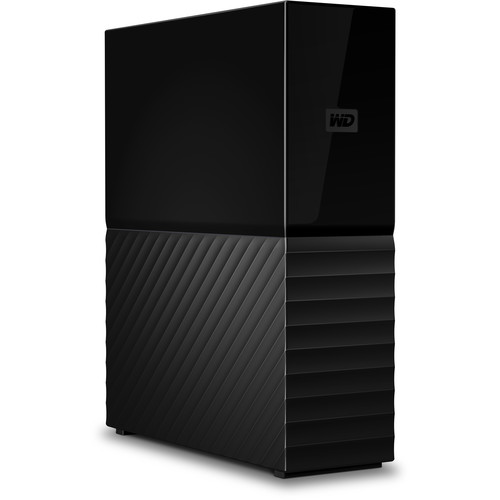
Western Digital 8TB My Book Desktop External Hard Drive, USB 3.0, External HDD with Password Protection and Backup Software - WDBBGB0080HBK-NESN
Western Digital
Buy — The article recommends this separate physical drive for Time Machine, media backups and completed-project archives, while reserving active 4K editing for an SSD.
Use this separate physical drive for Time Machine, source-media backups and completed-project archives. It requires external power and is a mechanical hard drive, so it should not serve as the active 4K editing disk.Available at Amazon(paid link) — opens Amazon in a new tab. Price and availability shown there.
Sources
Pages consulted while researching this article. None of these are affiliate links.
- Mac mini (2024) — Technical Specifications — support.apple.com
- How Many Displays Can Be Connected to Mac mini — support.apple.com
- Samsung Portable SSD T7 Shield USB 3.2 Gen 2 2TB — samsung.com
- Format Storage Devices for Final Cut Pro, Motion, and Compressor — support.apple.com
- Set Storage Locations in Final Cut Pro for Mac — support.apple.com
- Create Optimized and Proxy Files in Final Cut Pro — support.apple.com
- OBS Hardware Encoding — obsproject.com
- OBS Standard Recording Output Guide — obsproject.com