Xiaomi Pad 7 Pro Wi-Fi Problems: Fix It Step by Step
The questionWhere do these come from?
Budget tablet for gaming and school works
Im looking for a budget tablet thats around 300-350usd The specs that i like is •11” display or around that •atleast 144hz refresh rate •can support 8gb + 250something storage (i think all tablets has these specs for ram and storage but ill still keep it here) •has a good processor probably that has the same or similar power of a snapdragon 7+ gen 3 or an 8 gen snapdragon, pretty much a solid processor for gaming that has low problem with thermal throttling under load •this is optional but i would like to have: a desktop mode •solid battery that doesnt easily get drained under load/ even small Watt-hour but has high charge speed is still ok •A somewhat good tablet for drawing/taking notes •Has a nice display, good for watching yt and stuffs •fairly future proof I was leaning towards the lenovo xiaoxin pad gt pro but saw that some app have a translation issue And also leaning towards xiaomi pad 8 but it has a lack of other functions such as fingerprint scanner and such quality of life functions and i also heard that theyre not really good in terms of longevity.
Test a phone hotspot first: one-network failures point to the router, while all-network failures after a reset justify support or return.
Test the Xiaomi Pad 7 Pro on a phone hotspot before anything else. A connection that works there but fails on your regular Wi-Fi points to the router; a tablet that fails on every network, even a phone hotspot, after a reset and the official HyperOS update needs support or a return. Xiaomi does not identify one universal Pad 7 Pro Wi-Fi defect or a single firmware build that fixes every case, so the steps below are ordered to isolate which part of the connection is actually broken before you touch a setting.
Step 1: Run the two-network test
Restart the tablet, then try your normal Wi-Fi while standing close to the router. Next, enable a hotspot on a phone and connect the Pad 7 Pro to it. If the phone permits choosing a hotspot band, test both 2.4GHz and 5GHz.
| Test result | Fault most likely lies with | Next action |
|---|---|---|
| Phone hotspot works; home Wi-Fi fails | Home router configuration or interoperability | Test separate 2.4GHz and 5GHz networks |
| Pad and other devices all lose internet | Router, modem, or internet service | Restart the network equipment and contact the ISP if needed |
| Browsing works; one game or app lags | App server, VPN, routing, or latency | Compare that app on the hotspot and home network |
| Home Wi-Fi and phone hotspot both fail | Tablet settings, software, or Wi-Fi hardware | Reset networking, update HyperOS, then seek service |
This test matters more than repeatedly re-entering the password, because it tells you which of the next steps to run. Google’s Android guidance similarly uses another device and another connection to separate a device fault from a network fault, and recommends restarting a home router by disconnecting its power for 30 seconds, then reconnecting it and letting it start fully. Google’s Android connection troubleshooting documents that sequence.
If another recent computer also refuses the same router, the router-isolation checks for a MacBook that will not join Wi-Fi confirm whether the shared network is the problem before you go further.
Step 2: Fix a network that’s missing or rejects the password
The Pad 7 Pro officially supports both 2.4GHz and 5GHz Wi-Fi, plus Wi-Fi 6, Wi-Fi 6E, and Wi-Fi 7 where regional regulations and the local network permit them, so failing to see an ordinary 2.4GHz or 5GHz network is not a basic model limitation. Xiaomi’s Pad 7 Pro FAQ confirms those supported bands and standards. Work through these router checks one at a time:
- Open Settings > Wi-Fi and refresh the network list.
- Confirm that the router broadcasts its SSID rather than hiding it.
- Temporarily give the 2.4GHz and 5GHz bands different names, then test each one separately.
- Confirm that DHCP is enabled on the router. Xiaomi says its tablets use DHCP by default.
- Update the router through its official administration interface or app.
- For a compatibility test, use WPA2-Personal with AES. Do not use an open network, WEP, or obsolete WPA security.
- If a Wi-Fi 7 router exposes an MLO network, try its normal non-MLO 2.4GHz or 5GHz SSID. Xiaomi advertises 2.4GHz-plus-5GHz MLO on the tablet, but an MLO-only failure can still be router interoperability rather than a dead Wi-Fi radio.
Xiaomi’s tablet troubleshooting also suggests using a simple English SSID and checking DHCP before escalating the device for service. Xiaomi’s cannot-connect or disconnect guidance lists those checks. Do not leave the router on weaker security merely to accommodate the tablet: if WPA2 works but the router’s WPA2/WPA3 mixed mode does not, update the router first, and if the incompatibility remains, use WPA2-AES temporarily or replace the router — not an unsecured network.
Step 3: Fix “connected” with no internet
Open Settings > Wi-Fi, tap the arrow beside the connected network, and set Proxy to None unless a school or employer explicitly supplied proxy details. Xiaomi identifies an unwanted proxy as a direct cause of a connected-without-internet state. Xiaomi’s connected-without-internet instructions give this exact path.
Then forget the network and rejoin it with the password. If a custom Private DNS hostname was previously entered, search Settings for Private DNS and return it to Automatic. Google recommends leaving Private DNS enabled when possible, since a mistyped custom hostname can prevent name resolution. Android’s advanced network settings guide explains the Automatic and provider-hostname options.
Temporarily disconnect VPNs and disable third-party ad blockers, firewalls, or network-optimization apps. Remove only apps you recognize; do not install a random “Wi-Fi repair” APK. If normal access returns, re-enable the apps individually to find the conflict. If that changes nothing, reset the wireless configuration through Settings > More connectivity options > Reset Wi-Fi and Bluetooth > Reset settings. This removes saved wireless configurations, so have Wi-Fi passwords available and expect to pair Bluetooth accessories again. Xiaomi documents that menu path in its tablet Wi-Fi and Bluetooth reset instructions.
Just want the recommendation?
Skip to the picksStep 4: Fix school or work Wi-Fi that fails while home Wi-Fi works
A working home connection and phone hotspot largely rule out defective Wi-Fi hardware. School and workplace networks can instead require a captive-portal login, an approved device address, or specific 802.1X credentials.
Forget the school network, reconnect, and open a normal browser page to trigger its login portal. If the network asks for EAP method, domain, identity, or a certificate, obtain the exact values from IT rather than guessing them. Do not choose an option that disables certificate validation merely to make the connection succeed; that can expose credentials to an impersonated access point.
If the network registers devices by MAC address, open the network’s details and provide its randomized MAC address to the administrator. Android 10 and later can use a separate randomized address for each network, and Google documents where to find it in the connected network’s settings. Do not disable MAC randomization unless the administrator confirms the network specifically requires the tablet’s device MAC.
Step 5: Fix stuttering or disconnects that only happen in games
If web pages, downloads, and video calls all remain stable, Wi-Fi association is probably working, and a game is more likely suffering from latency, packet loss, its own servers, or the route used by the internet provider.
Run the same game on the home network and the phone hotspot from the same location. If only the home connection stutters, test the router’s 5GHz network without MLO or band steering. If both connections stutter while other apps remain normal, reinstall or update the game and check its service status before resetting the tablet. If the tablet displays Settings > Wi-Fi > Network acceleration, test once with network switching or parallel acceleration disabled — the exact options differ between HyperOS releases, so do not assume the menu must be present. A speed test showing high throughput does not rule out brief packet loss or latency spikes that affect real-time games.
Step 6: Update, document, and decide on service before you return it
Install only the official update offered under Settings > About tablet > Xiaomi HyperOS > Check for updates; Xiaomi uses that path for HyperOS tablet updates. Do not flash a firmware package from another region or unlock the bootloader as a Wi-Fi repair attempt — Xiaomi’s published Wi-Fi capabilities vary by region, and unofficial flashing can complicate both security updates and warranty service. Xiaomi’s HyperOS update instructions show the official update route.
Before contacting support or arranging an exchange, record:
- The complete HyperOS build shown under About tablet.
- Whether 2.4GHz, 5GHz, and a phone hotspot were tested.
- Whether the Wi-Fi toggle works and whether any nearby SSIDs appear.
- Whether the fault remained after Reset Wi-Fi and Bluetooth.
- A short screen recording or video showing the failure.
A factory reset is the final software test, not the first one. Back up notes, school files, photos, and authenticator recovery information, then use Settings > About tablet > Factory reset > Erase all data, and test Wi-Fi immediately after setup, before restoring third-party apps.
Return the tablet or use an authorized service center if the Wi-Fi toggle is unavailable, no networks appear beside two working access points, or both a home network and phone hotspot still fail after the reset and official update. Xiaomi’s own tablet guidance recommends after-sales inspection when those software and router checks do not resolve the fault. Because the Pad 7 Pro has no cellular-network fallback, persistent all-network failure is unacceptable for gaming, school work, notes, or long-term daily use.
The bottom line
What to replace:
Top pick
Buy this
Xiaomi Pad 7 Pro
Xiaomi
The Pad 7 Pro supports both 2.4GHz and 5GHz Wi-Fi, and the article identifies no universal model defect, recommending troubleshooting before service or return.
Available at Amazon(paid link) — opens Amazon in a new tab. Price and availability shown there.
Recommended products
Ordered by how well each one fits the situations above. Each link below is a paid link.
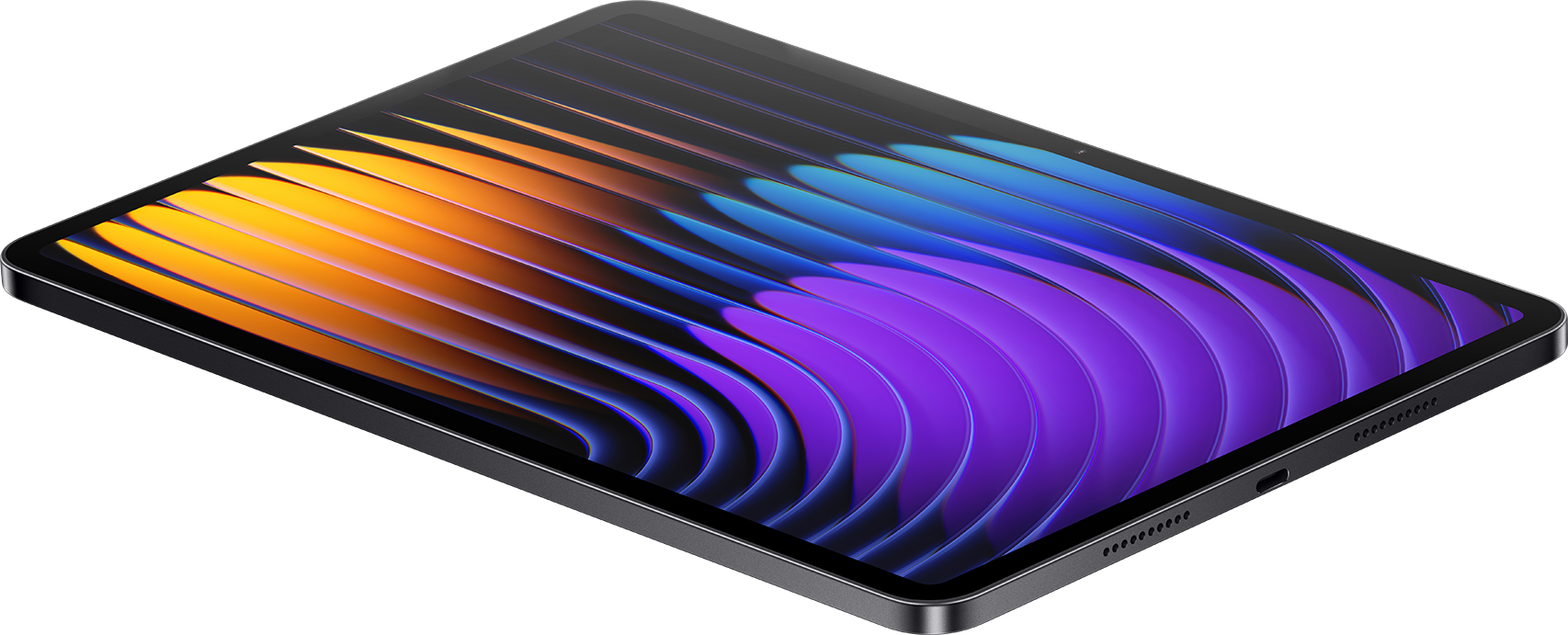
Xiaomi Pad 7 Pro
Xiaomi
Buy — The Pad 7 Pro supports both 2.4GHz and 5GHz Wi-Fi, and the article identifies no universal model defect, recommending troubleshooting before service or return.
Available at Amazon(paid link) — opens Amazon in a new tab. Price and availability shown there.
Sources
Pages consulted while researching this article. None of these are affiliate links.
- Xiaomi Pad 7 Pro review – Notebookcheck — notebookcheck.net
- Wi-Fi and your home layout – Microsoft Support — support.microsoft.com
- Captive portal detection – Mozilla Support — support.mozilla.org
- Recommendation for EAP Methods Used in Wireless Network Access Authentication – NIST — nist.gov
- Xiaomi Pad 7 Pro FAQ — mi.com
- The Xiaomi pad cannot connect to Wi-Fi or frequently disconnects — mi.com
- Why is the Xiaomi phone connected to Wi-Fi but cannot access the internet? — mi.com
- How to reset Wi-Fi and Bluetooth on the REDMI Pad Pro? — mi.com
- How to update the system of a Xiaomi HyperOS tablet manually — mi.com
- Fix internet connection problems on Android devices — support.google.com
- Manage advanced network settings on Android — support.google.com