MacBook Pro M5 Won’t Join Wi-Fi? Start Here
The questionWhere do these come from?
M5 Pro chip over Pro M5
I’m ahead of a big decision. Currently I use an M1Air (8/256)i got from my parents 3 years ago for university. I created an app with it (vibe coded) and I loved every second of that.
Forget and rejoin the network, test a phone hotspot, then use the result to decide whether to fix the router or send the Mac for service.
The MacBook Pro M5 Pro should connect to normal WPA2 and WPA3 networks. Start by forgetting and rejoining the network, then test a phone hotspot: if the hotspot works, fix the original router; if every network fails, update macOS and test the Mac in Safe Mode before contacting Apple.
Do not erase the Mac, delete system configuration files, or download third-party Wi-Fi drivers as a first response. Those steps can create a second problem without identifying whether the fault is in the Mac or the network.
| What happens | Hotspot result | What it points to | Next move |
|---|---|---|---|
| Home Wi-Fi will not join | Hotspot works | Home router authentication or configuration | Check the router settings below |
| Wi-Fi joins but has no internet | Hotspot works normally | DHCP, VPN, DNS, router, or ISP problem | Renew DHCP and inspect network software |
| No networks appear | Hotspot also does not appear | macOS or wireless hardware problem | Update, use Safe Mode, then run diagnostics |
| Every network rejects the Mac | Hotspot also fails | Mac-specific software or hardware fault | Run Apple Diagnostics and contact Apple |
The first fixes for a network that will not join
First turn Wi-Fi off and back on from Control Center, then restart the Mac. If it still rejects the network or repeatedly asks for the password, remove the saved network credentials:
- Open Apple menu > System Settings > Wi-Fi.
- Click Details next to the affected network.
- Click Forget This Network.
- Select the network again and enter its case-sensitive password.
These are Apple’s documented steps for resetting a saved Wi-Fi network. Forgetting the network is preferable to deleting files from /Library/Preferences/SystemConfiguration, an old troubleshooting method that is unnecessarily broad on a new Mac.
If the router admits devices through a MAC-address allowlist, the Mac’s private address may be rejected. On macOS Sequoia 15 or later, open System Settings > Wi-Fi > Details > Private Wi-Fi Address and choose Fixed. Use Off only when the administrator specifically requires the Mac’s hardware address; disabling it reduces privacy. Apple explains the Fixed, Rotating, and Off modes in its private Wi-Fi address documentation.
For company or university Wi-Fi using 802.1X, certificates, device enrollment, WPA Enterprise, or a configuration profile, the network administrator must supply the correct profile. A personal-router reset cannot repair an expired organizational certificate.
What a connected Wi-Fi icon does not prove
A connected Wi-Fi icon only confirms that the Mac has joined the access point. It does not prove that the router has internet access.
Check another device on the same network first. If that device also fails, restart the modem and router and check for an ISP outage. If other devices work, restart the Mac and renew its address:
- Open System Settings > Network.
- Select Wi-Fi, then click Details.
- Open TCP/IP.
- Click Renew DHCP Lease, then OK.
Also open System Settings > General > Date & Time and enable automatic time. An incorrect clock can make secure websites and sign-in services fail even though Wi-Fi is connected.
Temporarily pause any VPN, third-party firewall, antivirus network filter, parental-control utility, or content blocker. Apple confirms that software interacting with network traffic can prevent both internet and local-network connections. Search System Settings for VPN, profile, firewall, and filter if the responsible software is not obvious; on an employer-managed Mac, ask the administrator before removing anything. See Apple’s network-filter and VPN guidance for the affected software categories.
For a built-in report, hold Option while clicking the Wi-Fi icon in the menu bar and select Open Wireless Diagnostics. Apple also recommends checking the Wi-Fi menu for Wi-Fi Recommendations. These tools are most useful after attempting to join the failing network, not while connected to an unrelated hotspot. Apple’s broader Mac Wi-Fi troubleshooting sequence covers DHCP renewal, router checks, updates, and Wireless Diagnostics.
A home-only failure points to the router
The M5 Pro model uses Apple’s N1 wireless networking chip and supports Wi-Fi 7 (802.11be), according to the official MacBook Pro specifications. It does not require a Wi-Fi 7 router, but an older router using obsolete security or restricted radio modes can still reject it.
Just want the recommendation?
Skip to the picksUse these settings on every access point and every band:
| Router setting | Use | Avoid |
|---|---|---|
| Security | WPA3 Personal or WPA2/WPA3 Transitional | WPA/WPA2 mixed, WEP, or TKIP |
| Network name | One unique SSID shared by all bands | Different SSIDs for 2.4, 5, and 6 GHz |
| Radio mode | All modes, or Wi-Fi 2 through Wi-Fi 6 or later | A legacy-only or single-standard mode |
| Channel width | 20 MHz on 2.4 GHz; Auto or all widths on 5/6 GHz | 40 MHz on 2.4 GHz |
| DHCP | Enabled on one router only | Two active DHCP servers |
Set channel selection to Auto, enable every supported band, enable WMM, and install the latest firmware offered for the exact router model and hardware revision. There is no universal router firmware number: it must come from the router manufacturer or ISP. Apple publishes these exact values in its recommended router settings.
Do not test by disabling Wi-Fi security. An open network creates a real security risk and does not reliably identify which secure setting was incompatible. WPA2 Personal with AES is the acceptable fallback when WPA3 or transitional mode is unavailable.
Hotel, airport, and guest networks add another possibility: the Mac may have joined Wi-Fi but still be waiting for a captive-portal login. Open a new browser window and visit a normal non-sensitive website to trigger the portal. If the login page never appears, ask the venue to clear the device registration or provide its support process.
Every network failing points back to the Mac
Use Ethernet or another working connection to open System Settings > General > Software Update and install the latest non-beta macOS update offered for this Mac. An Ethernet adapter is useful here because it provides both a temporary connection and a clean test of whether only the wireless interface is affected.
Next, test Safe Mode:
- Shut down the Mac completely.
- Hold the power/Touch ID button until the startup volumes and Options appear.
- Select the startup volume.
- Hold Shift, then click Continue in Safe Mode.
Those are Apple’s Safe Mode steps for Apple silicon. If Wi-Fi works in Safe Mode, the hardware is capable of connecting and a login item, VPN, content filter, or other startup software is the stronger suspect. Restart normally and disable recently added networking software one item at a time.
If Safe Mode also fails on two independent networks, run Apple Diagnostics. Shut down, disconnect accessories except power and permitted input/display devices, hold the power button until Options appears, then hold Command-D until the Mac restarts. Apple Diagnostics may offer an offline run or ask for Ethernet when Wi-Fi is unavailable. Record every reference code shown; Apple’s Diagnostics instructions state that unresolved codes can require service.
What to check before returning the Mac
A return or service appointment is justified when all four conditions are true:
- The Mac fails on at least two independent networks, including a phone hotspot.
- The current macOS update has been installed.
- Wi-Fi still fails in Safe Mode.
- Apple Diagnostics reports a reference code, or Wi-Fi remains unavailable despite diagnostics finding no fault.
Contact Apple even without a diagnostic code if no networks appear in normal mode, Safe Mode, or startup diagnostics. Software diagnostics cannot rule out every intermittent antenna, logic-board, or N1 networking fault.
If the Mac connects to a hotspot but not one particular router, exchanging it is unlikely to solve the underlying router configuration. Conversely, a brand-new Mac that fails everywhere should not be subjected to repeated erases or an unofficial repair before Apple has documented the case.
The 24GB memory configuration is unrelated to Wi-Fi association. Choosing M5 Pro over the regular M5 for Xcode, simulators, local AI tools, and long ownership is a separate performance and memory decision; the M5 MacBook Pro RAM choice guide addresses that trade-off. A defective wireless subsystem is a support issue, not evidence that the M5 Pro chip choice was unjustified.
The bottom line
The fix, in one part:
Top pick
Buy this
Belkin USB-C to Ethernet Adapter,Gigabit Ethernet Port Compatible for MacBook Pro & Dell XPS 13” Laptops, Pack of 6
Belkin
An Ethernet adapter provides a temporary wired connection for installing macOS updates and testing whether only the wireless interface is affected.
This provides a wired connection for installing macOS updates and determining whether only Wi-Fi is failing. Its drawback is that it occupies one USB-C/Thunderbolt port and still requires an Ethernet cable and accessible router port.Available at Amazon(paid link) — opens Amazon in a new tab. Price and availability shown there.
Recommended products
Ordered by how well each one fits the situations above. Each link below is a paid link.
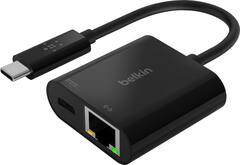
Belkin USB-C to Ethernet Adapter,Gigabit Ethernet Port Compatible for MacBook Pro & Dell XPS 13” Laptops, Pack of 6
Belkin
Buy — An Ethernet adapter provides a temporary wired connection for installing macOS updates and testing whether only the wireless interface is affected.
This provides a wired connection for installing macOS updates and determining whether only Wi-Fi is failing. Its drawback is that it occupies one USB-C/Thunderbolt port and still requires an Ethernet cable and accessible router port.Available at Amazon(paid link) — opens Amazon in a new tab. Price and availability shown there.
Sources
Pages consulted while researching this article. None of these are affiliate links.
- Security Guidance for First Responder Mobile and Wearable Devices — NIST IR 8235 — nvlpubs.nist.gov
- Configure 802.1X Authentication with PEAP, ISE and WLC — Cisco — cisco.com
- Troubleshoot Time-Related Errors on Secure Websites — Mozilla Support — support.mozilla.org
- RFC 2131: Dynamic Host Configuration Protocol — IETF — datatracker.ietf.org
- MacBook Pro - Tech Specs - Apple — apple.com
- If your Mac isn't connecting to the internet over Wi-Fi - Apple Support — support.apple.com
- Reset or remove Wi-Fi network settings on Mac - Apple Support — support.apple.com
- Recommended settings for Wi-Fi routers and access points - Apple Support — support.apple.com
- Use private Wi-Fi addresses on Apple devices - Apple Support — support.apple.com
- If your device has network connectivity issues, check for VPN and other third-party security software - Apple Support — support.apple.com
- Use macOS Recovery on a Mac with Apple silicon - Apple Support — support.apple.com
- Use Apple Diagnostics to test your Mac - Apple Support — support.apple.com