Best PC Upgrade for Multitasking
The questionWhere do these come from?
PC constantly lags and sometimes crashes under heavy multitasking — new build? What should I get?
For Docker, WSL, browser automation and editing freezes, upgrade to NVMe storage and 64GB RAM before buying a full new PC.
You probably do not need a whole new PC first. For the exact freeze pattern you describe, the right first move is a fast NVMe SSD for the active work drive and enough RAM that Windows, WSL, Docker, browser automation, and your editor are not fighting over the page file.
If your current machine still has a usable 6-core or 8-core CPU from the last several years, replacing the HDD workflow is the big fix. If the PC has only 16GB RAM, a hard drive holding projects, Docker images, caches, browser profiles, or media files, and Task Manager shows disk active time pinned near 100%, a new tower will feel better mostly because it comes with the same two things you can add yourself: SSD storage and more memory.
The Freeze Is Probably Storage Plus RAM
Heavy multitasking on a developer and creator PC is not just “lots of apps open.” It is a nasty mix of small random reads and writes: Docker layers, WSL virtual disks, node_modules, browser automation profiles, editor indexes, temp render files, Windows Defender scans, logs, and swap. A mechanical HDD is terrible at that workload even when its raw capacity looks fine.
The giveaway is HDD active time. If Task Manager shows the HDD at high active time while read and write throughput looks unimpressive, the drive is not “busy because it is fast.” It is waiting on seeks. Your mouse freezes, apps gray out, video stutters, and Windows looks broken because everything is waiting on storage.
RAM pressure turns that from annoying into crashes. Once memory fills, Windows pushes more data to disk. If that disk is an HDD, your overloaded RAM problem becomes an overloaded HDD problem too. WSL can make this worse because WSL 2 has its own VM behavior; Microsoft documents .wslconfig controls for WSL 2 memory, processors, and swap, and its default memory behavior can take a large chunk of host RAM if you do not manage it.
What To Check Before You Buy
Open Task Manager while the machine is doing the thing that hurts: Docker running, WSL open, browser automation active, editor open, and an export or edit task in progress. Do not test with the desktop idle.
Watch these three numbers:
| Symptom under your real workload | What it means | First fix |
|---|---|---|
| HDD active time near 100% | Random I/O bottleneck | Move OS, projects, WSL, Docker, and scratch files to NVMe |
| Memory committed near or above installed RAM | Windows is leaning on swap | Upgrade to 64GB RAM |
| CPU pinned at 100% while disk is calm | Processor is the wall | Consider a new platform |
| GPU load or VRAM maxed during editing | Editing/render path is GPU-bound | GPU or new build may matter |
For your use case, storage and RAM should be judged before CPU. A slow CPU makes jobs take longer. A hard drive plus memory pressure makes the whole machine stop responding.
Buy A New Build Only If The Platform Is Already Too Old
A full new build makes sense if your motherboard cannot take an NVMe M.2 drive, cannot reasonably reach 64GB RAM, or is stuck on a very old quad-core CPU. It also makes sense if the crashes are not just freezes but hard power-offs, black screens, USB dropouts, or POST failures. Those point toward PSU, motherboard, RAM stability, thermals, or GPU problems, not just “too many tabs.”
If the system is otherwise stable, keep the case, PSU, GPU, and CPU for now and do the boring upgrade. Put Windows and your active work on SSD. Put Docker Desktop’s disk image, WSL distro storage, source repos, browser automation profiles, editing cache, and active footage on SSD too. Leave the HDD for archives, installers, raw backups, and media you are not actively editing.
Do not buy a tiny boot SSD and keep the pain on the HDD. A 500GB boot drive fills quickly with developer tools. For this workload, 2TB is the practical floor; 4TB is better if you keep video projects, many containers, game installs, or multiple browser automation environments.
Just want the recommendation?
Skip to the picksIf you also need a monitor for coding or editing after the PC stops freezing, this is the point where display choice matters; the same site has a separate piece on why a 32-inch 4K IPS monitor works unless the desk is shallow. It is not the fix for lag, though. Storage and RAM come first.
The Upgrade Target That Makes Sense
Aim for this baseline:
- 64GB RAM, using a matched 2 x 32GB kit if your board has two or four slots.
- A 2TB or 4TB NVMe M.2 SSD, preferably PCIe 4.0 if your board supports it.
- Keep at least one larger HDD only for cold storage and backups.
- Clean Windows install only if the current install is damaged or bloated beyond repair.
- Set WSL/Docker limits after the hardware upgrade so one VM stack does not eat the whole system.
DDR4 and DDR5 are not interchangeable. Check your motherboard model before buying RAM. If the board is DDR4, get a DDR4 kit. If it is AM5 or a newer Intel DDR5 board, get DDR5. Do not mix old and new kits unless you enjoy chasing random memory instability.
The bad part: RAM upgrades can expose weak memory settings. If XMP or EXPO causes crashes, run the kit at JEDEC/default speed first, update BIOS, then try the rated profile. Capacity matters more than squeezing the last bit of memory frequency out of this kind of PC.
When A Prebuilt Workstation Is The Better Answer
If your current board cannot take the upgrade cleanly, buy a normal tower workstation or creator desktop with 64GB RAM and at least 2TB NVMe from the start. Avoid “gaming PC” configurations that spend most of the budget on RGB and a GPU while shipping with 16GB RAM and a small SSD. That repeats your current bottleneck with a nicer case.
For Docker, WSL, browser automation, and editing, the better new-machine spec is boring: modern 8-core or better CPU, 64GB RAM, 2TB NVMe minimum, room for a second SSD, and a quality PSU. A GPU matters if your editing app uses GPU acceleration heavily or you work with effects, 3D, AI tools, or high-resolution timelines. It is secondary for container builds, IDE indexing, web automation, and general multitasking.
Workstation towers such as Lenovo’s ThinkStation P3 line and Dell’s Precision tower line are useful reference points because their published configurations support high RAM ceilings and multiple storage options. They are not automatically the best buy for everyone, but they show the kind of spec sheet you should be looking for: expandable memory, real M.2 storage, and standard ports rather than a cramped mini PC with soldered RAM.
What To Get First
The best first buy is a 4TB WD_BLACK SN850X if your board has an M.2 slot and you want one drive large enough for Windows, WSL, Docker, source repos, caches, and active editing files. It is overkill for a pure office PC, but your workload is not pure office work. The downside is heat: use the motherboard heatsink or buy the heatsink version if your board does not provide one.
If you want a smaller SSD upgrade, the Samsung 990 EVO Plus 2TB is the cleaner middle ground. It is fast enough that the HDD bottleneck disappears, but you need discipline: keep active projects and VM/container data on it, not just Windows.
Then buy the right 64GB RAM kit for your motherboard. DDR5 users should look at a plain 2 x 32GB Crucial Pro DDR5 kit. DDR4 users should look at the Corsair Vengeance LPX 2 x 32GB kit because it is low-profile and boring in the right way. The catch with both is compatibility: check the motherboard memory support list, update BIOS if needed, and test with MemTest86 or Windows Memory Diagnostic before trusting the machine with work.
Only after those two upgrades should you decide whether the whole PC is done. If the freezes are gone but exports are still slow, then you have a CPU/GPU performance problem. If the freezes remain even with RAM headroom and SSD active time under control, stop buying speed parts and diagnose stability: PSU, thermals, motherboard, event logs, and memory errors.
The bottom line
Which part you need depends on what broke:
Top pick
Buy this
WD_BLACK SN850X 4TB NVMe SSD - M.2 2280, Up to 7,300 MB/s Read speeds, Up to 6,300 MB/s write speeds, Gaming Expansion, High Performance Internal Solid State Drive - WDS400T2X0E
WD
The article names the 4TB SN850X as the best first upgrade for keeping Windows, containers, projects, and editing files on one SSD, with a heatsink required.
Best first upgrade if your motherboard has an M.2 slot and your active work includes Docker images, WSL disks, browser automation profiles, editing cache, and large projects. It is fast and roomy, but you should use a heatsink or motherboard M.2 cover.Available at Amazon(paid link) — opens Amazon in a new tab. Price and availability shown there.The alternative
Buy this
Samsung SSD 990 EVO Plus 2TB, PCIe Gen 4x4 | 5x2 M.2 2280, Up to 7,250 MB/s
Samsung
The article recommends the 2TB 990 EVO Plus as a smaller upgrade that removes the HDD bottleneck when active projects and VM data are stored on it.
A sensible 2TB NVMe option if you want to move Windows, projects, WSL, Docker, and scratch files off the HDD without jumping straight to a 4TB drive.Available at Amazon(paid link) — opens Amazon in a new tab. Price and availability shown there.
Recommended products
Ordered by how well each one fits the situations above. Each link below is a paid link.
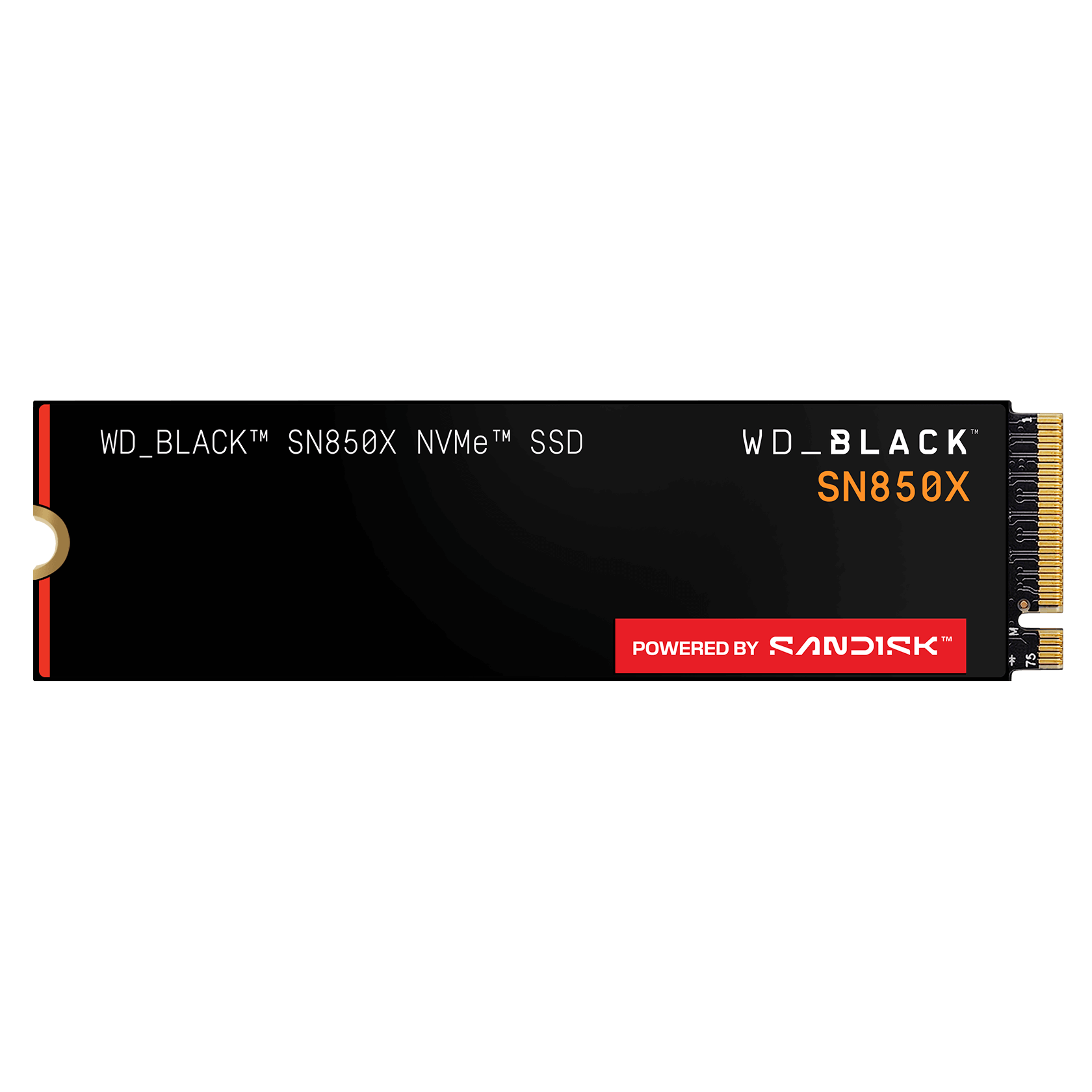
WD_BLACK SN850X 4TB NVMe SSD - M.2 2280, Up to 7,300 MB/s Read speeds, Up to 6,300 MB/s write speeds, Gaming Expansion, High Performance Internal Solid State Drive - WDS400T2X0E
WD
Buy — The article names the 4TB SN850X as the best first upgrade for keeping Windows, containers, projects, and editing files on one SSD, with a heatsink required.
Best first upgrade if your motherboard has an M.2 slot and your active work includes Docker images, WSL disks, browser automation profiles, editing cache, and large projects. It is fast and roomy, but you should use a heatsink or motherboard M.2 cover.Available at Amazon(paid link) — opens Amazon in a new tab. Price and availability shown there.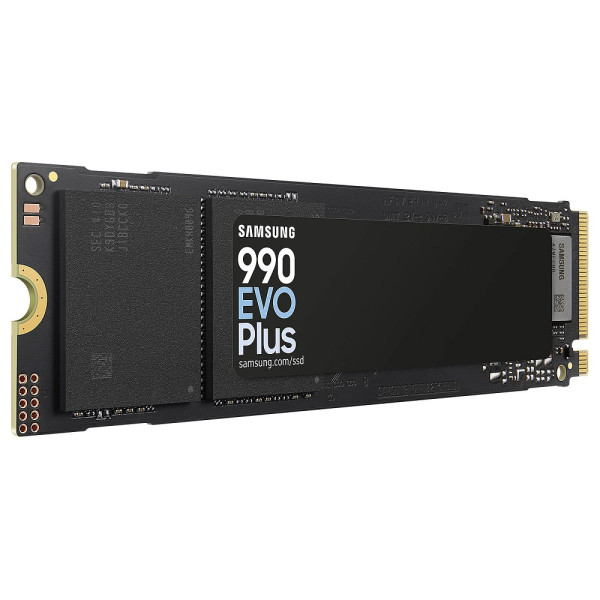
Samsung SSD 990 EVO Plus 2TB, PCIe Gen 4x4 | 5x2 M.2 2280, Up to 7,250 MB/s
Samsung
Buy — The article recommends the 2TB 990 EVO Plus as a smaller upgrade that removes the HDD bottleneck when active projects and VM data are stored on it.
A sensible 2TB NVMe option if you want to move Windows, projects, WSL, Docker, and scratch files off the HDD without jumping straight to a 4TB drive.Available at Amazon(paid link) — opens Amazon in a new tab. Price and availability shown there.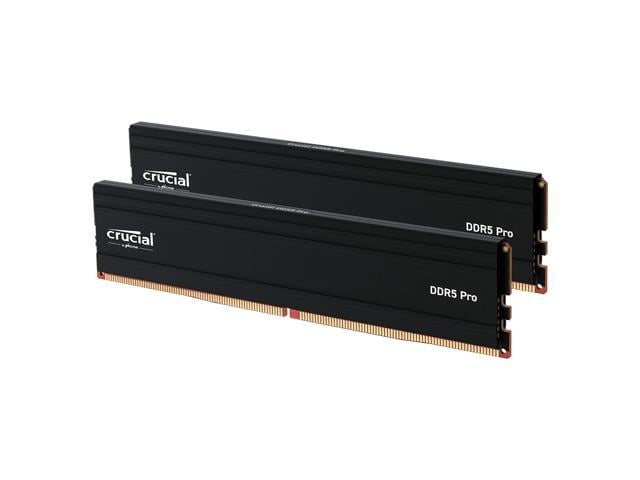
Crucial Pro 64GB DDR5 RAM Kit (2x32GB), 5600MHz (or 5200MHz or 4800MHz) Desktop Memory UDIMM 288-pin, Compatible with 13th Gen Intel Core and AMD Ryzen 7000 - CP2K32G56C46U5
Crucial
Buy — The article recommends a Crucial Pro 64GB kit comprising two 32GB modules for compatible DDR5 motherboards.
Pick this if your motherboard uses DDR5. The capacity matters more than extreme timings for Docker, WSL, editors, browser automation, and multitasking.Available at Amazon(paid link) — opens Amazon in a new tab. Price and availability shown there.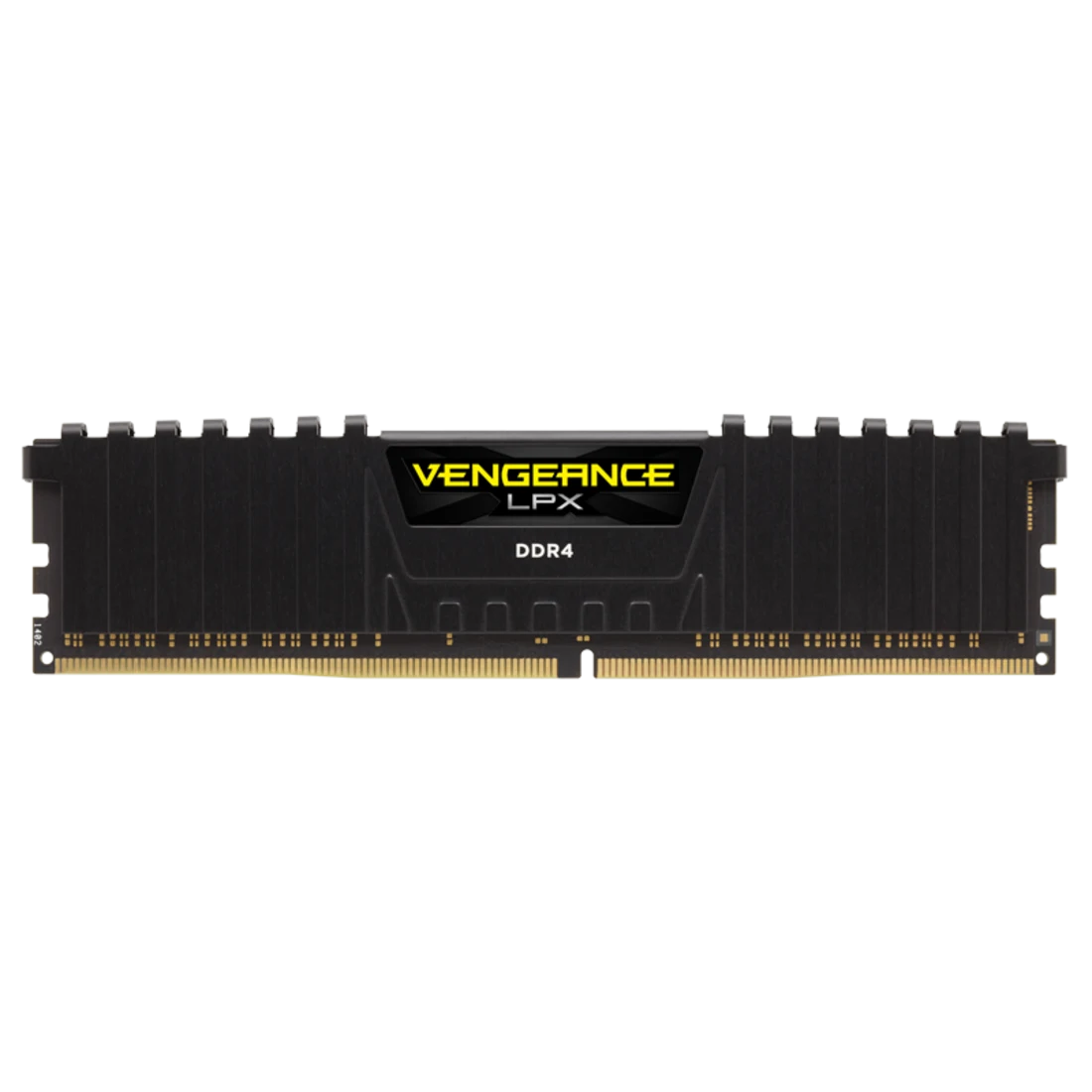
CORSAIR Vengeance LPX DDR4 RAM 32GB (2x16GB) Up to 3200MHz CL16-20-20-38 1.35V Intel XMP AMD EXPO Computer Memory – Black (CMK32GX4M2E3200C16)
Corsair
Buy — The article recommends Vengeance LPX for DDR4 systems because it is low-profile, although its recommendation specifies a 64GB kit comprising two 32GB modules.
Pick this if your current desktop is DDR4. It is a straightforward 32GB upgrade, but check board support and test stability before enabling XMP long-term.Available at Amazon(paid link) — opens Amazon in a new tab. Price and availability shown there.
Sources
Pages consulted while researching this article. None of these are affiliate links.
- Samsung 2TB PCIe 4.0 NVMe M.2 SSD 990 EVO Plus — samsung.com (accessed 2026-08-10)
- WD_BLACK SN850X NVMe SSD Specifications — shop.sandisk.com (accessed 2026-08-10)
- Corsair Vengeance LPX 64GB DDR4 3200MHz C16 Memory Kit — corsair.com (accessed 2026-08-10)
- Crucial Pro 64GB Kit DDR5-5600 UDIMM Specifications — crucial.cn (accessed 2026-08-10)
- Advanced Settings Configuration in WSL — learn.microsoft.com (accessed 2026-08-10)
- Dell Precision 3680 Tower Workstation — dell.com (accessed 2026-08-10)
- Lenovo ThinkStation P3 Tower Gen 2 — lenovo.com (accessed 2026-08-10)