16GB vs 24GB RAM for Lightroom Classic: Answered By Use Case
The questionWhere do these come from?
MacBook Pro M5 16gb ram or 24 gb ram for Lightroom?
Choose 24GB for Lightroom Classic on an M5 MacBook Pro unless your budget is rigid and your edits stay small.
Choose 24GB for Lightroom Classic on an M5 MacBook Pro unless the budget is rigid and the edits stay small. Below 24GB, the laptop is workable, not broken — the difference shows up under multitasking, not in Lightroom’s baseline specs.
The Quick Answer, By Condition
| Choice | Best fit | Main compromise |
|---|---|---|
| 16GB M5 MacBook Pro | Budget is strict, mostly Lightroom, smaller RAW batches | Less headroom with AI tools, multitasking, and Resolve |
| 24GB M5 MacBook Pro | Lightroom Classic hobby use for several years | Costs more than the base config |
| 32GB M5 MacBook Pro | Large RAW files, Photoshop, heavier Resolve, long ownership | Easy to overspend for casual editing |
| M5 Pro 24GB MacBook Pro | More serious Resolve work and external display needs | More chip than Lightroom-first use needs |
For a Lightroom-first hobby setup, 24GB is the sensible middle. It is not the “buy the biggest spec because future-proofing” answer — it is the anti-regret one. It gives Lightroom room for previews, masks, AI Denoise, and exports while leaving enough memory for normal Mac life running in the background.
16GB makes sense only if the budget line is real. If 24GB would force too little internal storage, or make the whole purchase uncomfortable, 16GB works if the workflow is managed: keep the Lightroom catalog and previews on the internal SSD, store older RAW files on a fast external SSD, quit Resolve when exporting a big Lightroom batch, and don’t treat Chrome as a second operating system. For a careful hobby user, that is workable.
What’s Settled By The Specs
Adobe lists 16GB or more as the recommended memory level for Lightroom Classic, and specifically calls out 16GB of unified memory for full GPU acceleration and AI features such as Denoise, Lens Blur, and Reflection Removal. So a 16GB M5 MacBook Pro is not a mistake by Adobe’s own numbers. It will run Lightroom Classic, edit RAW files, export albums, and handle normal hobby work.
The catch is the word “Classic.” Lightroom Classic is rarely running alone. macOS, previews, cache, a browser, maybe Photoshop, maybe a card import, maybe Resolve open because of one short clip, and maybe a larger catalog than expected two years in — all draw on the same pool. On Apple silicon, unified memory is shared by the CPU and GPU. That’s efficient, but it also means the GPU has no separate VRAM pool to lean on when Lightroom’s AI features or Resolve’s timeline need more.
Blackmagic’s Mac App Store listing for DaVinci Resolve says current Apple silicon Macs can run it with 8GB of system memory, 16GB when using Fusion. Those are minimums, not comfort specs — they explain why 16GB isn’t unusable, not why it’s ideal.
What’s Still Unresolved
Neither Adobe nor Blackmagic publishes the point at which multitasking actually forces macOS to swap to disk — that number depends on how many browser tabs stay open, whether Photos is syncing, and how large the catalog has grown, none of which a spec sheet can predict. Apple’s SSDs make swap fast enough that it often goes unnoticed for one export, then noticeable at the exact moment several of those background processes line up at once. There is no published benchmark that pins that threshold down for Lightroom Classic under realistic multitasking load — what’s laid out here is reasoned from how unified memory is shared, not measured against a number, and it stays a real gap rather than a settled one.
When 16GB Is Still Fine
16GB is enough if the work is mostly single-photo editing, modest RAW files, small-to-medium catalogs, and basic exports. It’s also fine if Resolve means trimming phone footage, basic 1080p timelines, or an occasional 4K project with proxies and patience.
When 24GB Is The Right Stop
24GB is the right stop when the work involves shooting RAW, running Lightroom Classic as the main photo app, keeping the laptop for several years, and not wanting to baby the machine — especially with a 40MP-or-higher camera, AI Denoise, local masking, or exporting while doing something else at the same time.
Just want the recommendation?
Skip to the picks24GB is also the better answer when Resolve is genuinely part of the plan — not professional color work or multi-cam jobs every week, but travel videos, family projects, YouTube-style edits, short reels, and color correction. Resolve runs on less; it feels less cramped with more.
The payoff isn’t a dramatic speed jump in every Lightroom slider — it’s fewer slowdowns under pressure. CPU, GPU, media engine, SSD speed, file type, and export settings all matter too; memory mostly helps when the working set is too large for 16GB to hold.
Why 24GB Ages Better
RAM is the part that can’t be fixed later. Storage can be moved outside the laptop, a card reader can be replaced, a bigger monitor can be added — unified memory is soldered in.
That matters more for a long-term hobby laptop than for a machine that gets replaced in two years. Camera files tend to grow, Lightroom leans harder on GPU acceleration and AI processing release over release, and catalogs get bigger. Casual edits turn into hundreds of RAW files from one trip, and Resolve becomes “occasional” the same way Lightroom once was.
The M5 chip itself isn’t the constraint. Apple’s own specs list the base M5 MacBook Pro with a 10-core CPU, 10-core GPU, 16-core Neural Engine, hardware acceleration for H.264, HEVC, ProRes, ProRes RAW, and AV1 decode, plus 153GB/s memory bandwidth. Reviews of the M5 14-inch MacBook Pro broadly describe it as an internal performance refresh with stronger graphics and faster storage rather than a new chassis. The chip is not the weak link; memory headroom is.
This is the same logic behind most practical computer upgrade advice: buy enough RAM for the workload that actually stays open, not just the one app printed on the box. The site’s Best PC Upgrade for Multitasking article makes the same argument outside MacBooks.
Don’t Trade RAM For Storage
Buying 24GB and then trapping the setup with too little storage is its own mistake if photos live on the laptop. Lightroom Classic wants fast storage for the catalog and previews, and Adobe’s performance guidance also points toward SSD storage with enough free disk space. A cramped internal SSD makes the whole system worse, especially once macOS needs swap space.
The clean split: internal SSD for macOS, apps, Lightroom catalog, previews, and current projects; external SSD for archived RAW files and video media. When the budget forces a choice between 24GB of RAM and a much bigger internal SSD, 24GB plus a good external SSD is usually the better Lightroom hobby setup. If the entire photo library has to stay internal, storage moves up the priority list.
M5 Pro isn’t worth it for Lightroom Classic alone. It’s the better call once Resolve gets serious, once more external display support is needed, or once heavier codecs and longer timelines enter the picture. For a Lightroom-first setup, base M5 with 24GB is the better balance.
The recommendations below follow that order: first the configuration that best matches Lightroom-first hobby use, then the higher-headroom version for a longer ownership window, then the budget-safe 16GB option, and finally the external SSD that keeps the cheaper MacBooks from becoming cramped photo boxes.
The bottom line
The choice turns on one thing:
Top pick
It depends
Apple 2026 MacBook Pro Laptop with Apple M5 Pro chip with 15-core CPU and 16-core GPU: Built for AI, 14.2-inch Liquid Retina XDR Display, 24GB Unified Memory, 1TB SSD, Wi-Fi 7; Space Black
Apple
The article says M5 Pro is not worth it for Lightroom Classic alone, but is justified for serious Resolve work, heavier codecs, longer timelines, or more external displays.
The best fit for Lightroom Classic hobby work with occasional Resolve. It gives you enough unified memory headroom without pushing into a workstation-class Mac.Available at Amazon(paid link) — opens Amazon in a new tab. Price and availability shown there.The alternative
It depends
Apple 14-inch MacBook Pro CTO Laptop with M5 Pro Chip, 15-Core CPU, 16-Core GPU, 48GB Unified Memory, 1TB SSD Storage, Standard Display, 70W USB-C Power Adapter, 2026
Apple
The article reserves higher memory headroom for large RAW files, Photoshop alongside Lightroom, heavier Resolve work, or long ownership, warning that casual editors can overspend.
Choose this only if you keep laptops for a long time, use large RAW files, run Photoshop beside Lightroom, or expect Resolve to become more than occasional.Available at Amazon(paid link) — opens Amazon in a new tab. Price and availability shown there.
Recommended products
Ordered by how well each one fits the situations above. Each link below is a paid link.

Apple 2026 MacBook Pro Laptop with Apple M5 Pro chip with 15-core CPU and 16-core GPU: Built for AI, 14.2-inch Liquid Retina XDR Display, 24GB Unified Memory, 1TB SSD, Wi-Fi 7; Space Black
Apple
It depends — The article says M5 Pro is not worth it for Lightroom Classic alone, but is justified for serious Resolve work, heavier codecs, longer timelines, or more external displays.
The best fit for Lightroom Classic hobby work with occasional Resolve. It gives you enough unified memory headroom without pushing into a workstation-class Mac.Available at Amazon(paid link) — opens Amazon in a new tab. Price and availability shown there.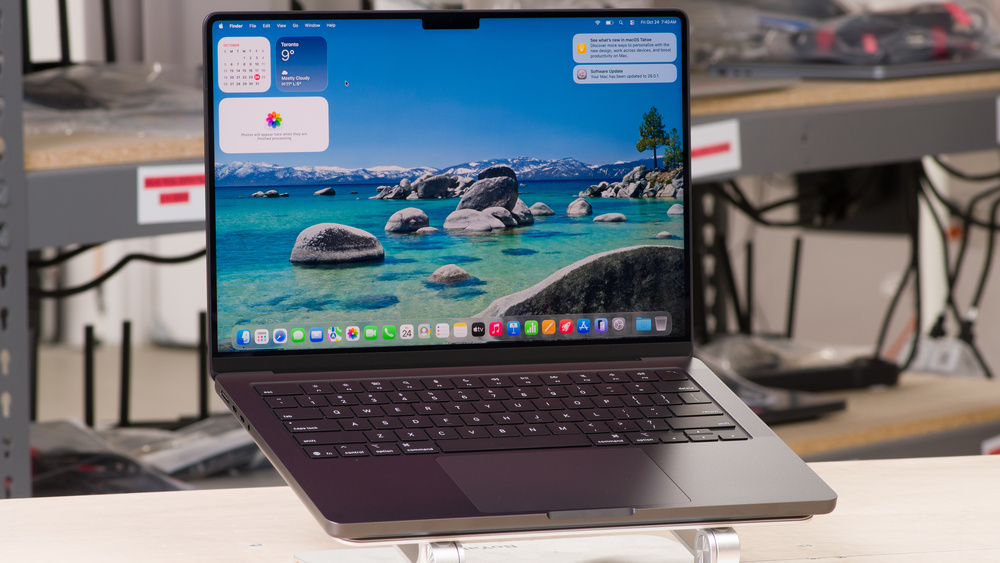
Apple 14-inch MacBook Pro CTO Laptop with M5 Pro Chip, 15-Core CPU, 16-Core GPU, 48GB Unified Memory, 1TB SSD Storage, Standard Display, 70W USB-C Power Adapter, 2026
Apple
It depends — The article reserves higher memory headroom for large RAW files, Photoshop alongside Lightroom, heavier Resolve work, or long ownership, warning that casual editors can overspend.
Choose this only if you keep laptops for a long time, use large RAW files, run Photoshop beside Lightroom, or expect Resolve to become more than occasional.Available at Amazon(paid link) — opens Amazon in a new tab. Price and availability shown there.Samsung T9 Portable SSD 2TB, USB 3.2 Gen 2x2 External SSD, Up to 2,000 MB/s
Samsung
Buy — The article recommends external SSD storage for archived RAW files and video media while keeping the Lightroom catalog and previews on the internal SSD.
A practical add-on if you choose a lower internal storage configuration. Keep the Lightroom catalog internal, then use fast external storage for older RAW files and Resolve media.Available at Amazon(paid link) — opens Amazon in a new tab. Price and availability shown there.

Sources
Pages consulted while researching this article. None of these are affiliate links.
- MacBook Pro - Tech Specs - Apple — apple.com (accessed 2026-08-10)
- Lightroom Classic system requirements — helpx.adobe.com (accessed 2026-08-10)
- Optimize Lightroom performance | Lightroom Classic — helpx-origin-ew1.aws116.adobeitc.com (accessed 2026-08-10)
- DaVinci Resolve App - App Store — apps.apple.com (accessed 2026-08-10)
- M5 MacBook Pro review: Minor refresh but massive graphics boost — macworld.com (accessed 2026-08-10)
- Apple MacBook Pro 14 (M5, 2025) Review - RTINGS.com — rtings.com (accessed 2026-08-10)