Best Odyssey G9 Settings for iRacing
The questionWhere do these come from?
Help choosing my new 32:9 or 21:9 screen
Hi everyone. I'd like to replace my old 27" 21:9 1080p monitor with a new one now that I have my chassis (Oplite R8 Fury).
Run the Odyssey G9 at 5120x1440, use 120 Hz for steadier racing on midrange PCs, and set iRacing from measured FOV, not max width.
Set the Samsung Odyssey G9 to 5120 x 1440, use DisplayPort, enable Adaptive-Sync, and start iRacing at 120 Hz unless the PC can hold its target frame rate cleanly. The G9 can run up to 240 Hz, but iRacing performance depends more on stable frame pacing than on selecting the highest refresh option in the monitor menu.
The key is to treat the Odyssey G9 as one 32:9 monitor, not as a normal triple-screen rig. Samsung lists the 49-inch Odyssey G9 C49G95T as a 5120 x 1440, 32:9, 1000R curved display with a maximum 240 Hz refresh rate, and those are the numbers to build the iRacing setup around. Samsung also lists the active display area as 1191.936 mm x 335.232 mm, which is useful for FOV setup because iRacing asks for real monitor dimensions rather than marketing size. Samsung Odyssey G9 C49G95T specifications
The safest baseline settings
Use these as the baseline settings before chasing FOV tweaks or graphics quality:
| Area | Setting | Value |
|---|---|---|
| Windows display | Resolution | 5120 x 1440 |
| Windows display | Refresh rate | 120 Hz first, 240 Hz only if stable |
| Samsung OSD | Adaptive-Sync | On |
| Samsung OSD | Low Input Lag | On |
| iRacing display | Mode | Borderless window or fullscreen at 5120 x 1440 |
On the monitor, use the Samsung on-screen menu and set Game > Adaptive-Sync > On and Game > Low Input Lag > On. Set Game > Refresh Rate to 120 Hz for the first test session. Move to 240 Hz only after iRacing can hold a stable frame rate on the tracks and grids you actually race.
In Windows, go to Settings > System > Display > Advanced display and confirm the monitor is running at 5120 x 1440. If 240 Hz is missing, check that the cable is connected to the graphics card’s DisplayPort output, not HDMI or motherboard video. The classic Odyssey G9 C49G95T has two DisplayPort inputs and one HDMI input, and Samsung’s own spec sheet lists the monitor’s maximum refresh as 240 Hz, so a missing 240 Hz option usually points to cable, GPU output, driver, or monitor OSD settings rather than iRacing itself.
Inside iRacing, run the graphics config once, then open a test session and check Options > Graphics/Display. Use the G9’s native resolution. Disable the window border if you prefer borderless windowed mode. iRacing’s own three-monitor guide says windowed mode is often the easiest way to span displays because it avoids NVIDIA Surround or AMD Eyefinity, and the same practical logic applies if you want fewer mode-switching problems on a single super-ultrawide. iRacing display setup guide
The performance tradeoff between 32:9 and 21:9
The Odyssey G9 is the immersive choice, but it is not the lightest choice. At native resolution, it pushes more pixels than a 34-inch 3440 x 1440 ultrawide and fewer pixels than three 2560 x 1440 monitors.
| Layout | Resolution | Pixels rendered |
|---|---|---|
| 27-inch 1440p | 2560 x 1440 | 3,686,400 |
| 34-inch 21:9 ultrawide | 3440 x 1440 | 4,953,600 |
| Odyssey G9 32:9 | 5120 x 1440 | 7,372,800 |
| Triple 1440p | 7680 x 1440 | 11,059,200 |
That makes the G9 a middle ground: much wider than 21:9, but not as demanding as full triple 1440p. If the current PC already struggles at 3440 x 1440, do not buy the G9 expecting settings alone to solve it. If the PC runs 3440 x 1440 with headroom, the G9 is realistic if graphics settings are kept disciplined.
The performance-aware choice is: pick the Odyssey G9 if the goal is peripheral vision without managing three physical monitors; pick 21:9 if the goal is higher average frame rate and simpler GPU load. For a broader monitor decision, the related guide on whether the Odyssey G9 is good for iRacing covers the buy/no-buy angle more directly.
Fix screen geometry before changing FOV
Do not fix this with random FOV numbers from Reddit. Use iRacing’s calculator.
For the Odyssey G9 C49G95T, enter the real screen width from Samsung’s spec sheet: 1191.936 mm. The visible height is 335.232 mm, but iRacing’s FOV workflow mainly needs monitor width and viewing distance. Measure from your eyes to the center of the screen in millimeters, then use iRacing’s Options > Display > Field of View Calculator.
Just want the recommendation?
Skip to the picksA practical starting point:
| iRacing field | Odyssey G9 value |
|---|---|
| Monitor type | Single curved screen |
| Monitor width | 1192 mm |
| Bezel width | 0 mm |
| Radius of curvature | 1000 mm |
If iRacing shows a Radius of curvature field, use 1000 mm for the standard 1000R Odyssey G9. iRacing’s support documentation says curved monitor setups use radius of curvature instead of the side-screen angle field, and Samsung lists the G9 curvature as 1000R. That pairing is the defensible setting.
Do not enable Render scene using 3 projections just because the panel is very wide. That setting is built for true multi-monitor geometry. On one G9, it can cost performance and may make the image feel segmented unless you are deliberately using a custom triple-projection workaround. The normal setup is one 5120 x 1440 display with a measured FOV.
Drop to 120 Hz when 240 Hz becomes unstable
Drop to 120 Hz first. That is not a defeat; it is the right diagnostic step. The Odyssey G9’s headline spec is 240 Hz, but a racing sim needs predictable frame delivery more than a desktop refresh number.
Use this order:
- Set the Samsung OSD refresh rate to 120 Hz.
- Set Windows advanced display refresh to 120 Hz.
- Keep Adaptive-Sync on.
- Run an iRacing test session at 5120 x 1440.
- If stable, try 240 Hz again.
If instability only appears at 240 Hz, the likely causes are the DisplayPort cable, GPU driver, GPU output capability, or monitor firmware. Do not change ten iRacing graphics settings at once. Confirm the monitor is stable on the Windows desktop at 240 Hz, then test iRacing.
If the monitor blacks out outside iRacing too, the issue is not an iRacing setting. Try another certified DisplayPort 1.4 cable, another DisplayPort on the GPU, and the latest GPU driver. If the same 240 Hz failure remains across cables and ports, the remaining route is Samsung support or warranty service.
The settings to cut first in heavy traffic
Keep the G9 at 5120 x 1440, but reduce the settings that scale badly with many cars. Start with mirrors, dynamic shadows, cockpit mirrors, grandstands, crowds, and high-detail objects. Those changes usually protect racing visibility better than lowering resolution, because dropping below native resolution softens the whole image.
A sensible first target is a stable cap below the selected refresh rate: for example, cap iRacing around 117 FPS on a 120 Hz setup or around 237 FPS on a 240 Hz setup if the system can actually hold it. If the PC cannot hold those caps, lower the cap to the stable number. The right cap is the one the system can maintain during a full grid, not during an empty practice lap.
Leave HDR off while dialing in performance unless there is a specific reason to use it. HDR adds another variable when the immediate problem is visibility, frame pacing, or washed-out cockpit detail. Once the sim is stable, picture preferences can be tuned separately.
The short version: run the Odyssey G9 as one native 5120 x 1440 display, use the measured 1192 mm width and 1000 mm curve radius for FOV, begin at 120 Hz for stability, and only move to 240 Hz when the PC, cable, driver, and iRacing frame rate prove they can handle it.
The bottom line
Two ways to do it, depending on the kit you already own:
Top pick
Buy this
Club3D CAC-2068 VESA Certified DisplayPort to DisplayPort 1.4/Hbr3 M/M Cable DP 1.4 8K 60Hz 2m - 6,56ft
Club 3D
The article recommends trying another certified DisplayPort 1.4 cable if the G9 blacks out outside iRacing while troubleshooting 240 Hz instability.
Use this if 5120 x 1440 at high refresh is missing or unstable; a known DisplayPort 1.4 HBR3 cable removes one common failure point. The drawback is that it will not fix a GPU output or monitor firmware problem.Available at Amazon(paid link) — opens Amazon in a new tab. Price and availability shown there.The alternative
Buy this
Cable Matters [VESA Certified] 32.4Gbps Braided DisplayPort Cable, 6ft
Cable Matters
The article recommends a certified DisplayPort 1.4 cable swap as a troubleshooting step before seeking Samsung support for persistent 240 Hz failures.
A VESA-certified DP 1.4 cable is the boring first swap before blaming iRacing for black screens or refresh drops. The drawback is that shorter cable runs are still preferable for maximum stability.Available at Amazon(paid link) — opens Amazon in a new tab. Price and availability shown there.
Recommended products
Ordered by how well each one fits the situations above. Each link below is a paid link.
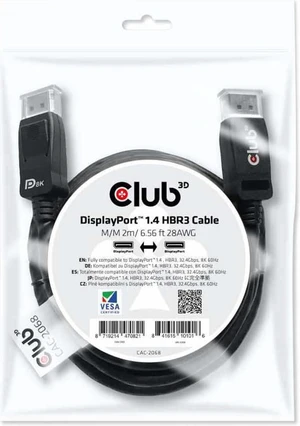
Club3D CAC-2068 VESA Certified DisplayPort to DisplayPort 1.4/Hbr3 M/M Cable DP 1.4 8K 60Hz 2m - 6,56ft
Club 3D
Buy — The article recommends trying another certified DisplayPort 1.4 cable if the G9 blacks out outside iRacing while troubleshooting 240 Hz instability.
Use this if 5120 x 1440 at high refresh is missing or unstable; a known DisplayPort 1.4 HBR3 cable removes one common failure point. The drawback is that it will not fix a GPU output or monitor firmware problem.Available at Amazon(paid link) — opens Amazon in a new tab. Price and availability shown there.![Cable Matters [VESA Certified] 32.4Gbps Braided DisplayPort Cable, 6ft product image](https://www.cablematters.com/images/Product/large/1279.jpg)
Cable Matters [VESA Certified] 32.4Gbps Braided DisplayPort Cable, 6ft
Cable Matters
Buy — The article recommends a certified DisplayPort 1.4 cable swap as a troubleshooting step before seeking Samsung support for persistent 240 Hz failures.
A VESA-certified DP 1.4 cable is the boring first swap before blaming iRacing for black screens or refresh drops. The drawback is that shorter cable runs are still preferable for maximum stability.Available at Amazon(paid link) — opens Amazon in a new tab. Price and availability shown there.
Sources
Pages consulted while researching this article. None of these are affiliate links.
- Samsung Odyssey G9 C49G95T Monitor Review — RTINGS — rtings.com
- Samsung 49-Inch Odyssey G9 Gaming Monitor Review — Tom's Hardware — tomshardware.com
- VESA Adds Adaptive-Sync to the DisplayPort Standard — displayport.org
- G9 Series C49G95T | Samsung Africa — samsung.com
- Setting Up Three Monitors : iRacing — support.iracing.com