Odyssey G9 for iRacing: Is the Ultrawide Worth It?
The questionWhere do these come from?
Help choosing my new 32:9 or 21:9 screen
Hi everyone. I'd like to replace my old 27" 21:9 1080p monitor with a new one now that I have my chassis (Oplite R8 Fury).
The Samsung Odyssey G9 works well for iRacing if you want a single 32:9 cockpit view, but 120Hz is often the safer target than 240Hz.
The Samsung Odyssey G9 (LC49G95TSSNXZA) works well for iRacing when the PC driving it can hold a steady frame rate at its native 5120 x 1440, 32:9, 1000R-curved resolution. On that hardware, 120Hz is the safer refresh-rate target for racing; iRacing’s own support documentation lists the G9 and G9 Neo as prone to stuttering at 240Hz. Choose the 34-inch, 21:9 Odyssey G5 (LC34G55TWWNXZA) instead if frame-rate stability matters more than side vision — it renders about 4.95 million pixels per frame against the G9’s 7.37 million.
Quick reference for a single G9 running iRacing:
| Setting | Recommended value |
|---|---|
| Resolution | 5120 x 1440 native |
| Refresh rate | 120Hz baseline; test 240Hz only after a full race-length session |
| Connection | DisplayPort 1.4, direct to the GPU — not HDMI, a dock, or a motherboard port |
| iRacing monitor type | 1 Curved Screen — not 3 Flat/Curved Screens |
| Max Prerendered Frames | Start at 1, raise one step at a time if needed |
| GPU-limited scenes | Enable FSR last, after reducing shadows and mirrors |
Samsung lists the LC49G95TSSNXZA as a 49-inch, 32:9, 1000R curved monitor with DQHD 5120 x 1440 resolution, DisplayPort 1.4, HDMI 2.0, and up to 240Hz refresh. 5120 x 1440 is 7.37 million pixels per frame — exactly double a normal 2560 x 1440 monitor and about 49 percent more than a 3440 x 1440 ultrawide. Samsung’s spec page also notes that 5120 x 1440 at 240Hz requires an up-to-date graphics driver. Samsung Odyssey G9 specs
32:9 or 21:9: which one fits the PC
The Odyssey G9 makes the most sense when the goal is immersion, peripheral awareness, and a cleaner cockpit than three separate monitors. It gives a very wide horizontal view without bezels, and its 1000R curve keeps the far edges physically closer than a flat 49-inch panel would. The tradeoff is performance: Samsung’s 34-inch Odyssey G5 (LC34G55TWWNXZA) runs 21:9, UWQHD 3440 x 1440, up to 165Hz, while the 49-inch G9 runs 5120 x 1440. Samsung Odyssey G5 specs
| Option | Native resolution | Aspect ratio | Pixels per frame |
|---|---|---|---|
| 27-inch QHD monitor | 2560 x 1440 | 16:9 | 3.69 million |
| 34-inch ultrawide | 3440 x 1440 | 21:9 | 4.95 million |
| Odyssey G9 | 5120 x 1440 | 32:9 | 7.37 million |
If a current 27-inch or 34-inch setup already forces lower mirrors, shadows, grandstands, or car detail to hold a race, the G9 will add load rather than remove it. With GPU headroom and a willingness to tune around a 120Hz or capped-frame target, the G9 is the more complete single-screen sim-racing display. It does not behave like true triple monitors — it is one panel, removing bezels and desk complexity but not matching the geometric correction of three angled physical displays without more advanced workarounds outside the normal single-monitor setup.
Fixing a stretched or distorted image
An over-wide field of view, not the monitor, is the usual cause of a stretched-looking cockpit. A 32:9 display tempts people to push the FOV until both side windows are visible, but that can make the dashboard, apex distance, and car scale feel wrong. Compute the FOV from real measurements before touching anything else: in iRacing, open Settings, go to the Display tab, then scroll to the Monitor section. For a single G9, select 1 Curved Screen, enter the measured screen width and eye distance, then use Compute in the field-of-view calculator. iRacing’s seating-position guide separates single-monitor setup from triple-monitor setup and tells single-monitor users to pick either 1 Flat Screen or 1 Curved Screen. iRacing seating position guide If the image still feels wrong after that, adjust seating position in-car next, rather than the FOV again.
Just want the recommendation?
Skip to the picksAvoid treating a single G9 as three monitors in the regular iRacing UI unless deliberately configuring a special setup. iRacing’s triple-monitor article ties Render scene using 3 projections to a triple-monitor configuration after selecting 3 Flat Screens or 3 Curved Screens — that is for three display surfaces, not the normal one-panel G9 path. iRacing triple monitor setup
Stuttering and freezing at 240Hz
iRacing’s support article on freezing and stuttering specifically names Samsung Odyssey G9 and G9 Neo displays as known to cause stability or stuttering issues in 240Hz display mode, and recommends lowering the refresh rate to 120Hz for 4K or ultrawide 240Hz displays. iRacing stuttering guide That makes 120Hz the sensible baseline for this monitor in iRacing even though the G9’s maximum refresh rate is higher: in Windows, set the display mode to 5120 x 1440 at 120Hz, then rerun iRacing’s graphics config from Settings in the lower-left, General, Run Graphics Config, and pick the G9 as the display connected to the discrete GPU, not the motherboard output.
Test 240Hz only once 120Hz is stable through a full race-length session or AI session with traffic. If stutter returns at 240Hz, the fix is not a graphics preset — stay at 120Hz, or lower the rendered workload enough that frame pacing becomes consistent. The first settings to reduce are usually mirrors, cube maps, shadow maps, number of lights, grandstands, crowds, and high shadow filtering. iRacing’s stutter guide also points to Max Prerendered Frames, suggesting a test value of 1 and raising it only if needed — change that setting one step at a time rather than editing ten graphics options at once, since it affects both perceived latency and stutter.
Tuning when the PC is close to its limit
Target consistency before maximum refresh: native 5120 x 1440, 120Hz, Adaptive Sync or G-SYNC Compatible enabled if the GPU path supports it, and a frame cap the PC can hold in the worst part of a race. Use iRacing’s built-in graphics meters to check whether the CPU or GPU is the limiting factor.
If the GPU is the limit, iRacing’s FSR support can help. iRacing documents AMD FidelityFX Super Resolution as rendering the sim at a lower resolution and scaling it to the output resolution, reducing GPU load but not CPU load, and it is available on both AMD and NVIDIA cards. In the sim: Settings, Display, choose an FSR mode, restart, and confirm anti-aliasing is active. iRacing resolution scaling guide Use FSR as a last tuning step, not the first — on a 49-inch monitor, cockpit text, brake markers, and distant cars make image clarity more important than in casual games, so try native resolution with reduced shadows and mirrors before lowering render resolution.
Before you return or RMA it
Use DisplayPort, not HDMI, for the main PC connection — Samsung lists the G9 with DisplayPort 1.4 and HDMI 2.0, and DisplayPort is the correct path for this monitor’s high-resolution, high-refresh use case. Confirm the cable runs directly to the graphics card, not through a dock, capture card, motherboard port, or adapter chain, and update the GPU driver before judging 240Hz behavior: Samsung’s G9 page specifically says the latest graphics driver is needed for 240Hz at 5120 x 1440. A monitor that works normally at 120Hz but fails only at 240Hz in iRacing lines up with iRacing’s own known-stutter warning and does not by itself prove the panel is defective.
Return or RMA becomes the right call only when the problem follows the monitor outside iRacing: no signal at supported modes after cable and driver checks, visible panel defects, dead pixels covered by seller or manufacturer policy, broken on-screen-display controls, or instability at ordinary modes such as 5120 x 1440 at 120Hz across multiple apps. If the only failure is iRacing at 240Hz, the practical fix is to race at 120Hz and spend the saved GPU headroom on stable frame pacing.
The bottom line
Two answers, priced differently:
Top pick
It depends
SAMSUNG 49" Odyssey G9 (G95C) Series DQHD 1000R Curved Gaming Monitor, 240Hz, 1ms(GtG), DisplayHDR 1000, AMD FreeSync Premium Pro, Eye Saver Mode, Auto Source Switch+, LS49CG950ENXZA, 2024
Samsung
The article recommends the G9 with sufficient GPU headroom for 7.37 million pixels per frame and a 120Hz baseline, citing documented iRacing stuttering at 240Hz.
This is the monitor the article is about: a 49-inch 32:9, 5120 x 1440 option for a single-screen iRacing cockpit. The drawback is GPU load, especially if you try to run it at 240Hz.Available at Amazon(paid link) — opens Amazon in a new tab. Price and availability shown there.The alternative
Buy this
Club3D CAC-2068 VESA Certified DisplayPort to DisplayPort 1.4/Hbr3 M/M Cable DP 1.4 8K 60Hz 2m - 6,56ft
Club 3D
The article recommends a direct DisplayPort 1.4 connection to the GPU for the G9’s high-resolution, high-refresh use case.
A certified DisplayPort 1.4 cable is useful if the G9 has signal dropouts, refresh-rate issues, or adapter-chain problems. It will not fix iRacing-side 240Hz stutter by itself.Available at Amazon(paid link) — opens Amazon in a new tab. Price and availability shown there.
Recommended products
Ordered by how well each one fits the situations above. Each link below is a paid link.
SAMSUNG 49" Odyssey G9 (G95C) Series DQHD 1000R Curved Gaming Monitor, 240Hz, 1ms(GtG), DisplayHDR 1000, AMD FreeSync Premium Pro, Eye Saver Mode, Auto Source Switch+, LS49CG950ENXZA, 2024
Samsung
It depends — The article recommends the G9 with sufficient GPU headroom for 7.37 million pixels per frame and a 120Hz baseline, citing documented iRacing stuttering at 240Hz.
This is the monitor the article is about: a 49-inch 32:9, 5120 x 1440 option for a single-screen iRacing cockpit. The drawback is GPU load, especially if you try to run it at 240Hz.Available at Amazon(paid link) — opens Amazon in a new tab. Price and availability shown there.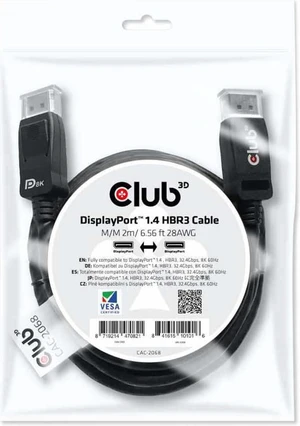
Club3D CAC-2068 VESA Certified DisplayPort to DisplayPort 1.4/Hbr3 M/M Cable DP 1.4 8K 60Hz 2m - 6,56ft
Club 3D
Buy — The article recommends a direct DisplayPort 1.4 connection to the GPU for the G9’s high-resolution, high-refresh use case.
A certified DisplayPort 1.4 cable is useful if the G9 has signal dropouts, refresh-rate issues, or adapter-chain problems. It will not fix iRacing-side 240Hz stutter by itself.Available at Amazon(paid link) — opens Amazon in a new tab. Price and availability shown there.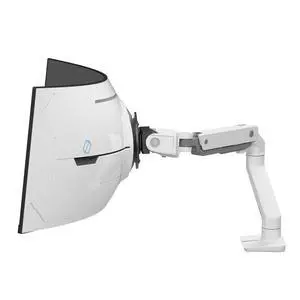
Ergotron - HX VHD Premium Heavy Duty Gaming Monitor Arm, Single Monitor Desk Mount – for 1000R Curved Ultrawide Monitors Up to 57 Inches, 9-14 Inches Depth, VESA 75x75mm or 100x100mm – White
Ergotron
Buy — The article calls for measured eye distance and seating-position adjustment for correct field of view, without arguing against a monitor arm.
The G9 is large and heavy, so a proper heavy-duty arm helps place the screen at the right eye distance and height for iRacing FOV setup. The drawback is that it adds desk-mount complexity and needs a strong desk.Available at Amazon(paid link) — opens Amazon in a new tab. Price and availability shown there.

Sources
Pages consulted while researching this article. None of these are affiliate links.
- Samsung Odyssey G55T C34G55T Review — rtings.com
- NVIDIA Control Panel — Manage 3D Settings Reference — nvidia.com
- 49" DQHD Monitor with 1000R Curved Display | LC49G95TSSNXZA | Samsung Business Canada — samsung.com
- 34 Inch Odyssey G5 G55T QHD | 165Hz | AMD FreeSync Premium | Curved | Samsung US — samsung.com
- How to Configure Your Seating Position : iRacing — support.iracing.com
- Setting Up Three Monitors : iRacing — support.iracing.com
- Dealing with Freezing and/or Stuttering Issues : iRacing — support.iracing.com
- Understanding Resolution Scaling : iRacing — support.iracing.com