MSI MPG 341CQPX: KVM and MacBook Charging Explained
The questionWhere do these come from?
Looking for a new monitor
Hi folks, I'm looking for a new monitor to replace my 27" 144hz IPS one.
The MSI MPG 341CQPX combines 240Hz gaming, G-SYNC compatibility and auto-KVM, but its 98W USB-C output has MacBook Pro limits.
The MSI MPG 341CQPX QD-OLED meets the core requirements: a 34-inch-class 3440 × 1440 display, 240Hz refresh rate, G-SYNC compatibility, built-in automatic KVM switching and USB-C charging rated up to 98W. It is a strong choice for sharing a gaming PC and MacBook Pro, provided “automatic” means USB peripherals follow the selected video input, and you do not require a replacement for a 140W MacBook charger. MSI specifications, MSI KVM explanation
The charging specification contains the useful detail: MSI documents 20V at 4.9A, enabled through an OSD setting. That puts its advertised output above Apple’s 94W third-party-display threshold for fast-charging a 14-inch MacBook Pro, although that arithmetic alone does not prove the charging rate a particular Mac will negotiate. MSI charging FAQ, Apple fast-charging requirements
Auto-KVM follows the input you select
The MPG 341CQPX has an actual hardware KVM. In G.I. → KVM → Auto, USB peripherals switch between the USB-B upstream connection and USB-C. MSI’s explanation of this mode says the USB connection follows the monitor’s video input. You can also lock the peripherals to either upstream connection. MPG 341CQPX user guide, MSI KVM explanation
For a desktop PC and MacBook, connect them this way:
- Connect the gaming PC’s video output to the monitor using DisplayPort or HDMI.
- Connect a separate USB cable from that PC to the monitor’s USB-B upstream port.
- Connect the MacBook directly to the monitor’s USB-C port with a cable supporting video, USB data and the required charging power.
- Plug the shared keyboard and mouse, or their USB receivers, into the monitor.
- Set G.I. → KVM → Auto, then select the computer’s video input.
These connections give the desktop its own USB path while the MacBook carries video and USB through USB-C. Connecting only DisplayPort or HDMI from the desktop leaves out the USB connection needed by the keyboard and mouse. MSI KVM connection instructions
KVM Auto and Input Source → Auto Scan are separate settings. The documentation does not promise that moving a mouse will select another computer, or specify which computer wins when both are awake. If completely unattended switching between two active computers is essential, obtain confirmation from MSI before buying. The documented feature is automatic USB routing associated with input selection. MPG 341CQPX user guide
A 14-inch MacBook Pro is the better charging match
Enable Settings → Type C PD Charge → ON. MSI specifically identifies this setting as the way to deliver up to 98W; the presence of a USB-C socket alone does not establish that the charging configuration is correct. MSI charging FAQ
Apple lists 67W, 70W and 96W adapters for 14-inch MacBook Pro models introduced from 2021 onward. The monitor’s advertised maximum therefore covers those adapter ratings. Apple also explicitly lists a third-party display delivering 94W as a fast-charging option in its 14-inch MacBook Pro guidance. Apple adapter guidance, Apple fast-charging requirements
There is a documentation discrepancy worth retaining: RTINGS describes the monitor as providing 90W, while MSI specifies up to 98W. Neither figure should be presented as a measured charging result for every MacBook. The difference matters because 90W falls below Apple’s stated 94W display threshold. RTINGS review
After connecting, hold Option while opening the Apple menu, choose System Information → Power, and inspect AC Charger Information. Apple documents this as the place to check the connected power source’s wattage. It identifies the power source’s reported capability; it does not mean the battery is continuously accepting that much power. Apple power-source check
For a 16-inch MacBook Pro introduced in 2021 or later, retain its 140W charger when you need Apple’s specified fast-charging arrangement. The MSI can provide USB-C charging, but its 98W ceiling cannot supply 140W. Whether it maintains the battery during sustained work needs checking with the actual Mac and workload. The older 2019 16-inch model is different: Apple lists a 96W adapter for it. Apple adapter guidance, Apple fast-charging requirements
Just want the recommendation?
Skip to the picksG-SYNC support does not eliminate OLED flicker
MSI’s US specification lists G-Sync Compatible and an activated range of 48–240Hz. The resolution is ultrawide 3440 × 1440, so it meets the 1440p requirement while adding horizontal workspace. MSI specifications
On the gaming PC, enable Gaming → Adaptive-Sync in the monitor. Then open NVIDIA Control Panel → Display → Set up G-SYNC, enable G-SYNC/G-SYNC Compatible and select the MSI display. MSI user guide, NVIDIA setup instructions
RTINGS found sharp motion and low input lag, but also distracting VRR flicker when frame rates change rapidly. G-SYNC compatibility therefore answers the support question; it does not guarantee a flicker-free picture in every game. If fluctuating brightness in dark scenes is particularly bothersome, this is a material drawback. RTINGS review
MacBook video compatibility needs its own check
A 240Hz monitor does not guarantee 240Hz from every MacBook Pro. Apple says the available resolution and refresh rate depend on the Mac, display, cable, adapters and other connected displays. Start with a direct USB-C connection, then check the available modes in System Settings → Displays. A dock adds another component whose display limits must be checked. Apple external-display troubleshooting, Apple display settings
The cited documentation does not establish a complete MacBook-by-MacBook compatibility matrix for this monitor. If 144Hz or higher on the Mac itself is mandatory, seek confirmation for the exact Mac model and connection before purchase. Charging compatibility and maximum refresh rate are separate questions.
The USB hub is also limited to USB 2.0, with two Type-A ports. That suits shared keyboard and mouse duties, but makes this a poor substitute for a fast storage dock. MSI specifications
Skip the similar MAG model when charging matters
The closely named MAG 341CQP QD-OLED is easy to confuse with the MPG 341CQPX. Their USB-C charging capabilities are substantially different.
| Specification | MPG 341CQPX QD-OLED | MAG 341CQP QD-OLED |
|---|---|---|
| Native resolution | 3440 × 1440 | 3440 × 1440 |
| Maximum refresh rate | 240Hz | 175Hz |
| USB-C power delivery | Up to 98W | 15W |
| USB-A ports | 2 × USB 2.0 | 2 × USB 2.0 |
Specifications: MSI MPG 341CQPX, MSI MAG 341CQP.
Skip the MSI MAG 341CQP QD-OLED if the monitor must meaningfully power a MacBook Pro through the same USB-C cable: its 15W output is below every USB-C MacBook Pro adapter rating in Apple’s guidance. Its 175Hz panel clears the gaming requirement, but the charging specification fails this combined use case. Apple adapter guidance
The MPG is the better purchase for this shared gaming-and-MacBook desk, but its panel still brings work-related compromises. PCWorld measured 268 nits of sustained fullscreen HDR brightness in Peak 1000 mode—a useful reminder that the headline HDR figure does not describe a full bright desktop. RTINGS also found text fringing and notes the burn-in risk from persistent static content. PCWorld measurements, RTINGS review
Choose the MPG 341CQPX when high-refresh ultrawide gaming and shared peripherals are central. If your working day is dominated by small text, compare the sharpness-versus-width tradeoff for MacBook Pro monitors before committing to this QD-OLED panel.
The bottom line
Both work; your situation picks one:
Top pick
Buy this
MSI MPG 341CQPX QD-OLED
msi
MSI documents 240Hz, G-SYNC compatibility, KVM Auto mode and up to 98W USB-C Power Delivery, covering the core shared-PC-and-MacBook requirements.
Combines 3440 × 1440 at 240Hz, G-SYNC compatibility, automatic KVM routing and up to 98W USB-C charging. Its USB 2.0 hub and charging ceiling limit its usefulness as a complete MacBook docking replacement.Available at Amazon(paid link) — opens Amazon in a new tab. Price and availability shown there.The alternative
Skip this
MSI MAG 341CQP QD-OLED
msi
Its documented 15W USB-C output is below every USB-C MacBook Pro adapter rating listed by Apple, making it unsuitable as the laptop's primary desk power source.
The similarly named 175Hz model meets the refresh-rate requirement but supplies only 15W over USB-C. Skip it when powering a MacBook Pro through the monitor is part of the purchase.Available at Amazon(paid link) — opens Amazon in a new tab. Price and availability shown there.
Recommended products
Ordered by how well each one fits the situations above. Each link below is a paid link.
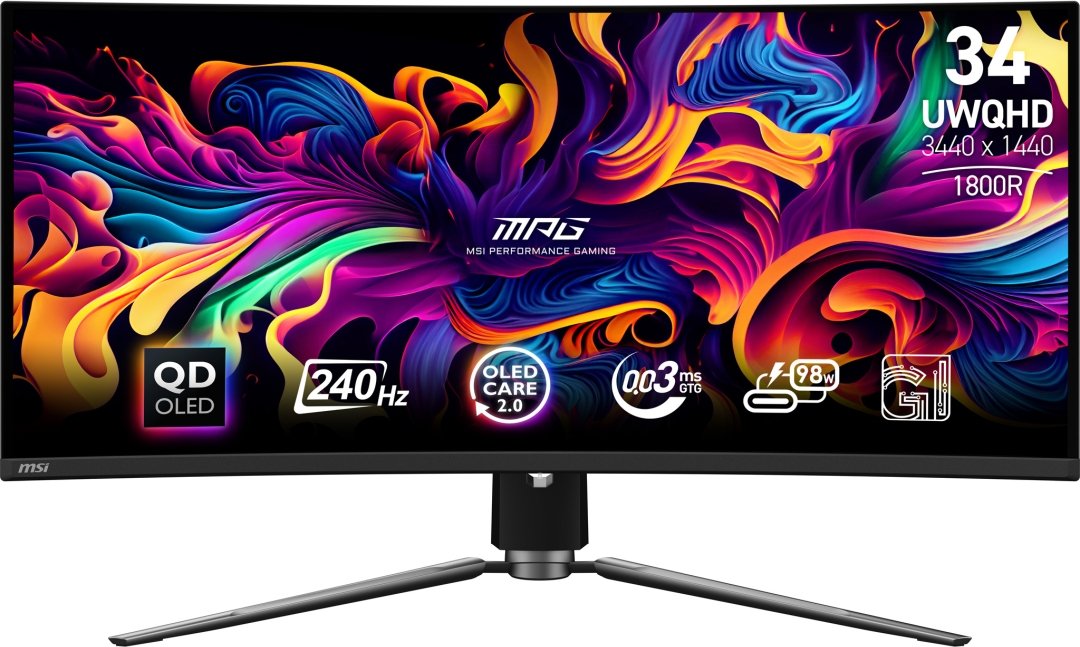
MSI MPG 341CQPX QD-OLED
msi
Buy — MSI documents 240Hz, G-SYNC compatibility, KVM Auto mode and up to 98W USB-C Power Delivery, covering the core shared-PC-and-MacBook requirements.
Combines 3440 × 1440 at 240Hz, G-SYNC compatibility, automatic KVM routing and up to 98W USB-C charging. Its USB 2.0 hub and charging ceiling limit its usefulness as a complete MacBook docking replacement.Available at Amazon(paid link) — opens Amazon in a new tab. Price and availability shown there.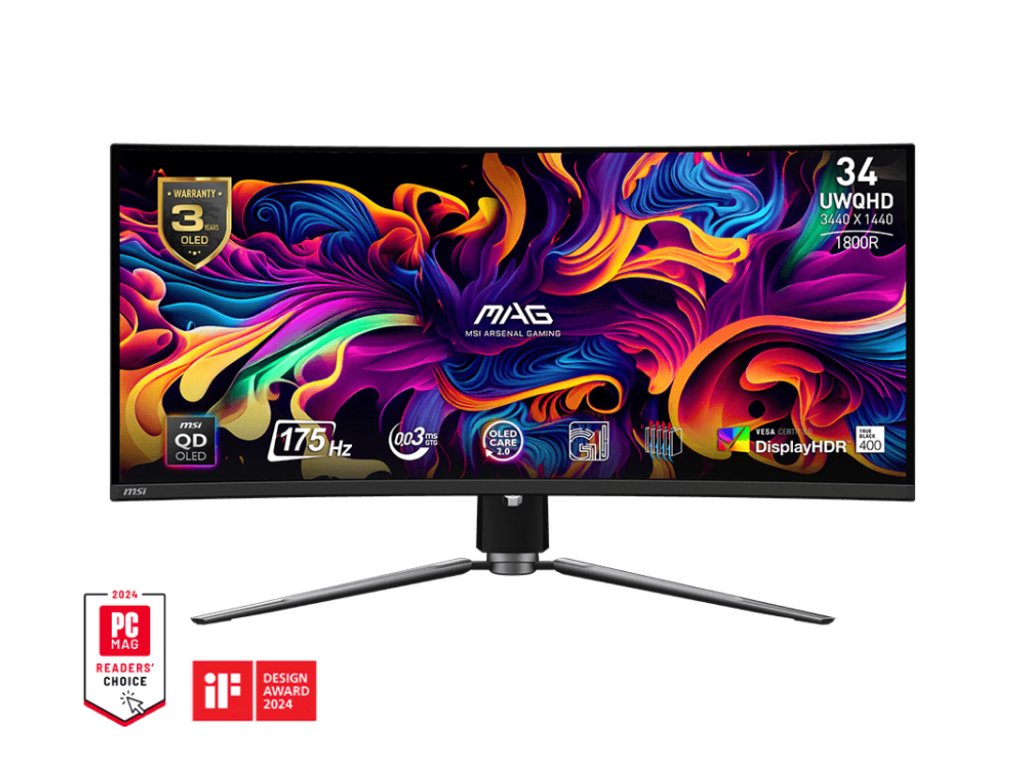
MSI MAG 341CQP QD-OLED
msi
Skip — Its documented 15W USB-C output is below every USB-C MacBook Pro adapter rating listed by Apple, making it unsuitable as the laptop's primary desk power source.
The similarly named 175Hz model meets the refresh-rate requirement but supplies only 15W over USB-C. Skip it when powering a MacBook Pro through the monitor is part of the purchase.Available at Amazon(paid link) — opens Amazon in a new tab. Price and availability shown there.
Sources
Pages consulted while researching this article. None of these are affiliate links.
- MSI MPG 341CQPX QD-OLED specifications — us.msi.com
- MSI MPG 341CQPX QD-OLED user guide — download-2.msi.com
- MSI Gaming Intelligence: KVM connections and Auto mode — msi.com
- MSI: How to enable 98W USB-C Power Delivery — us.msi.com
- Apple: Fast-charge your MacBook Air or MacBook Pro — support.apple.com
- Apple: Recommended power adapters and checking connected wattage — support.apple.com
- RTINGS: MSI MPG 341CQPX QD-OLED review — rtings.com
- NVIDIA: Set up G-SYNC — nvidia.com