LG 32GX850A-B HDR: Bright, With Limits
The questionWhere do these come from?
Should go for 32GX850A-B (4K 3d gen WOLED) or XG27AQWMG (QHD Tandem WOLED) with 5070 TI
So I found 4K 32GX850A-B (Glossy 3d gen WOLED) for a really good price 590€ but I also have the option to get the new Tandem 1440p WOLED XG27AQWMG for like 520€, and I'm really conflicted between a brighter better panel 1440p panel vs an older 4k panel.
The LG 32GX850A-B has real OLED HDR, but its 1,300-nit claim covers tiny highlights; calibrate it carefully or choose tandem OLED.
The LG 32GX850A-B supports genuine HDR10 and carries VESA DisplayHDR True Black 400 certification, but it is not the strongest choice if maximum HDR brightness matters more than screen size and 4K resolution. Its blacks, contrast and small highlights can look excellent in a controlled room; large bright scenes will be much dimmer than the advertised peak.
Where the 1,300-nit HDR claim applies
LG specifies a typical HDR peak of 1,300 cd/m² at 1.5% APL and 800 cd/m² at 10% APL. Its corresponding minimum figures are 1,040 and 640 cd/m², while normal full-screen brightness is listed at 275 cd/m². APL describes how much of the screen is illuminated: 1.5% is a tiny specular highlight, not an entire sunny landscape or white webpage. These are LG’s own documented figures, not estimates. LG’s complete 32GX850A-B specifications
The DisplayHDR True Black 400 badge does not cap the monitor at 400 nits. It certifies a minimum HDR performance tier that includes a 400 cd/m² peak test and extremely low OLED black levels. It does not promise that a mostly bright image will remain at 400 nits. VESA’s True Black performance criteria
Independent measurements provide a more useful expectation for games. The Display Guy measured just under 700 nits in a 10% window, under 300 nits full-screen and roughly 400 nits for real-scene highlights. That makes this capable OLED HDR, but not the eye-searing presentation associated with a strong mini-LED display or a brighter tandem OLED. Results can change with the picture preset, Peak Brightness setting, calibration and individual panel. The Display Guy’s 32GX850A-B review
Fix the Windows 11 HDR signal chain first
Configure the complete signal chain before changing color controls:
- Connect the RTX 5070 Ti through DisplayPort 1.4 with DSC or HDMI 2.1. For HDMI, use the supplied cable or a certified Ultra High Speed HDMI cable. LG says those interfaces are required for 4K at 165 Hz and recommends an Ultra High Speed HDMI cable in the owner’s manual. LG’s product documentation
- Open the monitor joystick menu and select Settings > Game Adjust > Game Mode > Gamer 1. Gamer 1 is the configurable starting point; Vivid intentionally alters the presentation.
- For the brightest HDR presentation, select Settings > Picture Adjust > Brightness > 100 and Peak Brightness > High. Leave Contrast and Black Stabilizer at their defaults while calibrating. Black Stabilizer changes dark-scene visibility; it is not an HDR-brightness control.
- Select Settings > General > SMART ENERGY SAVING > Off if the option is available. LG’s manual states that this feature can alter monitor luminance.
- In Windows, open Settings > System > Display, select the LG, open HDR, and enable Use HDR.
- In NVIDIA Control Panel, open Display > Change resolution. Select RGB, Full output dynamic range and 10 bpc output color depth if all three are available at the selected resolution. NVIDIA documents Full as the 0–255 RGB range; a Full/Limited mismatch can produce raised blacks or crushed shadow detail. NVIDIA’s RGB-range instructions
- Run the Windows HDR Calibration app full-screen on this monitor. Follow each clipping pattern until it disappears instead of manually entering 1,300. The advertised peak applies only under specific APL conditions and is not a universal calibration target. Microsoft’s HDR calibration instructions
Run Windows HDR Calibration again after changing Peak Brightness or the monitor’s HDR preset. Those changes alter the tone-mapping behavior that the saved profile describes.
The SDR content brightness slider under Windows HDR settings affects ordinary desktop and SDR material displayed while HDR remains enabled. It does not raise a game’s native HDR peak. Set it only high enough to make the desktop comfortable; pushing it to maximum can make SDR windows overpower HDR content.
One bad game points to its HDR setup
If other HDR games and the Windows calibration patterns look correct, the monitor and cable are probably not the fault. Enable Windows HDR before launching the affected game, select the game’s native HDR mode, and rerun its internal black-level and peak-luminance patterns.
Do not automatically type 1,300 into every game. Some games use the Windows calibration profile, some provide their own clipping control, and others apply fixed tone mapping. Follow the visible clipping pattern when one is provided. Auto HDR should be reserved for SDR games; it is not a replacement for a properly implemented native HDR mode.
Just want the recommendation?
Skip to the picksA game that remains gray, desaturated or clipped after its own reset may have a broken HDR implementation or conflicting post-processing. Disable overlays, Reshade filters and NVIDIA RTX HDR while testing native HDR so that only one tone mapper is active. If the problem occurs in one title but nowhere else, returning the monitor will not fix that title.
Large bright scenes will dim on OLED
Brightness reduction when a small highlight expands into a large white area is expected OLED behavior. LG’s difference between 1.5%, 10% and normal brightness figures demonstrates that the panel cannot sustain its headline peak across the entire screen. There is no cable, driver or firmware setting that turns the 32GX850A-B into a 1,300-nit full-screen display.
Static interfaces can trigger additional protection. LG documents OLED Screen Move, OLED Screen Saver and OLED Image Cleaning under Settings > General. The screen saver can lower brightness when an image remains unchanged. Image Cleaning is designed to run automatically after extended use; repeatedly starting it manually is not a brightness fix. 32GX850A-B owner’s manual
The size, resolution, and refresh-rate tradeoff
For the commonly compared LG 27GX700A-B, the documented differences are:
| Attribute | LG 32GX850A-B | LG 27GX700A-B |
|---|---|---|
| Native panel | 31.5-inch, 3840 × 2160 | 26.5-inch, 2560 × 1440 |
| Maximum native refresh | 165 Hz | 280 Hz |
| HDR certification | DisplayHDR True Black 400 | DisplayHDR True Black 500 |
| LG peak claim | 1,300 cd/m² at 1.5% APL | Up to 1,500 cd/m² |
| Typical brightness | 275 cd/m² | 335 cd/m² |
The values come from LG’s official pages for the 32GX850A-B and 27GX700A-B. LG does not state an APL condition beside the 27GX700A-B’s 1,500-nit headline on that page, so the two maximum claims should not be treated as directly equivalent.
Choose the 27GX700A-B when bright HDR and higher frame rates are the priorities. Its fourth-generation Primary RGB Tandem panel has the higher True Black tier and higher documented normal brightness. An independent review measured approximately 560 cd/m² at 10% in its certified profile and 312 cd/m² full-screen; Peak Brightness High exceeded 1,300 cd/m² on tiny highlights and 700 cd/m² at 10%, although it also raised midtones above the reference curve. DDay’s 27GX700A review
Choose the 32GX850A-B when 32-inch immersion, sharper 4K detail and more desktop space matter more than maximum HDR punch. The RTX 5070 Ti makes 4K gaming practical with appropriate settings and upscaling, but it cannot guarantee 165 frames per second in every game. The 27-inch model’s lower native resolution leaves substantially more performance headroom.
The brightness measurements above came from different reviewers using different equipment and presets, so they are directional rather than a controlled head-to-head test. The certification tier, LG specifications and independent results nevertheless point in the same direction: the tandem 27GX700A-B is the safer choice for a reader who explicitly prioritizes bright HDR.
What to check before returning it
Reset the monitor with Settings > General > Reset to Initial Settings, reconnect using the supplied cable, and test both SDR and HDR with SMART ENERGY SAVING disabled. Temporarily turn off Adaptive-Sync or G-SYNC when diagnosing flicker, then run Settings > General > Screen Self-diagnosis.
Contact LG or request an exchange if the self-diagnosis shows the same color or brightness defect, HDR remains unavailable across multiple compatible sources and certified cables, or moving HDR content dims abnormally on one part of the panel. LG’s support page does not document a specific public firmware release that fixes weak HDR on this model, so firmware intended for the 32GS95UE-B, 32GX870A-B or another UltraGear must not be installed. Normal ABL, lower brightness in large white scenes and a game-specific HDR problem are operating limits—not evidence of a defective panel.
The bottom line
In one line:
Top pick
It depends
LG 32GX850A-B HDR
LG
Choose the 32GX850A-B when its 31.5-inch 4K screen matters more than maximum HDR brightness, since LG’s 1,300-nit claim applies only at 1.5% APL and normal full-screen brightness is listed at 275 nits.
Available at Amazon(paid link) — opens Amazon in a new tab. Price and availability shown there.
Recommended products
Ordered by how well each one fits the situations above. Each link below is a paid link.
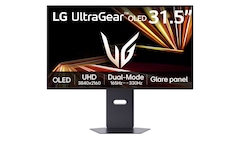
LG 32GX850A-B HDR
LG
It depends — Choose the 32GX850A-B when its 31.5-inch 4K screen matters more than maximum HDR brightness, since LG’s 1,300-nit claim applies only at 1.5% APL and normal full-screen brightness is listed at 275 nits.
Available at Amazon(paid link) — opens Amazon in a new tab. Price and availability shown there.
Sources
Pages consulted while researching this article. None of these are affiliate links.
- LG 32GX850A-B complete specifications — lg.com
- LG Japan 32GX850A-B product page — lg.com
- LG 32GX850A-B owner’s manual — api.tehnoteka.rs
- VESA DisplayHDR performance criteria — displayhdr.org
- The Display Guy LG 32GX850A-B review — youtube.com
- Microsoft Windows HDR Calibration instructions — support.microsoft.com
- NVIDIA RGB dynamic-range instructions — nvidia.com
- LG 27GX700A-B official specifications — lg.com