LG 27GX790A-B for CS2: When 480Hz Makes Sense
The question this answersWhere do these come from?
Is the LG 27GX790A-B a good monitor for playing CS2, especially at high frame rates?
The LG 27GX790A-B is excellent for CS2, especially at high frame rates, but check refresh settings, VRR flicker, and firmware first.
The LG 27GX790A-B is an excellent monitor for Counter-Strike 2 if you want fast OLED motion handling and your PC regularly delivers high frame rates. Its strongest case is competitive play approaching 480 fps; upgrading from an already fast monitor makes less sense when your matches run mostly around 200 fps.
This is the 27-inch, 2560 × 1440 WOLED model with a maximum refresh rate of 480Hz. You do not have to drop to 1080p to access its headline refresh rate. LG specifies DisplayPort 2.1, two HDMI 2.1 inputs, G-SYNC compatibility, and FreeSync Premium Pro. LG’s model announcement and specifications
There is no evidence-based reason to reject the LG 27GX790A-B specifically for high-refresh CS2. The meaningful reservations are how much of its refresh rate your PC can exploit, whether variable-refresh flicker bothers you, and whether you want an OLED for the other things you do at your desk.
When 480Hz improves the purchase case
At 480Hz, one refresh interval lasts approximately 2.08 milliseconds. At 360Hz it is 2.78ms, and at 240Hz it is 4.17ms. These are calculated intervals—1,000 divided by refresh rate—not measured reductions in your total input latency.
That distinction matters. Moving from 240Hz to 480Hz halves the refresh interval, but it does not halve the time between clicking your mouse and seeing a shot. Your PC still has to process input and render the game.
Independent testing supports the LG’s speed. Tom’s Hardware measured a 3ms full-screen draw time and a 10ms result in its input-lag test, tying the lowest input-lag result that reviewer had recorded at publication. Those measurements use the publication’s test method; they are not a prediction of your complete CS2 system latency. Tom’s Hardware response and input-lag measurements
LG’s advertised 0.03ms specification describes gray-to-gray pixel response. It should not be read as mouse-to-screen latency. LG specifications
Before buying, check performance during actual fights, smoke effects, and busy rounds at your intended resolution. A brief 500 fps reading while looking at an empty area is weak evidence for a 480Hz upgrade. Look at frame-time consistency and slower moments alongside the average.
You do not need a locked 480 fps for the monitor to work well. However, if you already own a capable 240Hz or 360Hz display and CS2 runs far below 480 fps, improving the limiting part of your PC may be the more useful next step. The LG cannot supply game frames that your computer has not rendered.
Set up 480Hz before judging the monitor
Start with a direct connection between the graphics card and monitor, using the supplied DisplayPort or HDMI cable. LG lists both cables as included; buying another cable should follow an identified connection problem. LG’s accessory specifications
In Windows 11, open Settings → System → Display → Advanced display, select the LG, and choose 480Hz. Confirm that the resolution remains 2560 × 1440. Microsoft notes that some refresh-rate choices can change resolution, so check both values together. Microsoft’s refresh-rate instructions
Then check CS2’s video settings, particularly after changing display mode or resolution. A desktop configured correctly does not justify assuming every game mode is also correct.
On a supported NVIDIA GPU, go to Settings → Video → Advanced Video → NVIDIA Reflex Low Latency → Enabled. NVIDIA documents this exact path. Start with Enabled; Enabled + Boost can reduce latency further under some conditions, but NVIDIA also notes extra power consumption and potentially lower frame rates. NVIDIA’s CS2 Reflex instructions
Just want the recommendation?
Skip to the picksIf 480Hz is absent, investigate the GPU’s output capabilities, connection path, and driver before blaming CS2. A port labelled DisplayPort or HDMI does not establish what modes the complete connection supports.
Choose between tear-free play and minimum latency
For smooth, tear-free CS2 on a compatible NVIDIA system, Valve recommends enabling G-SYNC, V-Sync, and NVIDIA Reflex together. Valve also explains that the combination limits frame rate slightly below the monitor’s refresh rate. Seeing fewer than 480 fps with this configuration is therefore not automatically a performance fault. Valve’s CS2 video-setting recommendations
If your priority is the lowest latency and you accept tearing, use Reflex with V-Sync disabled in both the game and driver. NVIDIA says its synchronized, tear-free configuration carries slightly higher latency than uncapped rendering with Reflex. These are different priorities; there is no single setting that simultaneously maximizes every outcome. NVIDIA’s latency optimization guide
The LG has a relevant drawback here: RTINGS reports noticeable VRR flicker when frame rates change. If you see brightness pulsing, compare the same scene with adaptive sync disabled. That comparison can help identify VRR flicker, although disabling synchronization reintroduces the possibility of tearing. RTINGS’ LG 27GX790A-B review
Do not treat brightness pulsing and complete signal loss as the same fault. They lead to different checks.
Playing stretched 4:3 on the 27-inch panel
You can use the LG for stretched 4:3 CS2; its native 1440p resolution does not require you to play at 16:9. On NVIDIA systems, Control Panel → Adjust desktop size and position → Full-screen stretches a lower-resolution image across the display. Aspect ratio preserves its proportions and can leave black borders. NVIDIA’s display-scaling documentation
Choose your preferred 4:3 resolution in CS2, then verify refresh rate again. Lower rendering resolution and output refresh rate are separate settings; changing one is a reason to check the other.
There is also a physical-size decision. Stretching 4:3 across this display still fills a 27-inch screen. It does not reproduce the viewing area of a smaller tournament monitor. If you sit close and already find 27 inches too large to scan comfortably, 480Hz does not solve that preference.
Native 1440p is the sensible starting point when you want sharper detail. Stretched 4:3 remains an option when you prefer its presentation or need to reduce rendering workload, but it does not guarantee higher performance if another component is the limiting factor.
Old latency warnings and problems worth checking
Older reports about this model’s latency need context. RTINGS originally tested firmware 3.03, 2.04, then retested input lag with 3.04, 2.04 and specifically advises updating for better 60Hz input lag. That is not evidence that the monitor is unsuitable for CS2 at 480Hz, and the retested version should not be assumed to be today’s newest firmware. RTINGS’ firmware and testing notes
For RTX 50-series owners experiencing DisplayPort blackouts, LG identifies NVIDIA hotfix driver 576.26, released April 28, 2025, as resolving a documented DP 2.1 blackout issue. Install a current driver rather than seeking out that old hotfix as a permanent solution. LG’s compatibility notice
Finally, account for OLED ownership. RTINGS flags burn-in risk from repeated static content, text fringing, and limited ability to overcome bright-window glare. Those drawbacks matter more if the same monitor spends the working day displaying fixed desktop layouts. RTINGS’ office-use findings
Buy the LG 27GX790A-B for its fast 1440p gaming performance when that matches your PC and screen-size preference. If signal loss persists with current software, a direct connection, and a known-good cable, contact LG support; unresolved blackouts require diagnosis and potentially warranty service.
The bottom line
Where the money goes:
Top pick
Buy this
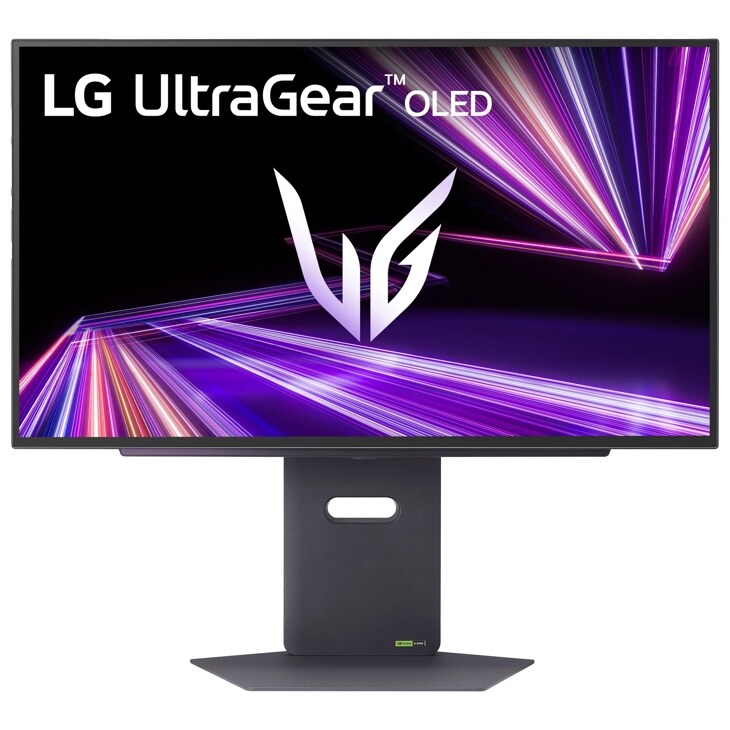
LG 27GX790A-B UltraGear OLED 27-inch 1440p 480Hz Gaming Monitor
LG
Its 2560 × 1440 panel supports 480Hz, and Tom’s Hardware measured a 10ms result in its input-lag test.
A strong CS2 choice when you want 1440p OLED motion clarity and can sustain high frame rates. VRR flicker and OLED burn-in risk are the principal drawbacks.Available at Amazon(paid link) — opens Amazon in a new tab. Price and availability shown there.
Recommended products
Ordered by how well each one fits the situations above. Each link below is a paid link.
LG 27GX790A-B UltraGear OLED 27-inch 1440p 480Hz Gaming Monitor
LG
Buy — Its 2560 × 1440 panel supports 480Hz, and Tom’s Hardware measured a 10ms result in its input-lag test.
A strong CS2 choice when you want 1440p OLED motion clarity and can sustain high frame rates. VRR flicker and OLED burn-in risk are the principal drawbacks.Available at Amazon(paid link) — opens Amazon in a new tab. Price and availability shown there.
Sources
Pages consulted while researching this article. None of these are affiliate links.
- LG Unveils New UltraGear OLED Gaming Monitor With 480Hz Refresh Rate — lgcorp.com
- Tom’s Hardware: LG 27GX790A Response and Input-Lag Measurements — tomshardware.com
- LG Canada: 27GX790A-B Specifications and Included Accessories — lg.com
- Microsoft: Change the Refresh Rate on Your Monitor in Windows — support.microsoft.com
- NVIDIA: Counter-Strike 2 Reflex Setup and Latency — nvidia.com
- Steam Support: CS2 Video Settings Recommendations — help.steampowered.com
- NVIDIA: System Latency Optimization Guide — nvidia.com
- RTINGS: LG 27GX790A-B Review — rtings.com