LG 24GN65R for PS5 and Office: Buy It?
The questionWhere do these come from?
Best monitor under ₹15k for PS5 + Office Work
Earlier i used to play on tv, but now i am looking for the best monitor under ₹15,000 for PS5 gaming and office work (coding, browsing, documents). No strict size preference—24” or larger is fine.
Buy the LG 24GN65R if 1080p and no PS5 VRR are acceptable; it delivers 120Hz, useful sRGB coverage and a proper ergonomic stand.
Buy the LG 24GN65R if you want one compact monitor for PS5 gaming and office work, provided 1080p is sharp enough for you and you accept that PS5 VRR will not work. It combines confirmed 1080p/120Hz HDMI timing with a 23.8-inch IPS panel, sensible sRGB coverage and a height-adjustable stand—the features that matter more here than its headline 144Hz and “1ms” claims.
The main alternatives are not automatically better. Consider the Gigabyte G24F 2 if extra inputs and USB ports matter, but skip the MSI G244F E2 for an eight-hour office setup unless you already have a monitor arm: its supplied stand adjusts only for tilt.
| Model | PS5-relevant capability | Office-use advantage | Verdict |
|---|---|---|---|
| LG 24GN65R-B | 1080p at 120Hz over HDMI; no PS5 VRR | Height, tilt and pivot adjustment; restrained sRGB gamut | Buy |
| Gigabyte G24F 2 | HDMI 2.0 inputs with ample bandwidth for 1080p/120Hz | Two HDMI inputs, USB hub and 130mm height adjustment | Consider |
| MSI G244F E2 | Official FHD/120Hz console mode | 23.8-inch IPS panel, but tilt-only stand | Skip for office use without an arm |
What the PS5 can actually use
The LG is a 144Hz monitor, but a PS5 tops out at 120Hz in supported games. That is not a compatibility problem: the LG 24GN65R owner’s manual lists 1080p HDMI video timings at both 60Hz and 120Hz. You do not need HDMI 2.1 for 1080p/120Hz.
Connect the console directly to the monitor’s HDMI input, then open Settings > Screen and Video > Video Output > 120 Hz Output on the PS5 and enable it. Sony notes that 120Hz output still requires a game with a supported 120Hz mode; the setting cannot turn a 30fps or 60fps game into a 120fps game. Sony’s video-output guide documents both the menu path and this game-support requirement.
There are three important limits:
- The image is 1920×1080, not 1440p or 4K. The PS5 cannot create extra panel detail that the screen does not physically have.
- The PS5 will not use all 144 refreshes per second. That final 24Hz of headroom is relevant to a connected PC, not the console.
- AMD FreeSync Premium does not give this monitor PS5 VRR. Sony specifies an HDMI 2.1 VRR-compatible display, while the LG uses HDMI 2.0 for its 120Hz video timing. PlayStation’s VRR documentation makes that distinction explicit.
That last limitation matters most in games with unstable frame rates. A locked 60fps or 120fps mode can still look smooth, but the monitor cannot continuously match a fluctuating PS5 frame rate through VRR.
Text is clear enough, but it is not high-DPI
A 1920×1080 image across 23.8 inches works out to approximately 93 pixels per inch. At normal desk distance, that is a sensible density for email, documents, browser tabs and ordinary spreadsheet work. It is also visibly sharper than putting the same resolution on a 27-inch screen, where density falls to roughly 82 pixels per inch.
The trade-off is workspace. Two full-width documents or a dense spreadsheet will feel more constrained than on a 27-inch 1440p monitor. Text also will not have the finely drawn edges of a 4K display, particularly when used with a Mac or viewed from unusually close range. Anyone whose working day is mostly code, small fonts or large spreadsheets should treat the LG as adequate rather than exceptional.
For Windows, use the native 1920×1080 resolution, start at 100% scaling and run the ClearType tuner. Avoid increasing the monitor’s Sharpness control to compensate for low resolution; excessive edge enhancement creates halos around letters instead of adding real detail.
The stand is one reason the LG wins this particular mixed-use decision. LG specifies height, tilt and pivot adjustment, plus a 100×100mm VESA mount. Those adjustments let the top of the panel sit near eye level without placing books under the base. The stand is deep, however: LG lists the assembled depth as 291.2mm, so a shallow desk may benefit from a VESA arm. LG India’s full specification also confirms that there is no swivel adjustment.
Color is appropriate for web and office work
LG specifies 99% typical sRGB coverage, 97% minimum coverage, factory calibration, 300-nit typical brightness and a 1000:1 typical contrast ratio. That combination is appropriate on paper for documents, web graphics, general photo viewing and SDR games. The standard-sized sRGB gamut is also less likely to make ordinary web colors look artificially intense than an unclamped wide-gamut display.
Those figures need an important qualification: no published instrumented review of the exact 24GN65R variant was located. The 99% coverage, factory-calibration and “1ms GtG at Faster” figures are LG’s specifications, not independently verified measurements. Measurements for the similarly named 24GN650 should not be silently transferred to this model because even their port layouts differ.
Just want the recommendation?
Skip to the picksThat makes the LG unsuitable as an evidence-backed recommendation for professional color grading or print proofing. It remains a reasonable general-purpose color choice, but color-critical work requires measuring the individual unit with a colorimeter.
HDR10 support should also be read as signal compatibility, not strong HDR performance. A 300-nit IPS monitor with a listed 1000:1 contrast ratio cannot reproduce the bright highlights and deep blacks associated with convincing HDR displays. Use SDR when HDR makes the desktop, text or game image look washed out.
The useful response-time setting is Fast, not Faster
The advertised 1ms response time applies specifically to the Faster overdrive setting. LG’s own manual warns that selecting Faster can produce motion blur depending on the content and recommends Fast for normal use. That buried qualification is more useful than the number on the product page.
Start with Menu > Game Adjust > Response Time > Fast. Use Faster only after checking moving edges in the games you actually play. Also leave Motion Blur Reduction disabled for office work: the manual says it reduces brightness, can flicker and cannot operate simultaneously with FreeSync.
There is no trustworthy independent input-lag measurement for this exact variant, so a precise millisecond claim would be false confidence. The confirmed 120Hz input timing and gaming-oriented overdrive controls support the low-lag use case, but they do not justify repeating “1ms” as total end-to-end latency.
One HDMI port is the practical inconvenience
The LG has one HDMI input, one DisplayPort 1.4 input and a headphone output. It has no listed USB hub or built-in speakers. The clean arrangement is therefore PS5 over HDMI and a desktop PC over DisplayPort, with the monitor’s Auto Input Switch enabled.
A laptop that only provides HDMI complicates the setup: it must share the single HDMI socket with the PS5 through cable swapping or a suitable external switch. The Gigabyte G24F 2 is the narrower alternative for a desk with several sources. Gigabyte specifies two HDMI 2.0 inputs, DisplayPort, two downstream USB ports, a USB upstream connection and 130mm of height adjustment.
The Gigabyte also has unusually strong independent color evidence. Reviewed measured its sample at a 1140:1 contrast ratio and an average color error of Delta E 0.94 out of the box. That instrumented G24F 2 review makes it attractive when accurate color and connectivity outweigh pivot adjustment. Its catch is a 125% sRGB gamut: standard SDR content can look oversaturated unless the monitor’s sRGB emulation mode is selected. It also lacks pivot.
The G24F 2 therefore gets this brief wrong for readers who want a simple, restrained sRGB presentation without changing picture modes, but it is a genuine upgrade for a multi-device desk.
Why the MSI G244F E2 is the one to skip
Skip the MSI G244F E2 when the monitor will also be used for full workdays. MSI confirms FHD/120Hz console mode, two HDMI 2.0b inputs, a Rapid IPS panel and a 180Hz maximum refresh rate, but its supplied stand supports only tilt; height, swivel and pivot are absent. Those limitations are documented in MSI’s G244F E2 specification.
A 75×75mm VESA arm fixes the ergonomic problem, so the MSI remains reasonable for someone who already owns a compatible arm and values its extra HDMI input. Without an arm, choosing it for gaming specifications creates an avoidable office-use compromise.
The buying line
The LG 24GN65R is the balanced choice when the live listing remains inside your budget cap, the desk is viewed from arm’s length and the PS5 target is 1080p at either 60Hz or 120Hz. Its adjustable stand, compact pixel density and standard-gamut IPS panel serve office work better than many gaming-first alternatives.
Do not buy it expecting 144Hz from the PS5, HDMI 2.1 VRR, meaningful HDR, built-in speakers or 4K-like text. If any of those is essential, the right move is to change display class rather than trying to unlock the feature through a cable or menu setting.
The bottom line
Both work; your situation picks one:
Top pick
Buy this
LG UltraGear 24GN65R-B 23.8-inch FHD IPS 144Hz Monitor
LG
Its manual lists 1080p/120Hz HDMI timing, while LG specifies 99% typical sRGB coverage and height, tilt and pivot adjustment.
This is the balanced choice for PS5 gaming and office work because its stand adjusts for height, tilt and pivot while HDMI accepts 1080p/120Hz. The drawbacks are one HDMI input, no speakers and no PS5 VRR.Available at Amazon(paid link) — opens Amazon in a new tab. Price and availability shown there.The alternative
It depends
Gigabyte G24F 2 23.8-inch FHD Gaming Monitor
Gigabyte
Gigabyte specifies two HDMI 2.0 inputs and a USB hub, but the 125% sRGB gamut requires its sRGB emulation mode for restrained standard-gamut color.
Consider it for a multi-device desk: it provides two HDMI inputs, a USB hub, height adjustment and independently measured color accuracy. It lacks pivot, and its wide gamut can oversaturate SDR content unless sRGB mode is used.Available at Amazon(paid link) — opens Amazon in a new tab. Price and availability shown there.
Recommended products
Ordered by how well each one fits the situations above. Each link below is a paid link.
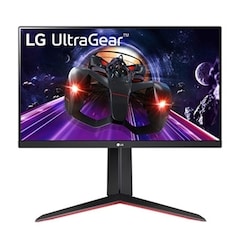
LG UltraGear 24GN65R-B 23.8-inch FHD IPS 144Hz Monitor
LG
Buy — Its manual lists 1080p/120Hz HDMI timing, while LG specifies 99% typical sRGB coverage and height, tilt and pivot adjustment.
This is the balanced choice for PS5 gaming and office work because its stand adjusts for height, tilt and pivot while HDMI accepts 1080p/120Hz. The drawbacks are one HDMI input, no speakers and no PS5 VRR.Available at Amazon(paid link) — opens Amazon in a new tab. Price and availability shown there.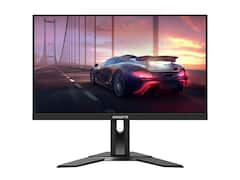
Gigabyte G24F 2 23.8-inch FHD Gaming Monitor
Gigabyte
It depends — Gigabyte specifies two HDMI 2.0 inputs and a USB hub, but the 125% sRGB gamut requires its sRGB emulation mode for restrained standard-gamut color.
Consider it for a multi-device desk: it provides two HDMI inputs, a USB hub, height adjustment and independently measured color accuracy. It lacks pivot, and its wide gamut can oversaturate SDR content unless sRGB mode is used.Available at Amazon(paid link) — opens Amazon in a new tab. Price and availability shown there.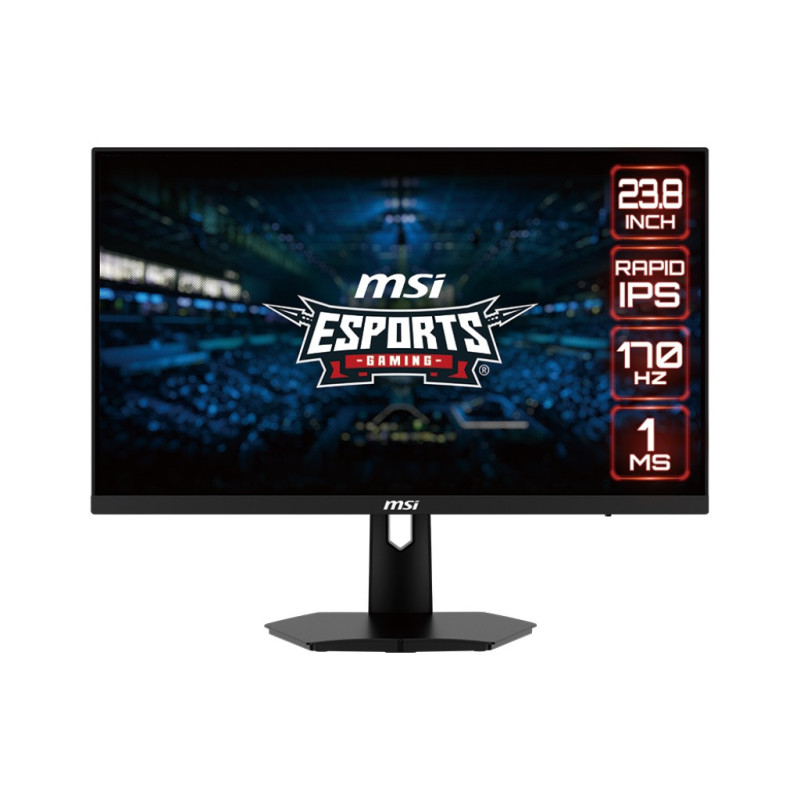
MSI G244F E2 23.8-inch Rapid IPS Gaming Monitor
msi
Skip — MSI lists no height, swivel or pivot adjustment on the G244F E2 stand, only tilt and a 75×75mm VESA mount.
Skip it for long office days unless a VESA arm is already part of the setup. Its FHD/120Hz console mode is useful, but the supplied stand adjusts only for tilt.Available at Amazon(paid link) — opens Amazon in a new tab. Price and availability shown there.
Sources
Pages consulted while researching this article. None of these are affiliate links.
- LG India 24GN65R-B specifications — lg.com
- LG 24GN65R owner’s manual — manuals.plus
- PlayStation Support: PS5 video output settings — playstation.com
- PlayStation Blog: PS5 Variable Refresh Rate support — blog.playstation.com
- Gigabyte G24F 2 specifications — gigabyte.com
- Reviewed: Gigabyte G24F 2 instrumented review — reviewed.com
- MSI India G244F E2 specifications — in.msi.com