Galaxy Tab A9+ S Pen Support: What Actually Works
The question this answersWhere do these come from?
Does the Galaxy Tab A9+ support the S Pen?
The Galaxy Tab A9+ does not support S Pen. A capacitive stylus handles basic touch input, but proper pen support needs another tablet.
The Samsung Galaxy Tab A9+ does not support S Pen, including an S Pen bought separately. Skip the Samsung S Pen Pro for the Tab A9+: the tablet lacks the required pen hardware, so buying the Bluetooth model cannot make it compatible. Samsung’s own community moderator confirms that hardware limitation specifically for the A9+. Samsung’s A9+ compatibility explanation
You have two practical routes: use a capacitive stylus for basic touchscreen input, or choose a tablet with built-in S Pen support for regular handwriting. The distinction matters because a pen advertised as working with the A9+ may simply reproduce what your finger does.
Why pairing an S Pen cannot fix it
S Pen compatibility requires sensing hardware in the tablet. Bluetooth connectivity alone does not supply it. Samsung’s S Pen Pro support page describes compatibility with Galaxy devices that already support S Pen; it does not promise compatibility with every Samsung device that has Bluetooth. Samsung S Pen Pro support
There is a particularly useful detail in Samsung’s compatibility document: its comparison table separates writing support from Bluetooth Air Actions. Those are different capabilities, and the document explicitly identifies digitizer support as a requirement for the S Pen Pro’s Bluetooth functionality. A pen having a battery, charging socket or pairing button therefore tells you very little about whether its tip will work on your screen. Samsung S Pen compatibility document
For the A9+, the practical consequence is straightforward: charging the pen, resetting Bluetooth, installing another drawing app or updating One UI cannot supply the missing hardware. There is no S Pen setting you can enable to turn this model into an S Pen tablet.
Samsung’s moderator also addresses an easy purchasing mistake: meeting an accessory’s Android and memory requirements does not establish compatibility. The tablet must support S Pen in the first place. That applies even to the higher-memory A9+ configuration discussed in Samsung’s response.
If an S Pen does nothing on an otherwise functioning A9+, that behavior does not by itself indicate a defective pen or tablet. Check compatibility before requesting a replacement or arranging service.
A capacitive stylus works, with important limits
These three combinations solve different problems:
| Tablet and pen combination | Input available | Appropriate use |
|---|---|---|
| Galaxy Tab A9+ + Samsung S Pen Pro | No S Pen writing | Incompatible combination |
| Galaxy Tab A9+ + Adonit Pro 4 | Ordinary capacitive touch | Tapping and occasional markup |
| Galaxy Tab S10 Lite + included S Pen | Native S Pen input | Regular handwriting and annotation |
Adonit describes the Pro 4 as a passive, non-Bluetooth stylus that uses a disc to interact with a touchscreen. That makes it a reasonable option to consider if you already own the A9+ and want to tap controls, make short annotations or sketch simple shapes. This recommendation rests on the manufacturer’s stated touch compatibility, rather than a hands-on test of this particular pairing. Adonit Pro 4 support
Just want the recommendation?
Skip to the picksThe limitation is the input method. The Pro 4 supplies ordinary touch input, so it does not give the A9+ S Pen pressure sensing, hover detection or native pen-aware palm rejection. A drawing app can let you select a thicker brush, but that is different from changing a stroke by pressing harder.
For handwriting, palm handling is often the deciding issue. If your hand touches the screen while a capacitive stylus is drawing, the application has to deal with those additional touches. Software touch filtering may help in particular apps, but you should not assume it delivers the same behavior as a tablet designed to distinguish a pen from your hand.
A useful check before buying is to open your intended annotation app and try its finger-drawing mode. Write a short sentence and mark a document. This will not establish a stylus’s accuracy, but it will show whether ordinary touch drawing suits the task at all.
Treat labels such as “active,” “rechargeable” and “for Samsung tablets” cautiously. They do not establish S Pen compatibility. For an unfamiliar pen, the unresolved question is whether its particular touch implementation works reliably with the A9+; ask the pen manufacturer for explicit model support. Samsung itself does not guarantee full compatibility with third-party touch pens in its A9+ response.
For daily handwritten notes, change the tablet
If you are choosing hardware for lectures, handwritten equations or frequent PDF annotation, buy the Samsung Galaxy Tab S10 Lite with its included S Pen. Samsung documents both the supplied pen and the ability to annotate imported PDFs in Samsung Notes. The A9+ gets the essential requirement wrong for this reader: it cannot provide native S Pen input, regardless of which replacement S Pen you purchase. Samsung Galaxy Tab S10 Lite specifications and features
The S10 Lite has a 10.9-inch, 2112 × 1320 TFT display running at 90Hz. Its drawback is that obtaining proper pen support means replacing the tablet; the included pen will not upgrade an A9+. It is also a TFT model, so choose it for its documented writing support rather than expecting an OLED display.
For existing A9+ owners, replacement makes sense when handwriting is central to the job. If most of your notes are typed, keeping the tablet may be more practical. The Galaxy Tab A9+ keyboard compatibility guide covers that route.
Independent testing helps separate display quality from pen capability. Notebookcheck measured a maximum of 493 nits on a full white screen on its A9+ review unit, while its input assessment separately confirms the absence of pen support. A usable display does not establish S Pen compatibility, and that brightness measurement says nothing about handwriting accuracy with a generic stylus. Notebookcheck’s Galaxy Tab A9+ review
Before ordering, check the complete tablet name and the pen’s documented compatibility. A listing that bundles an A9+ with a “stylus” has not changed the tablet’s hardware. For occasional touch input, consider the Pro 4; for sustained handwriting, choose a tablet supplied with supported pen hardware.
The bottom line
Both fit — your exact model decides:
Top pick
Skip this
Samsung S Pen Pro EJ-P5450
Samsung
Samsung restricts S Pen Pro compatibility to devices with S Pen support, which the Galaxy Tab A9+ lacks.
Skip this pen for the Galaxy Tab A9+. Its Bluetooth connection cannot compensate for the tablet’s missing S Pen hardware.Available at Amazon(paid link) — opens Amazon in a new tab. Price and availability shown there.The alternative
It depends
Adonit Pro 4
Adonit
Adonit documents the Pro 4 as a passive, non-Bluetooth touchscreen stylus, making it suitable for basic touch input rather than native S Pen functions.
Consider this passive disc stylus for tapping and occasional markup on an existing A9+. It supplies ordinary touch input without S Pen pressure sensing or native pen-aware palm rejection.Available at Amazon(paid link) — opens Amazon in a new tab. Price and availability shown there.
Recommended products
Ordered by how well each one fits the situations above. Each link below is a paid link.
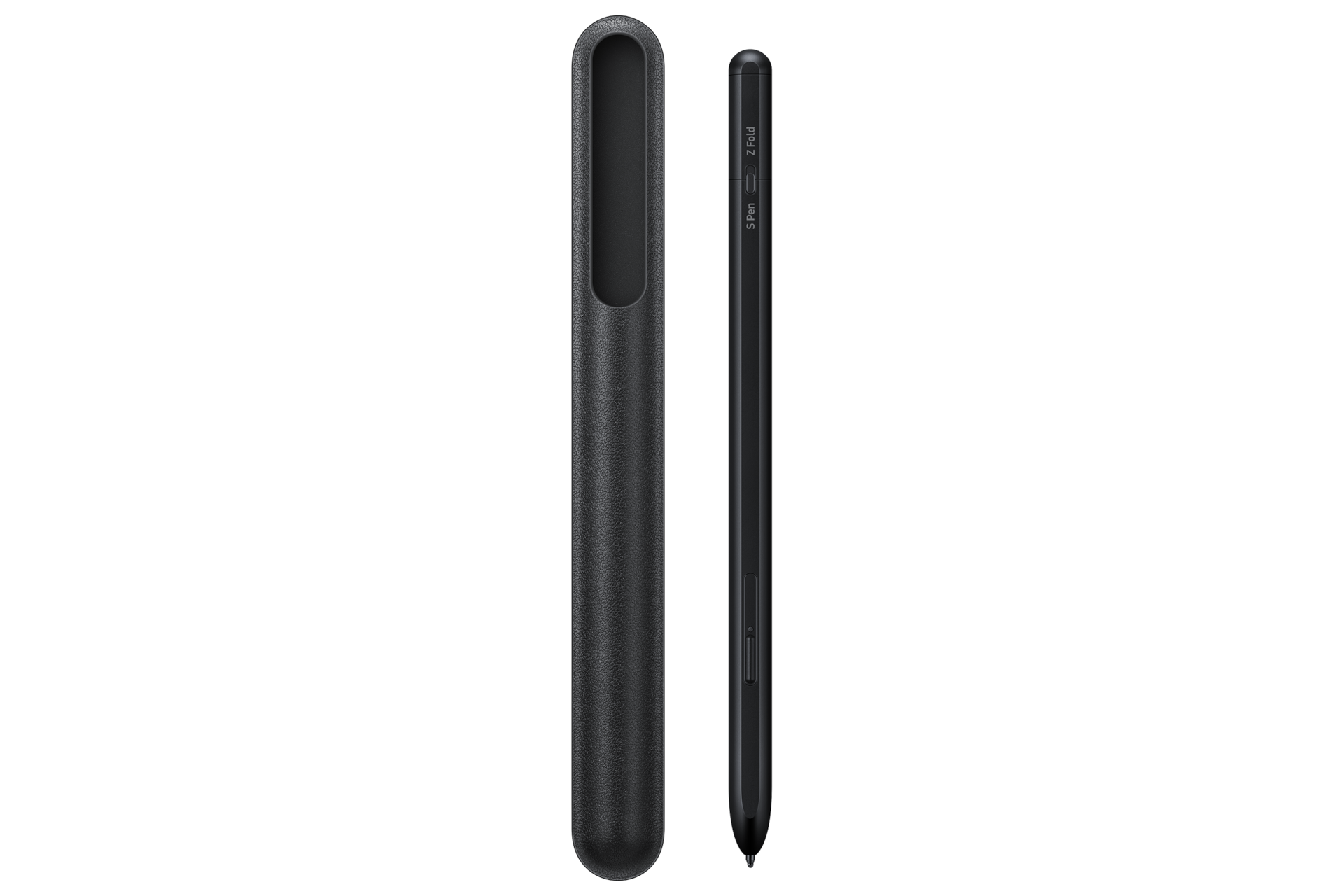
Samsung S Pen Pro EJ-P5450
Samsung
Skip — Samsung restricts S Pen Pro compatibility to devices with S Pen support, which the Galaxy Tab A9+ lacks.
Skip this pen for the Galaxy Tab A9+. Its Bluetooth connection cannot compensate for the tablet’s missing S Pen hardware.Available at Amazon(paid link) — opens Amazon in a new tab. Price and availability shown there.
Adonit Pro 4
Adonit
It depends — Adonit documents the Pro 4 as a passive, non-Bluetooth touchscreen stylus, making it suitable for basic touch input rather than native S Pen functions.
Consider this passive disc stylus for tapping and occasional markup on an existing A9+. It supplies ordinary touch input without S Pen pressure sensing or native pen-aware palm rejection.Available at Amazon(paid link) — opens Amazon in a new tab. Price and availability shown there.Samsung Galaxy Tab S10 Lite 128GB Wi-Fi Gray
Samsung
Buy — Samsung includes an S Pen with the Galaxy Tab S10 Lite and documents handwriting and imported-PDF annotation support.
Choose this tablet if regular handwriting is the reason you need S Pen support; the pen is included. It requires replacing the A9+ and uses a TFT display.Available at Amazon(paid link) — opens Amazon in a new tab. Price and availability shown there.

Sources
Pages consulted while researching this article. None of these are affiliate links.
- Samsung Community: Galaxy Tab A9+ e S Pen — moderator compatibility explanation — eu.community.samsung.com
- Samsung: Use S Pen Pro features with your Galaxy device — samsung.com
- Samsung: S Pen Compatibility Overview — image-us.samsung.com
- Adonit Pro 4 Support — adonit.net
- Samsung: Galaxy Tab S10 Lite specifications and features — news.samsung.com
- Notebookcheck: Samsung Galaxy Tab A9+ review — notebookcheck.net