Galaxy Tab A9+ Keyboard Fixes That Actually Fit
The questionWhere do these come from?
New to tablets - looking to replace old Chromebook
Hi! Ive got an old cheap Acer Chromebook that has followed me through uni and fire academy and done an amazing job as to what i expected of it. Im a bit worried about security updates and the battery is starting to lose its capability.
For the Tab A9+, the fix depends on whether you use Samsung’s POGO keyboard, Bluetooth, or a USB-C keyboard/hub.
The Galaxy Tab A9+ keyboard usually fails for one of three reasons: the Samsung keyboard cover is not seated on the POGO pins, a Bluetooth keyboard is still paired to another device, or a USB-C keyboard/hub is not being recognized cleanly by Android. If you have the smaller Galaxy Tab A9, not the A9+, do not buy the A9+ keyboard cover as a fix: Samsung’s Tab A9+ keyboard cover is made for the Galaxy Tab A9+ and connects through POGO pins, not Bluetooth.
Samsung’s own accessory page says the Galaxy Tab A9+ Book Cover Keyboard attaches through magnetic POGO pins and does not need Bluetooth or batteries. Samsung also lists the Tab A9+ as supporting physical keyboard settings under Settings > General management > Physical keyboard, and the Tab A9+ specs include Bluetooth HID/HOGP profiles, which are the relevant profiles for Bluetooth keyboards.
The Samsung cover connection checks that matter
Use this section if you have the Samsung Book Cover Keyboard Slim for Galaxy Tab A9+, model EF-DX211, or a Samsung-branded A9+ keyboard cover. This keyboard should not appear as a Bluetooth device because it is not a Bluetooth keyboard. It connects through the physical POGO connector.
First, remove the tablet from the case and inspect the connector row on the tablet and the matching connector on the keyboard. Wipe both with a dry microfiber cloth. Do not use water, metal tools, or anything abrasive on the pins. Reattach the tablet so the camera hole and connector side align exactly; if the tablet is slightly twisted in the case, the magnets can hold it close enough to look attached but not close enough for a stable electrical connection.
Then open any simple text field, such as Samsung Notes, Google Docs, Gmail, or Chrome’s address bar. If no key produces text, go to Settings > General management > Physical keyboard. If the page shows no connected keyboard, Android is not seeing the cover at all. That points to seating, dirty pins, a damaged cover connector, a damaged tablet connector, or the wrong cover.
Check the model. The Samsung support pages identify the Galaxy Tab A9+ keyboard cover as EF-DX211. If the listing or box says it is for a Tab S series, Tab A8, base Tab A9, or a generic “11 inch Samsung tablet,” it may physically fit badly or not connect. Samsung specifically says the A9+ keyboard cover uses POGO pins; a generic Bluetooth case with a keyboard is a different product and must be paired in Bluetooth settings.
If the keyboard is detected but some keys type the wrong symbols, the hardware is probably connected. Go to Settings > General management > Physical keyboard, select the connected keyboard, and set the layout to the language printed on the keys. This matters for symbols such as @, quotation marks, currency keys, and punctuation.
Return or service the cover if all of these are true: the cover is definitely EF-DX211, the pins are clean, the tablet is seated correctly, the tablet is restarted, and Settings > General management > Physical keyboard still does not show a connected keyboard. There is no software pairing trick for a dead POGO connection.
Bluetooth pairing in the right order
Use this section for Logitech, Typecase, Arteck, Fintie, folding travel keyboards, and keyboard cases that have a battery, charging port, power switch, or pairing button. These are not the same as Samsung’s POGO keyboard cover.
On the Tab A9+, open Settings > Connections > Bluetooth. Turn Bluetooth on, put the keyboard into pairing mode, tap Scan, and select the keyboard when it appears. If Android asks for a PIN, type the PIN on the physical keyboard and press Enter. If the keyboard manual gives no PIN and Samsung’s pairing screen asks for one, 0000 is a common fallback, but the keyboard manufacturer’s manual wins.
The most common failure is that the keyboard is already connected to the old Chromebook, a phone, or another tablet. Turn Bluetooth off on those devices or remove the keyboard from their Bluetooth device list, then pair it again with the Tab A9+. Samsung’s Bluetooth troubleshooting page specifically calls out existing connections to another nearby device as a reason pairing fails.
If the keyboard appears and then immediately disconnects, restart both devices. On the Tab A9+, hold the power controls and restart the tablet, or use the hardware restart method Samsung gives for Galaxy devices: hold Volume down and Power for about 10 seconds until the Samsung logo appears. Charge the keyboard fully before judging it; low keyboard battery can look like a tablet problem.
Just want the recommendation?
Skip to the picksIf it still will not connect, forget the keyboard and reset the tablet’s Wi-Fi/Bluetooth settings: Settings > General management > Reset > Reset Wi-Fi and Bluetooth settings > Reset settings. This removes saved Wi-Fi and Bluetooth pairings, so have your Wi-Fi password ready. It does not erase your files like a factory reset does.
If another Bluetooth keyboard pairs normally with the Tab A9+, the original keyboard is the likely fault. If no Bluetooth HID device pairs, update the tablet from Settings > Software update > Download and install, then contact Samsung support if the problem remains.
Where the USB-C connection chain breaks
A wired USB keyboard can work on Android, but it is the least predictable setup on a budget tablet because the hub, adapter, power draw, and keyboard firmware all matter. Samsung lists the Galaxy Tab A9+ USB version as USB 2.0, so do not expect display-output docks, laptop-style Thunderbolt docks, or power-hungry multiport setups to behave like they do on a Chromebook.
Use a simple USB-C OTG adapter with a basic USB-A keyboard first. Avoid testing with an RGB mechanical keyboard, a keyboard with a built-in hub, or a receiver that also needs special desktop software. If a plain keyboard works directly but not through the hub, the hub is the problem.
If the keyboard worked before and then stopped, restart the tablet and test in Samsung Notes or Chrome. Then go to Settings > General management > Physical keyboard. If the keyboard appears there, fix the layout or shortcut settings rather than replacing the cable. If it does not appear, remove the case, unplug the hub, reconnect only the keyboard, and test again.
There are Samsung community reports of wired keyboard and mouse problems improving after clearing keyboard cache, resetting keyboard settings, and restarting. Treat that as a troubleshooting step, not as an official guarantee: go to Settings, search for Samsung Keyboard, open its settings, use Reset to default settings where available, then restart. If the USB-C port also fails with storage drives, chargers, or other accessories, the issue may be the tablet’s port and needs service.
Shortcut problems are settings, not pairing
If letters type normally but Alt+Tab, Cmd, language switching, or app shortcuts behave wrong, the keyboard is connected. The fix is usually layout and modifier settings, not pairing.
Open Settings > General management > Physical keyboard. Check these items: keyboard layout, Keyboard shortcuts, Change language shortcut, and Customize keys. Samsung documents these physical keyboard options for Galaxy tablets. In DeX mode, Samsung says physical keyboard language can also be adjusted from Settings > General management > Physical keyboard while DeX is open.
Some third-party keyboards are designed around iPadOS, Windows, or ChromeOS. Their printed Cmd, Option, Search, and function-row behavior may not map cleanly to Samsung’s Android shortcuts. If normal typing works but one app ignores shortcuts, test the same shortcut in Samsung Notes, Chrome, and Google Docs before blaming the tablet. App-level shortcut support is inconsistent on Android.
What to check before returning the tablet
Confirm the exact tablet first. The Galaxy Tab A9+ is the 11-inch model; Samsung’s specs list it as 11.0" (278.2mm). The smaller Galaxy Tab A9 is a different device. A buyer trying to replace an aging Chromebook with a small tablet and keyboard should be careful here: the A9+ has the official Samsung keyboard-cover path, while the smaller A9 is more likely to mean Bluetooth-only keyboard shopping.
Then isolate the failure:
- Samsung POGO keyboard cover: check for
EF-DX211, clean pins, correct seating, and whetherPhysical keyboarddetects it. - Bluetooth keyboard: disconnect it from old devices, pair from
Settings > Connections > Bluetooth, restart, then reset Wi-Fi/Bluetooth settings if needed. - USB-C keyboard: test a simple wired keyboard through a simple OTG adapter before blaming Android or the tablet.
- Shortcut problem only: fix
Physical keyboardlayout and modifier settings before replacing hardware.
Return the keyboard if only that keyboard fails. Contact Samsung or start a repair if no physical keyboards are detected, Bluetooth HID devices will not pair, or the USB-C port fails with multiple known-good accessories. A factory reset is the last step, not the first, because Samsung warns it erases the tablet and requires account credentials during setup.
The bottom line
Two parts fix this, depending on which failed:
Top pick
Skip this
Samsung Official Slim Keyboard Case (Ai Key) Galaxy Tab S10 Ultra & S9 Ultra, International Version (English) - Black
Samsung
This listed cover is for Tab S10 Ultra and S9 Ultra, while the article requires the A9+ EF-DX211 cover and warns that Tab S-series covers may not fit or connect.
This is the relevant Samsung POGO-pin keyboard cover for the Tab A9+. It is the cleanest fix if you want a laptop-like cover, but it is not for the smaller Tab A9 and it will not solve a damaged tablet connector.Available at Amazon(paid link) — opens Amazon in a new tab. Price and availability shown there.The alternative
Buy this
Logitech Pebble Keys 2 K380s Wireless Bluetooth Keyboard - Tonal Graphite
Logitech
The article includes Logitech keyboards in its Bluetooth pairing guidance and confirms that the Tab A9+ supports Bluetooth HID/HOGP keyboard profiles.
A Bluetooth keyboard avoids POGO-pin fit issues and can move between a tablet, phone, and computer. The drawback is that Android shortcut behavior may not match the printed desktop-style keys.Available at Amazon(paid link) — opens Amazon in a new tab. Price and availability shown there.
Recommended products
Ordered by how well each one fits the situations above. Each link below is a paid link.

Samsung Official Slim Keyboard Case (Ai Key) Galaxy Tab S10 Ultra & S9 Ultra, International Version (English) - Black
Samsung
Skip — This listed cover is for Tab S10 Ultra and S9 Ultra, while the article requires the A9+ EF-DX211 cover and warns that Tab S-series covers may not fit or connect.
This is the relevant Samsung POGO-pin keyboard cover for the Tab A9+. It is the cleanest fix if you want a laptop-like cover, but it is not for the smaller Tab A9 and it will not solve a damaged tablet connector.Available at Amazon(paid link) — opens Amazon in a new tab. Price and availability shown there.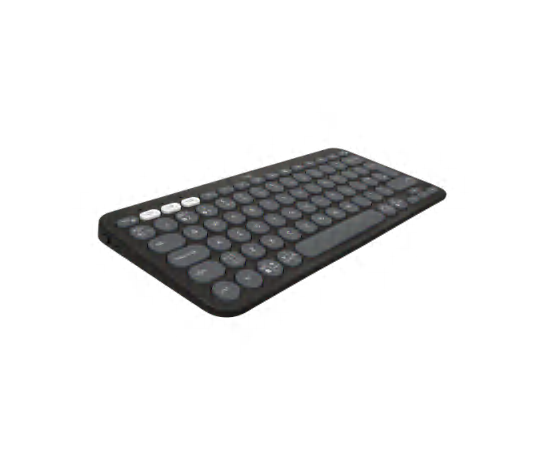
Logitech Pebble Keys 2 K380s Wireless Bluetooth Keyboard - Tonal Graphite
Logitech
Buy — The article includes Logitech keyboards in its Bluetooth pairing guidance and confirms that the Tab A9+ supports Bluetooth HID/HOGP keyboard profiles.
A Bluetooth keyboard avoids POGO-pin fit issues and can move between a tablet, phone, and computer. The drawback is that Android shortcut behavior may not match the printed desktop-style keys.Available at Amazon(paid link) — opens Amazon in a new tab. Price and availability shown there.
Anker USB C Adapter (2 Pack), USB C to USB Adapter High-Speed Data Transfer
Anker
Buy — The article recommends testing a basic USB-A keyboard through a simple USB-C OTG adapter to isolate hub-related connection failures.
Useful for testing whether a basic wired USB keyboard is recognized by the Tab A9+ without a complicated hub. It will not fix keyboards that need special desktop drivers or high power draw.Available at Amazon(paid link) — opens Amazon in a new tab. Price and availability shown there.
Sources
Pages consulted while researching this article. None of these are affiliate links.
- Samsung Galaxy Tab A9+ review — Notebookcheck — notebookcheck.net
- Fix Bluetooth problems on Android — Android Help — support.google.com
- USB host and accessory overview — Android Developers — developer.android.com
- HID Over GATT Profile — Bluetooth SIG — bluetooth.com
- Connect Keys-To-Go for Android and Windows — Logitech Support — support.logi.com
- Get accessories for your Galaxy Tab A9+ or A9+ 5G — samsung.com
- Use the Keyboard on your Galaxy Tablet — samsung.com
- Bluetooth device won't reconnect or stay connected to Galaxy phone or tablet — samsung.com
- Galaxy Tab A9+ official specifications — samsung.com
- Galaxy Tab A9+ Book Cover Keyboard Slim support — samsung.com