True Colors Controller Not Working? Start Here
The question this answersWhere do these come from?
Why isn't my controller working in Life is Strange: True Colors on PC?
Test controller detection first, then check Steam Input; replace a USB cable only if testing points to a connection fault.
If your controller stops working in Life is Strange: True Colors on PC, first check whether Windows detects its inputs, then test the game’s Steam Input setting. A replacement cable makes sense only when the controller fails to connect reliably; a controller that works outside the game needs configuration checks first.
Steam sees the controller, but True Colors ignores it
Start with this sequence for the Steam version. These are diagnostic steps based on Steam’s documented input behavior, not a verified universal fix for True Colors.
- Completely exit True Colors.
- Disconnect other gamepads, racing wheels and flight sticks temporarily.
- If you use DS4Windows, DSX, reWASD or another controller remapper, exit it for this test so you can assess Steam Input separately.
- Open Steam → Settings → Controller and check that Steam lists your controller. Use Test Device Inputs, where available, to check buttons and sticks.
- In your Library, right-click Life is Strange: True Colors → Properties → Controller.
- For a PlayStation, Switch Pro or generic controller, select Enable Steam Input as the first test. Launch the game through Steam and check menu navigation, movement and camera control.
- For an Xbox controller, test Disable Steam Input first to check the game’s direct controller input. If that fails, exit the game, select Enable Steam Input, and relaunch.
Change one setting between launches. If both settings fail, return to the original setting before moving on; repeatedly switching global controller options makes the result harder to interpret.
The reason these two settings can produce different results is specific: Steam Input can translate controller actions into emulated gamepad input using XInput. It can also generate keyboard and mouse input, so the selected layout matters. Choose a standard Gamepad template for this diagnostic test rather than a community layout that mixes keyboard, mouse and controller commands. Valve documents these emulated input types.
For Steam Deck’s built-in controls, keep Steam Input enabled and restore the game’s default controller layout before experimenting with community configurations. The Xbox-controller test above is for an external controller on Windows.
Windows cannot detect it, or the connection drops
Before changing more game settings, test the connection outside True Colors:
- Exit the game and controller remapping applications.
- Press Windows + R, enter
joy.cpl, and press Enter. - Select your controller, open Properties, and check its test page for button presses and stick movement.
- If it is missing or unresponsive, connect it directly to another USB port using a cable known to carry data. Temporarily bypass a hub or dock.
Microsoft identifies joy.cpl as the Windows joystick-properties control panel. This gives you a separate place to check detection, although appearing there does not prove that a particular game supports the controller’s input mode. Microsoft’s control-panel command reference.
A charging light alone does not establish that USB data is working. Compare two cables on the same port, then compare ports using the working cable. If one cable consistently fails and another works, replacing that cable is justified. If neither works, the controller’s connector, driver or computer connection remains a possible cause.
For Bluetooth problems, a wired connection is a useful isolation test. If wired play works, investigate pairing and the wireless connection before replacing the controller. Sony supports both USB and Bluetooth connections for DualSense on compatible Windows systems, while explicitly noting that game support differs. Bluetooth pairing therefore cannot guarantee that True Colors receives usable inputs. Sony’s DualSense PC connection guidance.
Buttons appear, but inputs are wrong or doubled
Xbox button prompts on a PlayStation controller do not, by themselves, mean the controller is malfunctioning. Valve explains that gamepad input sent through Steam Input can appear to the game as ordinary Xbox controller input. If movement, camera control and selections work correctly, changing the physical controller is unnecessary. Valve’s gamepad-emulation guidance.
Just want the recommendation?
Skip to the picksIf prompts alternate between keyboard and controller, or one press moves through two menu items, check for overlapping input sources:
- Keep only one controller connected during the test.
- Run Steam Input without a separate remapping application.
- Restore a Gamepad layout and temporarily remove mouse or keyboard bindings from gyro, touchpad and stick controls.
- Leave the mouse untouched while checking whether the prompts still change.
These symptoms suggest conflicting or mixed inputs; they do not establish a broken controller. Valve documents both duplicate-input concerns and compatibility problems when games switch between mouse and gamepad input. The steps above are a way to isolate those possibilities, not proof that either explains every True Colors failure.
For a Windows-store or Xbox-app installation, the Steam version’s per-game override does not automatically apply. Test the controller directly with Steam and other remappers closed. Adding a game to Steam is a separate workaround whose success should not be assumed for every launcher.
Only one action fails, or you are playing on console
When menus and movement work but Alex’s power or jogging behaves unexpectedly, check Settings → Accessibility before treating the controller as disconnected. True Colors lets you switch power and jog controls between hold and tap. It also offers options for certain demanding gameplay sequences. Those settings can explain an action behaving differently from the button press you expected. Square Enix’s True Colors accessibility documentation.
On PlayStation, Xbox or Nintendo Switch, skip the Steam instructions. Check whether the controller operates the console’s home screen and another game, then fully close and reopen True Colors. If it fails everywhere, follow the console maker’s pairing and controller-support process.
On PS5, check which version of True Colors you launched. A DUALSHOCK 4 can operate supported PS4 games on PS5, but it cannot play the native PS5 version. Use a compatible PS5 controller for that version, or the PS4 version if you own it and want to keep using DUALSHOCK 4. A different USB cable cannot remove that platform restriction. Sony’s backward-compatibility rules.
When a cable purchase helps—and when support is next
Consider the Anker 310 USB-A to USB-C Cable only if you need a data cable for a DualSense or another controller with a USB-C socket, and your computer has USB-A. Anker specifies data transfer up to 480 Mbps; that establishes data capability, not improved controller responsiveness. It will not fit a DUALSHOCK 4’s Micro-USB socket, and it cannot repair a Steam Input configuration. Use an existing working data cable first. Anker’s cable documentation.
No independent controlled measurements establishing this cable as a True Colors fix were found. Its conditional recommendation rests on connector fit and the manufacturer’s data specification. There is no evidence-based reason to blacklist a named cable or controller for everyone searching this query.
If the controller passes outside-game tests but True Colors still ignores it, verify the installation through Properties → Installed Files → Verify integrity of game files. This checks installed files; it does not guarantee a controller fix. Steam’s verification instructions.
If that fails, contact Square Enix support with your platform, launcher, controller model, USB or Bluetooth connection, outside-game test results, and the Steam Input settings already tried. A controller that also fails on another compatible device with a known-working cable needs manufacturer support or repair assessment. A controller that fails only in True Colors does not yet have evidence against its hardware.
The bottom line
The fix, in one part:
Top pick
It depends
Anker 310 USB-A to USB-C Cable
Anker
Anker specifies USB-A to USB-C connectors and data transfer up to 480 Mbps, making it suitable only for the matching wired-connection case.
Consider it when testing identifies a faulty cable or you lack a data cable for a USB-C controller. It requires a USB-A computer port, does not fit DUALSHOCK 4, and cannot fix input settings.Available at Amazon(paid link) — opens Amazon in a new tab. Price and availability shown there.
Recommended products
Ordered by how well each one fits the situations above. Each link below is a paid link.
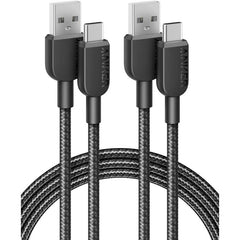
Anker 310 USB-A to USB-C Cable
Anker
It depends — Anker specifies USB-A to USB-C connectors and data transfer up to 480 Mbps, making it suitable only for the matching wired-connection case.
Consider it when testing identifies a faulty cable or you lack a data cable for a USB-C controller. It requires a USB-A computer port, does not fit DUALSHOCK 4, and cannot fix input settings.Available at Amazon(paid link) — opens Amazon in a new tab. Price and availability shown there.
Sources
Pages consulted while researching this article. None of these are affiliate links.
- Valve: Legacy Mode Bindings — partner.steamgames.com
- Microsoft: How to run Control Panel tools by typing a command — support.microsoft.com
- Sony: Use DualSense controllers with PC, Mac and mobile devices — playstation.com
- Valve: Getting Started for Developers—Steam Input — partner.steamgames.com
- Square Enix: Accessibility options in Life is Strange: True Colors — support.square-enix-games.com
- Sony: PS4 games and compatible controllers on PS5 — playstation.com
- Anker 310 USB-A to USB-C Cable documentation — service.anker.com
- Steam Support: Verify Integrity of Game Files — help.steampowered.com