Why HDR Peak Brightness Drops in Game Mode, and How to Check
The questionWhere do these come from?
Hisense 65U8N hitting 650 nits max in HDR Game mode?
Hello, I've been struggling with this for over a year, my 65u8n will not go above 650 nits on windows or Linux (nobara) calibration, it always peaks between 650-700 in HDR game.
Low HDR peak brightness in Game Mode is usually the TV's own limiter, not the OS — a benchmark disc played through a standalone player proves which one it is.
Low HDR peak brightness in Game Mode almost always comes from one of three places: the TV’s own Game Mode or HGiG brightness ceiling, the way Windows or Linux is negotiating the HDMI signal, or a cable and port combination that can’t carry the format the TV actually needs. The only reliable way to tell which one is responsible is to remove the operating system and GPU from the signal path entirely and measure what the panel does with a known, fixed signal. A UHD Blu-ray player running the Spears & Munsil UHD HDR Benchmark disc does exactly that: its patterns are mastered at fixed peak levels — 600, 1,000, 2,000, 4,000 and 10,000 cd/m² — so what shows up on screen is the display’s real output, not whatever brightness a game engine or an OS compositor decided to send.
Why Game Mode reads dimmer than Filmmaker or Standard mode
This is usually correct behavior, not a fault. Game Mode and its HGiG variant exist because HDR tone mapping can otherwise get applied twice: a game renders its own wide luminance range and tone-maps it for output, and then the TV applies a second, independent tone-mapping curve on top, which crushes highlights or shifts color. The HDR Gaming Interest Group’s own guidance describes the fix as the TV reporting its real capabilities — peak brightness, black level, color volume — so the source can tone-map once, correctly, instead of the TV re-processing an already-compressed image.
The tradeoff is that Game Mode and HGiG typically run a different backlight and automatic-brightness-limiting curve than a cinema-oriented mode, because the picture is expected to hold static, full-window bright content (UI, HUDs) for long periods rather than brief highlights in dark scenes. RTINGS measures HDR peak brightness separately for each picture mode for this reason — the same TV legitimately reports different numbers in Game mode than in Filmmaker mode, because the panel is being driven differently in each. Published setup guides for Hisense’s U7/U8-series sets, for example, document a specific Game mode baseline (backlight at maximum, local dimming set to Low rather than Off or High) as the starting point for full HDR brightness in that mode — leaving local dimming on Off or on too aggressive a setting is a common way to lose peak brightness in Game mode without touching anything else.
Why Windows and Linux can disagree about the same TV
If the same low reading shows up on both Windows and Linux, that itself is a useful data point: it rules out anything specific to one OS’s HDR stack. Windows drives its HDR peak brightness through the Windows HDR Calibration app, which asks for a manually-set peak brightness value via a slider test pattern. If that value was set below the display’s real peak — an easy mistake, since the app relies on the user judging when a pattern disappears rather than reading the panel’s spec sheet — Windows will cap HDR output for every application, games included, at that lower ceiling. Linux has no equivalent first-party calibration step; HDR output support across compositors is newer and less consistent, and a compositor that reports incomplete or incorrect display metadata to the TV can cause the TV’s tone mapping to under-drive brightness even when HGiG is selected. Seeing the same shortfall on both systems points away from an OS-side calibration slider and toward something upstream of both: the TV’s own Game mode ceiling, or the cable and port negotiating a weaker signal than expected.
The clean test: take the OS and GPU out of the loop entirely
This is the specific reason a benchmark disc is the right tool here rather than another round of driver or OS settings changes. Running content from a PC is not neutral — Windows’ HDR/SDR brightness slider, the GPU driver’s chosen color format, and the game’s own tone-mapping settings all sit between the source file and the panel. A UHD Blu-ray player removes all of that. It is also, at this point, the only realistic way to play the disc at all: Intel removed the SGX security extension starting with 11th-generation Core processors, and CyberLink permanently dropped Ultra HD Blu-ray playback from PowerDVD in 2022 as a result, which means UHD Blu-ray discs generally cannot be played from a Windows or Linux PC anymore regardless of the drive installed.
Just want the recommendation?
Skip to the picksWith a standalone player connected directly to the TV, set the TV to the exact Game mode or HGiG preset used for actual gaming, then step through the disc’s peak-brightness patterns from 600 up to 10,000 nits. Spears & Munsil’s own guidance notes that switching between peak levels this way reveals what the display’s tone mapping is doing — the point where a highlight window stops getting visibly brighter, or where the TV starts visibly rolling off contrast to protect detail, is the panel’s real ceiling in that mode.
Reading the result
Two outcomes, and they point in opposite directions:
- The disc, played through the standalone player, hits the expected peak in Game/HGiG mode, but PC output through the same input is dimmer. The TV is fine; the shortfall is in the signal reaching it. Recheck the Windows HDR Calibration peak brightness value against the panel’s actual spec rather than a guessed number, and check the GPU control panel’s output format — a connection running 4:2:0 8-bit instead of RGB or 4:4:4 10/12-bit is a sign the GPU and TV negotiated a reduced-bandwidth mode, which can accompany other signal compromises even if it isn’t the direct cause of lower nits.
- The disc is also dimmer than the TV’s own Game-mode spec, or dimmer than the same patterns read in Filmmaker mode. That is a genuine TV-side limitation: an aggressive automatic brightness limiter, local dimming set incorrectly, or HGiG not actually engaged despite being selected in the menu (some sets require it to be reselected per input after a source change). This is worth documenting with the exact pattern and nit reading before contacting support, since it is the kind of behavior manufacturers address in firmware updates rather than something a viewer can calibrate away.
Cable and port bandwidth as a separate variable
HDMI 2.1 as a labeled port does not guarantee its full 48Gbps of bandwidth — that number is a feature-set ceiling, not a promise every “HDMI 2.1” port or cable delivers it. When a link can’t sustain the full rate, the source and display fall back to reduced chroma subsampling (4:2:2 or 4:2:0 instead of 4:4:4) or a lower bit depth to fit inside the available bandwidth; the PS5’s HDMI output is a documented public example, with its link reported as bandwidth-limited to around 32Gbps, which forces 4K/120Hz output away from full 4:4:4 chroma. That fallback doesn’t reduce peak nits directly, but it is evidence the link is compromised, and a compromised link is also where dropped VRR, dropped 4K/120, or an HDR mode silently failing to engage tend to show up — any of which can look like “lower brightness than expected” without actually being a brightness-specific problem. A certified 48Gbps cable removes this as a variable on both legs of the test: player-to-TV and GPU-to-TV.
| Product | What it isolates | Catch |
|---|---|---|
| Spears & Munsil UHD HDR Benchmark disc | The TV’s real peak output at fixed nit levels, independent of any OS or game | Needs a way to actually play a UHD Blu-ray disc — see below |
| Standalone UHD Blu-ray player (e.g. Panasonic DP-UB820) | Removes Windows/Linux and the GPU driver from the signal path completely | PC playback of the disc is effectively dead; Intel’s SGX removal ended it |
| Certified 48Gbps HDMI 2.1 cable | Rules out bandwidth-forced chroma/bit-depth fallback as a separate cause | Doesn’t fix a TV-side brightness limiter — it only removes cable as a suspect |
The disc is the actual answer to the question: it is the tool that converts “seems dim” into a measured, repeatable reading at a known nit level, and it is what separates a real TV limitation from an OS or cable problem. Buy it to get a baseline reading first, in the exact picture mode used day to day. A standalone player is worth adding only if there’s no other way to get the disc’s content onto the panel — most PCs built in the last few years cannot play it, and a phone or streaming box cannot either, since the benchmark’s fixed-peak patterns are authored specifically for optical UHD Blu-ray playback. Skip the cable purchase if the current one is already certified for 48Gbps; buy one only to eliminate it as a variable when that certification is unknown or the cable came bundled with unrelated hardware.
If the standalone-player reading, in the TV’s own Game or HGiG mode, still falls meaningfully short of what the manufacturer’s spec sheet or an independent review lists for that specific mode, that is the point where the answer runs out of things a viewer can adjust. That is a firmware or hardware question for the manufacturer, not a calibration one — and having the exact pattern and measured nit value from the disc is what turns a vague “it seems dim” support ticket into one with a specific, repeatable defect to investigate.
The bottom line
Two parts fix this, depending on which failed:
Top pick
Buy this
Spears & Munsil UHD HDR Benchmark 2023 Edition disc
Spears Munsil
It is the only tool here that produces a repeatable, mode-specific brightness measurement instead of a guess about whether the TV, the OS, or the cable is responsible.
Its fixed-peak patterns (600 to 10,000 nits) send a known signal straight to the panel, turning a vague “looks dim” into a measured nit reading in the exact picture mode used for gaming.Available at Amazon(paid link) — opens Amazon in a new tab. Price and availability shown there.The alternative
It depends
Cable Matters 48Gbps Ultra High Speed HDMI 2.1 Certified Cable
Matters
An HDMI 2.1 label on a port or cable does not guarantee the full 48Gbps rate, and a bandwidth-starved link is a documented cause of dropped chroma and HDR modes on other devices, such as the PS5's HDMI output.
A complement that rules out a second, separate cause: an HDMI link that can’t sustain 48Gbps forces a fallback to reduced chroma subsampling or bit depth, which travels with other signal problems that can look like dimness.Available at Amazon(paid link) — opens Amazon in a new tab. Price and availability shown there.
Recommended products
Ordered by how well each one fits the situations above. Each link below is a paid link.

Spears & Munsil UHD HDR Benchmark 2023 Edition disc
Spears Munsil
Buy — It is the only tool here that produces a repeatable, mode-specific brightness measurement instead of a guess about whether the TV, the OS, or the cable is responsible.
Its fixed-peak patterns (600 to 10,000 nits) send a known signal straight to the panel, turning a vague “looks dim” into a measured nit reading in the exact picture mode used for gaming.Available at Amazon(paid link) — opens Amazon in a new tab. Price and availability shown there.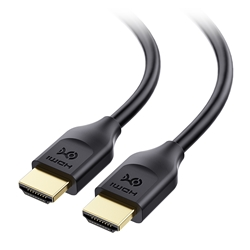
Cable Matters 48Gbps Ultra High Speed HDMI 2.1 Certified Cable
Matters
It depends — An HDMI 2.1 label on a port or cable does not guarantee the full 48Gbps rate, and a bandwidth-starved link is a documented cause of dropped chroma and HDR modes on other devices, such as the PS5's HDMI output.
A complement that rules out a second, separate cause: an HDMI link that can’t sustain 48Gbps forces a fallback to reduced chroma subsampling or bit depth, which travels with other signal problems that can look like dimness.Available at Amazon(paid link) — opens Amazon in a new tab. Price and availability shown there.
Sources
Pages consulted while researching this article. None of these are affiliate links.
- UHD HDR Benchmark 2023 — Spears & Munsil — spearsandmunsil.com
- Getting Started with the UltraHD Benchmark — Spears & Munsil — spearsandmunsil.com
- Spears & Munsil UHD HDR Benchmark 4K Blu-ray Review — AVForums — avforums.com
- Spears & Munsil UHD HDR Benchmark Test Disc — Sound & Vision — soundandvision.com
- Calibrate your HDR display using the Windows HDR Calibration app — Microsoft Support — support.microsoft.com
- Our TV Brightness Tests: HDR Brightness — RTINGS.com — rtings.com
- Hisense U7SG Review — RTINGS.com — rtings.com
- Ultimate Hisense U7G/U8G Picture Settings Guide — AVForums — avforums.com