Logitech G Pro Compatibility Mode: PRO or G923?
The questionWhere do these come from?
High end starter race sim setup
Ok everyone... About 5months ago i had the chance to test a logitech g923 and verry basic race chair... i did like it but... meh This week i had the chance to test a trustmaster t598 with a logitech challege x playseat...
Keep the Logitech G Pro in PRO mode unless a game cannot detect it; G923 mode improves legacy game recognition but removes PRO features.
Keep Compatibility Mode on PRO by default; switch to G923 only when a game does not recognize or correctly configure the Logitech G PRO Racing Wheel. G923 mode makes the wheel identify itself as a G923—it does not add PlayStation or Xbox support to incompatible hardware.
The condition that decides it
| Check | PRO mode | G923 mode |
|---|---|---|
| Identity presented to the game | PRO Racing Wheel | G923 Racing Wheel |
| Best use | Games with native PRO support or manual wheel mapping | Older games with a working G923 profile |
| Available wheel settings | Full PRO feature set | Strength, FFB Filter, Dampener, Brake Force and Compatibility Mode |
| Dual-clutch paddles | Dual-clutch and configurable axis functions | Gas and brake only |
| Recommended default | Yes | Fallback only |
When G923 mode is selected, the wheel restarts and reconnects as a G923. This lets a game load its existing G923 control profile, button prompts and force-feedback support. The cost is reduced functionality: Logitech says most PRO settings disappear and the dual-clutch paddles can only operate the gas and brake. The manufacturer therefore recommends remaining in PRO mode whenever possible. These limitations are documented in the official PRO Racing Wheel setup guide.
G923 mode is not a lower-torque setting, a console selector or a firmware recovery mode. Strength and Compatibility Mode are separate settings. Platform is a third, independent setting: it determines whether the wheel starts in PC or its supported console mode, with choices of On Startup, PC and the console options available to that specific wheel version. If the wheel is already recognized correctly in PRO mode, changing Compatibility Mode normally offers no advantage.
What decides it per game
Compatibility mode is chosen per game and sometimes per platform — no single setting is correct for every title. Logitech’s current recommendations include these examples:
| Game or version | Platform | Logitech mode | Rotation setting |
|---|---|---|---|
| Assetto Corsa Competizione, PS4 version | PlayStation | G923 | 1080° |
| Assetto Corsa Competizione, PS5 version | PlayStation | PRO | 1080° |
| Forza Horizon 5 | PC | G923 | 900° |
| F1 25 | PC | PRO | 360° |
The PS4 and PS5 versions of the same game can therefore require different modes. Likewise, an older PC game is not automatically a G923-mode game: Assetto Corsa uses PRO mode on Logitech’s list, while Dirt Rally 2.0 and Forza Horizon 5 use G923 mode on PC. Check the manufacturer’s current game-by-game PRO Wheel settings before assuming the mode from the game’s age.
If a game is absent from that list, the order to test it in is settled, even though the outcome for that specific title is not:
- Start in PRO mode and bind steering, throttle, brake, clutch, gear paddles and buttons in the game’s wheel or control-assignment screen.
- Close the game, change to G923 mode and reopen it if PRO is not detected or force feedback is missing.
- Keep PRO mode if both work, because it preserves the complete settings menu and paddle functions.
A compatible pedal set must be connected to the wheelbase when relying on G923 mode’s automatic setup. If the pedals are connected independently to the PC, the game may treat them as a separate controller instead of loading a single G923 wheel-and-pedals profile.
How to switch compatibility mode
- Close the racing game completely. Do not leave it paused or running in the background.
- Press the Settings button on the front of the wheelbase.
- Use either adjustment dial on the wheel to scroll through the OLED menu.
- Select Compatibility Mode by pressing the dial inward.
- Select G923. The wheel will restart and reconnect under its G923 identity.
- Start the game only after the restart has finished.
To restore all PRO features, repeat the same process and select PRO.
Make the change before launching the game. Logitech warns that changing compatibility mode while a title is running can produce unexpected behavior because the active USB controller effectively disappears and reconnects as a different device. That can also leave the game holding an obsolete control profile until it is restarted. Logitech’s detection troubleshooting page confirms this startup order.
Just want the recommendation?
Skip to the picksIf you expected it to add PS5 compatibility
It cannot. For a PC-and-PS5 setup, obtain the PlayStation/PC version of the PRO Racing Wheel. Logitech identifies the complete PlayStation/PC model as W-U0008 and the Xbox/PC model as W-U0009; the model number is printed on the bottom. Those identifiers and the supplied components are listed in Logitech’s model specifications.
The PlayStation version officially supports PS5, PS4 and PC. G923 compatibility mode on that hardware makes it appear as the PlayStation/PC G923 so older games can recognize it. It does not make the Xbox/PC model a supported PlayStation wheel. Similarly, Logitech’s Xbox compatibility explanation explicitly says G923 mode does not turn a PC-only wheel into an Xbox wheel.
If the model on the bottom is wrong for the console you intend to use, no menu setting or firmware update is the official fix. Exchange it for the correct platform version.
If you want to add a shifter or handbrake later
The PRO ecosystem provides a workable expansion path, but Compatibility Mode does not guarantee that every game will expose every accessory function.
The Logitech G RS Shifter & Handbrake connects to a USB-A peripheral port on the PRO Racing Wheel. When connected through the wheelbase, sequential-shifter input follows the wheel’s paddle-shift functions; digital handbrake mode sends Circle on PlayStation or B on Xbox/PC; analog handbrake mode uses the wheel’s handbrake axis. Some games still require manual assignments, and console games must explicitly support the handbrake axis. Those behaviors are specified in the RS Shifter & Handbrake guide.
The older nine-pin Driving Force Shifter is different. Connecting that accessory to a PRO Wheel requires the Logitech G Racing Adapter. The adapter is also the documented route for mixing certain G29, G920 or G923 pedals with a PRO wheelbase; Logitech’s Racing Adapter compatibility chart shows the supported combinations. The newer RS Shifter & Handbrake does not need that adapter when plugged directly into the PRO base.
What is still unresolved
On PC, install Logitech G HUB and apply any wheel firmware update it offers. Logitech’s setup guide does not specify a minimum firmware number solely for Compatibility Mode — that is a gap in the documentation, not a settled requirement, so a firmware version copied from a forum thread should not be treated as one.
Rule out the settled causes before treating anything as a mystery:
- The game was closed before changing modes and reopened after the wheel restarted.
- Platform is set to PC or PlayStation as appropriate, independently of Compatibility Mode.
- The correct hardware model is being used for the console.
- Pedals appear on the wheel’s OLED Test screen; that screen displays wheel, paddle and connected-pedal axis responses.
- On PC, G HUB detects the wheel before the game starts.
- The game’s steering and pedal assignments are not still bound to a previous controller profile.
Past that checklist, what remains is genuinely unresolved by anything in the wheel’s own settings. If the OLED Test screen and G HUB both show correct input but one title still fails in both PRO and G923 modes, the problem is that title’s controller profile or support — not something Compatibility Mode can fix either way, and not a reason to replace the wheel. If axes are missing from the Test screen, the wheel repeatedly disconnects in both modes, or the correct console does not recognize the correct hardware model, contact Logitech Support. If support cannot restore detection after its cable, firmware and accessory checks, an exchange or RMA is the honest next step.
The bottom line
Two ways in, depending on how far you want to go:
Top pick
Buy this
Logitech G PRO Racing Direct Drive Wheel, Hub, & Base for PS5/PS4/PC
Logitech
The article recommends the PlayStation/PC PRO Racing Wheel for PC-and-PS5 setups and confirms support for PS5, PS4 and PC.
This is the correct complete-wheel version for a setup that must work on both PC and PS5. Its drawback is that it is not the Xbox/PC package, and G923 mode does not change that platform boundary.Available at Amazon(paid link) — opens Amazon in a new tab. Price and availability shown there.The alternative
Buy this
Logitech G PRO Racing Pedals Simulator with 100kg Load Cell Brake
Logitech
The article says compatible pedals must connect to the wheelbase when relying on G923 mode’s automatic wheel-and-pedals setup.
These connect to the PRO wheelbase so the pedals travel with the wheel as one console-compatible system, which is especially important in G923 mode. The load-cell brake benefits from firm mounting, so a flexible floor-only arrangement is a poor match.Available at Amazon(paid link) — opens Amazon in a new tab. Price and availability shown there.
Recommended products
Ordered by how well each one fits the situations above. Each link below is a paid link.
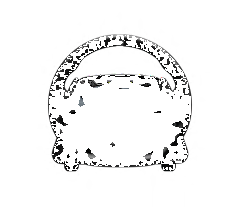
Logitech G PRO Racing Direct Drive Wheel, Hub, & Base for PS5/PS4/PC
Logitech
Buy — The article recommends the PlayStation/PC PRO Racing Wheel for PC-and-PS5 setups and confirms support for PS5, PS4 and PC.
This is the correct complete-wheel version for a setup that must work on both PC and PS5. Its drawback is that it is not the Xbox/PC package, and G923 mode does not change that platform boundary.Available at Amazon(paid link) — opens Amazon in a new tab. Price and availability shown there.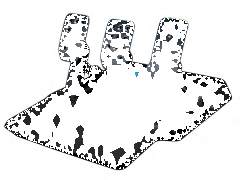
Logitech G PRO Racing Pedals Simulator with 100kg Load Cell Brake
Logitech
Buy — The article says compatible pedals must connect to the wheelbase when relying on G923 mode’s automatic wheel-and-pedals setup.
These connect to the PRO wheelbase so the pedals travel with the wheel as one console-compatible system, which is especially important in G923 mode. The load-cell brake benefits from firm mounting, so a flexible floor-only arrangement is a poor match.Available at Amazon(paid link) — opens Amazon in a new tab. Price and availability shown there.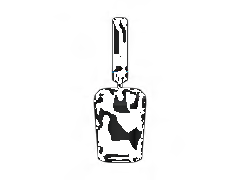
Logitech G RS Sim Racing Shifter & Handbrake (With Mode Switching)
Logitech
It depends — The RS Shifter & Handbrake connects directly to the PRO wheelbase, but console games must explicitly support its analog handbrake axis.
This connects directly to the PRO wheelbase and provides either sequential shifting or handbrake input without the legacy Racing Adapter. The drawback is that it is a sequential shifter, not a traditional H-pattern gearbox.Available at Amazon(paid link) — opens Amazon in a new tab. Price and availability shown there.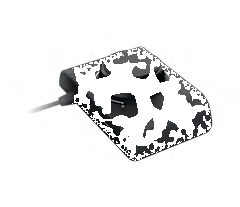
Logitech G Racing Adapter Xbox Series X|S Xbox One Playstation 4 5
Logitech
It depends — The Racing Adapter is required for a nine-pin Driving Force Shifter or supported older pedals, but the RS Shifter & Handbrake connects directly without it.
Buy this only when reusing a nine-pin Driving Force Shifter or supported older Logitech pedals with the PRO ecosystem. It is unnecessary for the USB RS Shifter & Handbrake and cannot add missing handbrake-axis support to a game.Available at Amazon(paid link) — opens Amazon in a new tab. Price and availability shown there.
Sources
Pages consulted while researching this article. None of these are affiliate links.
- Which controllers, wheels, and VR headsets work with F1 25? — EA Help — help.ea.com
- Logitech Pro Racing Wheel for PlayStation review — TechRadar — techradar.com
- Logitech G PRO Direct Drive Wheel Review: A Gran Turismo 7 Game-Changer — GTPlanet — gtplanet.net
- Logitech G PRO racing wheel review: A phenomenal direct drive experience for all — Windows Central — windowscentral.com
- Logitech PRO Racing Wheel Setup Guide — logitech.com
- In-Game Settings for PRO Wheels — support.logi.com
- Game Does Not Automatically Detect My PRO Wheel — support.logi.com
- PRO Racing Wheel for PlayStation and PC Specifications — support.logi.com
- Using PRO Racing Wheels on Xbox With G923 Compatibility Mode — support.logi.com
- Logitech G RS Shifter & Handbrake Guide — logitech.com
- What the Logitech G Racing Adapter Enables — support.logi.com