Roku Voice Remote Pro: Keep One Remote in 4K
The questionWhere do these come from?
Hisense 50M7QG vs. Vizio VQM50C mini-leds, and mixing brands/remotes.
I currently use one remote (Roku) for a 1080p Vizio tv power (IR), Vizio sound bar volume (IR), and Roku Express 4k (RF).
Yes—you can keep one-remote TV power, soundbar volume, and Roku control after moving to 4K, but only when HDMI-CEC and the audio path cooperate.
Yes. You can pair a Roku Voice Remote Pro with a compatible 4K Roku player and retain TV power, soundbar volume, and streaming controls on one remote. The catch is that the Roku remote does not control a third-party soundbar directly: the TV must pass its volume commands to the soundbar through HDMI-CEC, normally over an HDMI ARC or eARC connection.
That distinction matters more than the choice of 4K Roku. The remote communicates wirelessly with the Roku player and controls the TV through IR or HDMI-CEC. Soundbar control is indirect: remote → TV → soundbar. Roku explicitly says its voice remotes cannot directly control devices such as soundbars and AV receivers, although an HDMI-CEC chain can control the sound. Roku’s TV-control instructions document that limitation.
| Product | Maximum picture support | Role in a one-remote setup | Verdict |
|---|---|---|---|
| Roku Streaming Stick Plus, model 3830R | 3840 × 2160 at 60fps; HDR10/10+ and HLG | The straightforward 4K upgrade; pair the existing Voice Remote Pro | Buy |
| Roku Streaming Stick 4K, model 3820R2 | 3840 × 2160 at 60fps; Dolby Vision, HDR10/10+ and HLG | Better fit for a Dolby Vision TV or a room needing its long-range Wi-Fi receiver | Consider |
| Roku Voice Remote Pro (2nd edition), model RCB1R | No video output; remote accessory | Adds USB-C charging, backlighting, hands-free voice and TV controls | Consider |
| Roku Streaming Stick (HD), model 3840R | 1920 × 1080 | Preserves remote control but cannot deliver the requested 4K upgrade | Skip |
The soundbar connection decides whether one remote works
For the most reliable arrangement, connect the Roku player to a regular HDMI input on the television and connect the soundbar to the television’s HDMI port labeled ARC or eARC. Enable CEC on both the television and soundbar. Depending on the TV brand, that setting may be called Anynet+ on Samsung, SIMPLINK on LG, BRAVIA Sync on Sony, or something similar.
With that path established, pressing volume or mute on the Roku remote controls the TV, and the TV forwards the command to the soundbar. Roku’s explanation of HDMI-CEC and ARC confirms that CEC shares commands between HDMI devices and that ARC carries the TV’s audio back to an external audio device.
An optical cable is the important exception. Optical carries audio but not HDMI-CEC commands. Some soundbars can learn a television’s infrared volume codes, but that is a soundbar-specific feature—not something the Voice Remote Pro guarantees. If the soundbar has only optical input and cannot learn the TV’s IR commands, this upgrade cannot promise a one-remote setup. You will still need the soundbar remote or a separate universal remote.
Bluetooth is similarly unsuitable as the foundation of a dependable one-remote home-theater setup. Volume behavior can vary by TV, and power synchronization is not part of the Roku remote’s documented soundbar-control path.
The sensible 4K player for most televisions
The Roku Streaming Stick Plus, model 3830R, is the uncomplicated choice when the goal is simply 4K streaming while retaining Roku controls. Roku specifies output up to 3840 × 2160 at 60fps, HDR10/10+ and HLG, along with a voice remote containing TV power, volume and mute buttons. It requires a compatible HDCP 2.2 HDMI input for 4K. Roku’s Streaming Stick Plus specifications also identify the player as the current replacement for the discontinued Express 4K+.
An existing Voice Remote Pro can be paired to this player, so the standard remote included with the stick can become a spare. Replacing a working Pro remote is not necessary merely because the video player changes.
The Streaming Stick Plus is capable rather than unusually fast. Expert Reviews measured a 9.17-second start for John Wick 3 in Prime Video, compared with 6.14 seconds on a Fire TV Stick 4K Max; its Netflix and Disney Plus results matched the competing device in that test. The same review found occasional interface delays and confirmed the absence of Dolby Vision. Those measurements make the trade clear: it supplies the requested resolution and control arrangement, but it is not the performance or Dolby Vision option. Expert Reviews published the complete test.
The Roku Streaming Stick 4K, model 3820R2, is the narrower alternative for a television that supports Dolby Vision or a location where the standard stick’s Wi-Fi reception is inadequate. Roku documents Dolby Vision, HDR10/10+ and HLG at up to 60fps, plus a long-range Wi-Fi receiver. It also requires an HDCP 2.2-compatible HDMI input. The model 3820R2 specifications provide the format and connection details.
Just want the recommendation?
Skip to the picksThe 3820R2 does not get the core one-remote job wrong; it is simply unnecessary for a TV without Dolby Vision or a difficult Wi-Fi location. Both 4K sticks are legitimate choices, and neither changes the requirement for HDMI-CEC between the TV and soundbar.
Skip the Roku Streaming Stick (HD), model 3840R, for this upgrade: Roku caps it at 1920 × 1080, so it preserves TV-control buttons but cannot output 4K. That limitation is stated in Roku’s model 3840R specifications.
Pair the existing Voice Remote Pro to the new player
Complete the new Roku player’s initial network setup, using its included remote if necessary. Then pair the Voice Remote Pro:
- Open Settings > Remotes & devices > Add devices > Remote > Continue.
- If the remote has a pairing button, hold it for five seconds until the status light flashes.
- On a model without a pairing button, hold Back + Home for five seconds instead.
- Wait for the confirmation message, then select the newly paired remote.
These are Roku’s documented voice-remote pairing steps. The Voice Remote Pro (2nd edition), model RCB1R, works with every Roku TV model and most Roku players, but Roku warns that some older players are unsupported. Its published features include TV power, volume and mute, USB-C charging, backlit buttons and hands-free voice control. Roku’s Voice Remote Pro specifications provide the current compatibility statement.
After pairing, configure the television separately through Settings > Remotes & devices > Remotes > [your remote] > Set up remote for TV control. The setup plays music while Roku tests television-control codes. Point the remote at the TV during this process because it may be testing infrared commands.
If the Roku is connected through a soundbar or AV receiver, Roku recommends temporarily connecting the player directly to the television during TV-control setup. That prevents the intermediary device from interfering with television-brand detection. Restore the intended HDMI arrangement afterward and confirm that CEC remains enabled throughout the chain.
Test all three controls before removing the old remotes
Run three separate checks because one success does not prove the entire chain:
- Press Home and navigate an app to confirm that the Pro is paired with the Roku player.
- Turn the television off and on with the remote’s power button.
- Change volume and press mute while audio is playing through the soundbar.
If navigation works but power does not, repeat Set up remote for TV control and check the TV’s CEC setting. Roku notes that some televisions support volume but not power, so complete control cannot be guaranteed for every TV model.
If TV power works but soundbar volume does not, the Roku pairing is not the problem. Confirm that the soundbar occupies the TV’s ARC/eARC port, that ARC/eARC is selected as the television’s audio output, and that CEC is enabled on both devices. Contact the TV or soundbar manufacturer if its CEC settings are missing or the two products still do not exchange volume commands; the Roku remote has no direct soundbar-code setup to fall back on.
Finally, continuous power matters if you rely on hands-free commands such as “Hey Roku, turn on the TV.” A Roku player powered from a TV USB port may shut down with the television and therefore cannot send a CEC wake command. Roku recommends powering the player continuously when reliable CEC or app-based power-on control is required. The physical power button may still work through IR, but hands-free wake requires the Roku player and Voice Remote Pro to remain available.
The upgrade therefore preserves one-remote control when three conditions are met: the Voice Remote Pro supports the chosen Roku player, the TV accepts its power and volume commands, and the soundbar receives those volume commands through HDMI-CEC over ARC/eARC. Changing from HD to 4K does not itself break the arrangement; an incompatible audio connection does.
The bottom line
Two options, and the revision you own picks one:
Top pick
Buy this
Roku Streaming Stick Plus 4K 2025 model 3830R
Roku Streaming
Model 3830R outputs 3840 × 2160 at 60fps and supports pairing with Roku voice remotes, while its documented HDR formats exclude Dolby Vision.
Buy this for the simplest move to 4K while keeping an existing Voice Remote Pro. It supports HDR10/10+ and HLG, but not Dolby Vision.Available at Amazon(paid link) — opens Amazon in a new tab. Price and availability shown there.The alternative
It depends
Roku Streaming Stick 4K model 3820R2
Roku Streaming
Model 3820R2 adds Dolby Vision and a long-range Wi-Fi receiver over the basic 4K stick, benefits that matter only with compatible equipment or difficult reception.
Consider this when the television supports Dolby Vision or the Roku sits in a weak Wi-Fi location. Its long-range receiver adds another cable section behind the TV.Available at Amazon(paid link) — opens Amazon in a new tab. Price and availability shown there.
Recommended products
Ordered by how well each one fits the situations above. Each link below is a paid link.
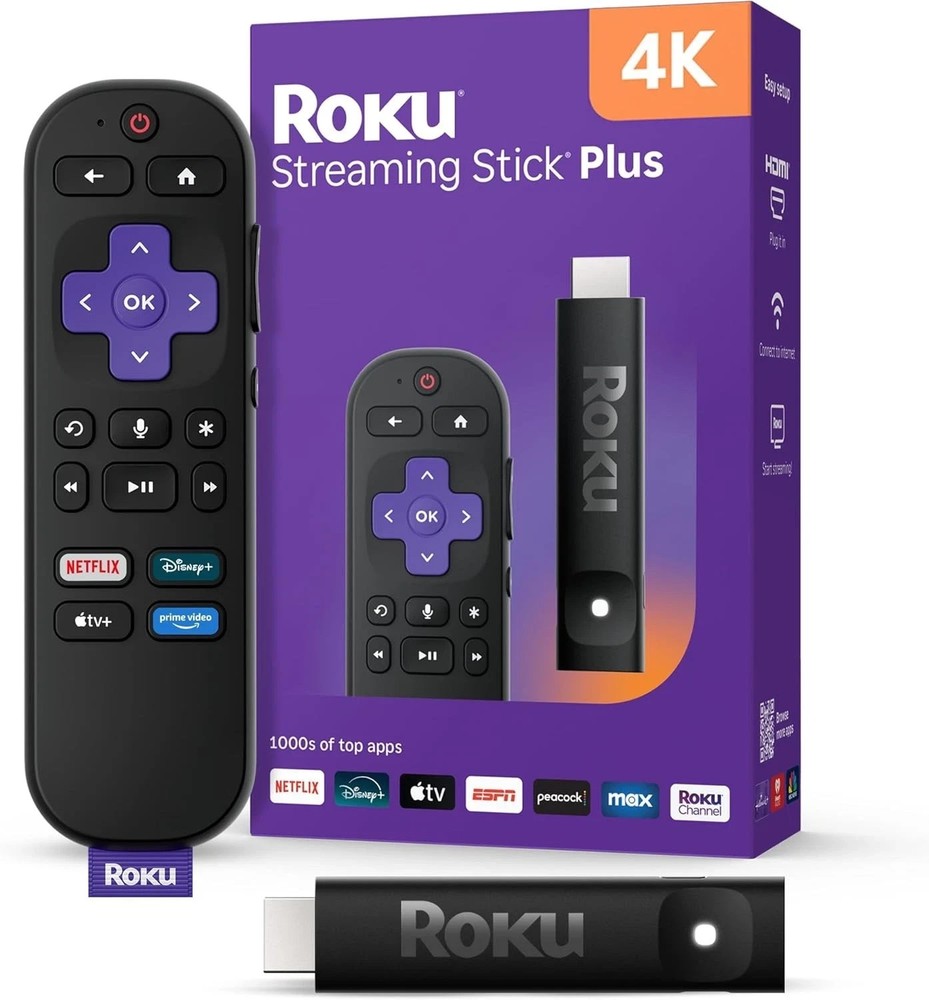
Roku Streaming Stick Plus 4K 2025 model 3830R
Roku Streaming
Buy — Model 3830R outputs 3840 × 2160 at 60fps and supports pairing with Roku voice remotes, while its documented HDR formats exclude Dolby Vision.
Buy this for the simplest move to 4K while keeping an existing Voice Remote Pro. It supports HDR10/10+ and HLG, but not Dolby Vision.Available at Amazon(paid link) — opens Amazon in a new tab. Price and availability shown there.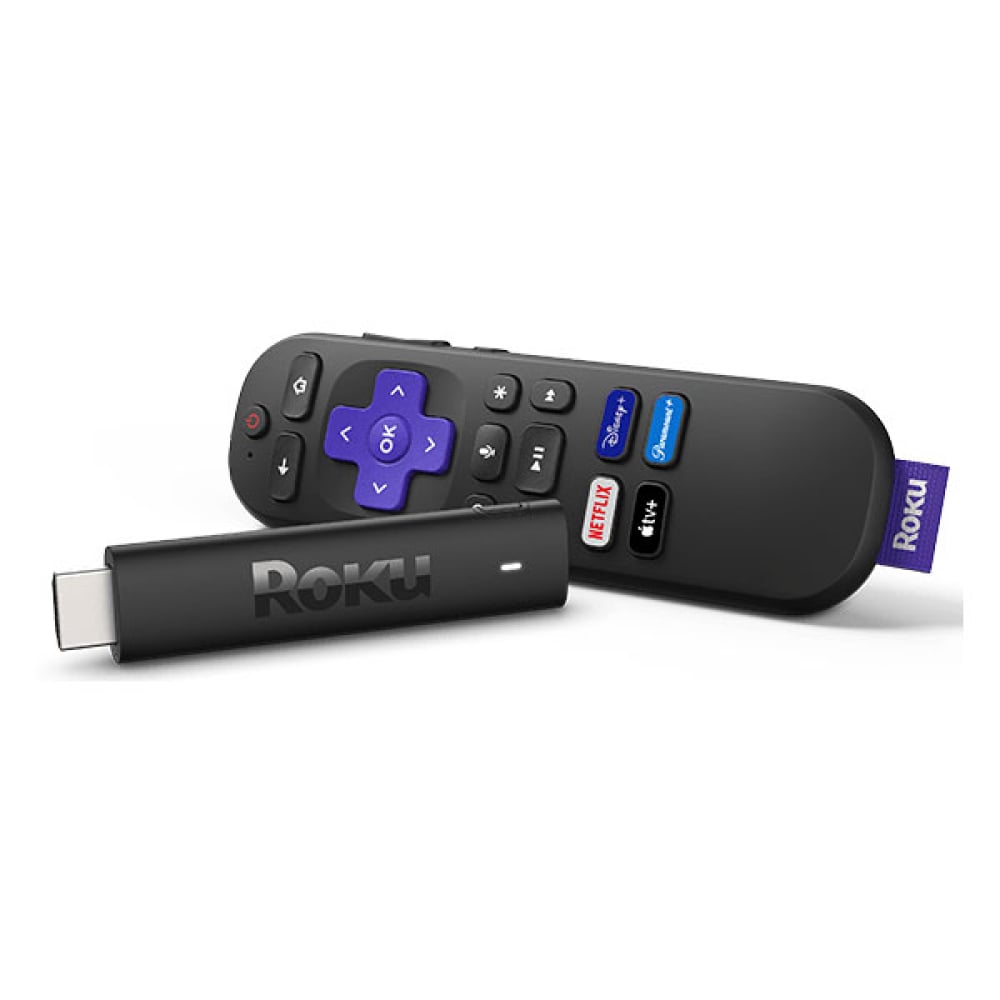
Roku Streaming Stick 4K model 3820R2
Roku Streaming
It depends — Model 3820R2 adds Dolby Vision and a long-range Wi-Fi receiver over the basic 4K stick, benefits that matter only with compatible equipment or difficult reception.
Consider this when the television supports Dolby Vision or the Roku sits in a weak Wi-Fi location. Its long-range receiver adds another cable section behind the TV.Available at Amazon(paid link) — opens Amazon in a new tab. Price and availability shown there.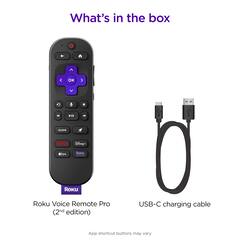
Roku Voice Remote Pro 2nd Edition model RCB1R
Roku Voice
It depends — Model RCB1R is a remote accessory with TV power, volume and mute controls, while Roku documents that its remotes cannot directly control soundbars or AV receivers.
Consider the standalone remote if there is no working compatible Voice Remote Pro to reuse. It adds rechargeable power and hands-free control, but it neither creates 4K output nor directly controls a third-party soundbar.Available at Amazon(paid link) — opens Amazon in a new tab. Price and availability shown there.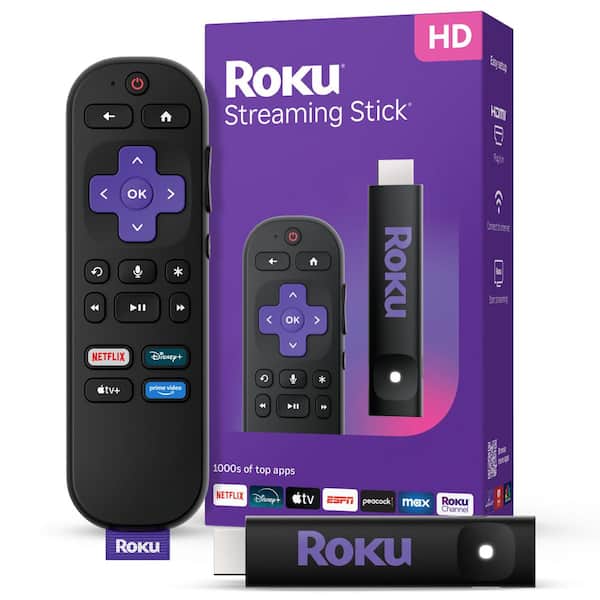
Roku Streaming Stick HD 2025 model 3840R
Roku Streaming
Skip — Model 3840R has a documented maximum output of 1920 × 1080, so it cannot display 4K video.
Skip this model when the purpose of the purchase is a 4K upgrade. Its TV-control remote is useful, but the player remains limited to Full HD.Available at Amazon(paid link) — opens Amazon in a new tab. Price and availability shown there.
Sources
Pages consulted while researching this article. None of these are affiliate links.
- How to set up your Roku voice remote to control your TV — support.roku.com
- How to enable HDMI-CEC and ARC on your TV — support.roku.com
- Roku Streaming Stick Plus product specifications — roku.com
- Roku Streaming Stick Plus (2025) review: Simple, cheap and effective — expertreviews.co.uk
- Roku Streaming Stick 4K product specifications — roku.com
- Roku Streaming Stick HD product specifications — roku.com
- How to set up and pair your Roku voice remote control — support.roku.com
- Roku Voice Remote Pro (2nd edition) specifications — roku.com