Qrevo Edge Dock Communication Error: Fix It
The questionWhere do these come from?
Roborock Qrevo Edge Series
Just purchased, just used for the first time today and the "robot to dock communication has failed. Please wipe the communication sensor" I have wiped every sensor on the dock and on the robot and am still getting the error..
Clean the Qrevo Edge’s A3-8 communication sensor dry, power-cycle the dock, and return the unit if a close-range dock test fails again.
Clean the Roborock Qrevo Edge’s A3-8 communication sensor with a soft, dry cloth, restart both the robot and dock, then run one close-range docking test. If a new machine reports the same communication failure while correctly seated and charging, stop troubleshooting and exchange it: that points beyond ordinary dirt or dock placement.
The important distinction is that the communication sensor is not the front dock locator. Roborock’s manual identifies the dock locator as A1-5, while the A3-8 communication sensor sits under the robot’s magnetic top cover, beside the rear-facing air outlets and self-filling hardware. Cleaning only the visible sensors around the bumper can therefore miss the component named by the error. The manual explicitly says to clean the communication sensor with a soft, dry cloth. Roborock’s Qrevo Edge manual
The recovery sequence worth trying once
-
Remove the robot from the dock and unplug the dock. Leave it disconnected while cleaning. Do not spray cleaner into the robot or dock, and do not use a wet tissue on the charging contacts.
-
Lift off the robot’s magnetic top cover. Locate the rear-facing A3-8 communication sensor—not the LiDAR turret, front camera, cliff sensors, or carpet sensor—and wipe its window with a clean, dry microfiber cloth. Check for packaging film, fingerprints, dust, or dried water marks.
-
Clean the charging contacts separately. Wipe the metal contacts on both the robot and dock with another dry area of the cloth. Roborock lists dirty contacts as a cause of charging failure and specifies dry cleaning for them. Do not abrade the plating.
-
Check the dock’s physical installation. The dock base should be pressed into place until it clicks. Put the dock on hard, level flooring against a wall rather than on carpet or a soft mat. The model manual calls for an installation area at least 0.9 m high, 0.4 m wide, and 1.2 m deep, with nothing blocking the dock-location beacon. Direct sunlight can also interfere with that beacon.
-
Reseat the removable dock parts. Confirm that the clean-water tank, dirty-water tank, dust-container cover, dust bag, cleaning-tray module, and tray filter are installed correctly. A steady red dock light can indicate a tank, tray, filter, or supply-voltage problem rather than a failed communication module.
-
Reconnect power and verify the status light. The dock’s indicator should illuminate when powered and normally turns off while the robot is charging. If it remains dark with no robot attached, reseat both ends of the power cord and test a known-working grounded outlet.
-
Place the robot directly in front of the dock and press its Dock button. Do not begin with a whole-house run. Roborock’s manual uses this same short approach during initial setup. Once seated, confirm that charging starts, then manually request one dock function such as mop washing or emptying.
-
Restart the robot if the alert returns. A normal power-off and restart comes before a reset. Use the recessed Reset button only if the robot will not respond or power off; do not jump immediately to a factory restoration that clears settings and Wi-Fi configuration.
This is a one-pass recovery path, not an invitation to spend hours repeatedly wiping a new appliance. A clean sensor plus a power restart and close-range test separates setup problems from a likely defective robot-to-dock link.
What the exact symptom tells you
The robot cannot locate the dock: concentrate on the front dock locator, the dock-location beacon, obstacles, sunlight, and placement. Roborock’s general support guidance recommends cleaning the dock’s signal-transmission area and the robot’s front sensor, then testing with the robot closer to the dock. Roborock’s dock-location troubleshooting
Just want the recommendation?
Skip to the picksThe robot finds the dock and charges, but reports that robot-to-dock communication failed: concentrate on A3-8 under the top cover. Successful navigation and charging show that the robot found the station and made electrical contact; they do not prove that the separate communication path used for dock-controlled functions is working.
The robot docks but washing, refilling, or emptying fails with a red dock light: inspect the tanks, cleaning tray, filter, dust-container cover, and bag before blaming the communication sensor. The manual gives these as separate causes of dock errors.
The app is offline while docking still works: troubleshoot Wi-Fi as a different fault. Roborock documents Wi-Fi reset, signal strength, and router settings separately from the A3-8 communication sensor. Rebuilding the map or changing the router is therefore a poor first response to a dock-only communication alert.
The return test for a first-day failure
Start the robot from the dock, let it travel a short distance in an open area, and send it home without moving the dock or carrying the robot. Roborock says automatic return depends on starting from the dock and leaving the dock in place during cleaning.
Return or exchange the unit when all four of these are true:
- the A3-8 sensor and charging contacts are clean and dry;
- the dock is powered, level, and correctly assembled;
- the robot can approach and sit squarely in the dock;
- the same communication message returns during a dock function after a restart.
At that point, another map, Wi-Fi reset, or repeated cleaning is unlikely to identify an installation mistake. Do not open the robot or dock to replace an internal board on a newly purchased machine. Record the exact app message, dock-light state, serial number, and a short video of the failed test, then use the seller’s exchange process or Roborock support.
A real first-use report ended with the machine being returned after cleaning did not clear the alert, which confirms that the failure can survive the obvious remedy. It does not establish how frequently the fault occurs across all Qrevo Edge units. The documented owner report
Should the docking fault stop you buying one?
| Model | Verdict | The deciding evidence | The catch |
|---|---|---|---|
| Roborock Qrevo Edge | Consider | Strong measured cleaning; Vacuum Wars recorded 85% in its carpet deep-clean comparison | It is now a retired U.S. model, so only buy where an uncomplicated exchange is available |
| Roborock Qrevo Edge 2 | Buy | Current successor with an updated dock; measured 94% in the same carpet test | Smaller 240 mL dustbin and below-average 14/24 obstacle-avoidance result |
There is no honest blanket skip based on the communication error: neither Roborock nor an independent test organization has published a failure rate showing that it is a systematic Qrevo Edge defect. Vacuum Wars also found substantial strengths in the original, including zero wrapped 7-inch hair in its brush test, above-average mopping, and efficient navigation. Its weaker result was obstacle avoidance, where it avoided about 66% of the test objects. Vacuum Wars’ measured Qrevo Edge review
The original Qrevo Edge is therefore a consider, not an automatic rejection. It makes sense only when the seller provides a straightforward return path because a persistent first-day dock communication error should result in an exchange, not DIY board repair. Skip any used, open-box, or unsupported first-generation unit whose dock cannot be demonstrated performing charging, washing, refilling, and emptying.
For a new purchase, the Qrevo Edge 2 is the better buy. Vacuum Wars identifies it as the current U.S. successor and measured 94% carpet deep cleaning versus 85% for the original, along with 89.5% pet-hair pickup and zero hair wrap in its 7-inch test. Its shortcomings are equally concrete: it avoided only 14 of 24 obstacles, and its 240 mL onboard bin is smaller than the original’s 325 mL bin. Vacuum Wars’ measured Qrevo Edge 2 review
The Edge 2 is not proven immune to every dock communication failure; no credible source establishes that. It is the recommendation because it is the current successor with an updated dock and materially better measured cleaning, not because of an unsupported reliability promise. The site’s Qrevo Edge 2, Saros 10R, and Saros 20 comparison covers the broader buying decision.
Buy the Qrevo Edge 2 when shopping new; consider the original Qrevo Edge only with easy returns, and exchange any first-day unit that repeats the communication failure after the clean, restart, and close-range test.
The bottom line
Two candidates — the symptom tells you which:
Top pick
It depends
Roborock Qrevo Edge Robot Vacuum and Mop with Multifunctional Dock 3.0
Roborock Qrevo
The original is discontinued as a current U.S. model, and a unit that repeats the A3-8 communication error after a clean close-range test should be exchanged rather than repaired.
Consider the original only if it comes with an uncomplicated return path; measured cleaning is strong, but a persistent first-day dock error is exchange territory. Its main drawback is that it is now a retired U.S. model.Available at Amazon(paid link) — opens Amazon in a new tab. Price and availability shown there.The alternative
Buy this
Roborock Qrevo Edge 2 Robot Vacuum and Mop
Roborock Qrevo
Vacuum Wars measured 94% carpet deep cleaning versus 85% for the original, although the Edge 2 avoided only 14 of 24 test obstacles.
This is the current successor to buy when choosing between the two, with substantially better measured carpet and pet-hair pickup. The tradeoff is below-average obstacle avoidance and a smaller 240 mL onboard bin.Available at Amazon(paid link) — opens Amazon in a new tab. Price and availability shown there.
Recommended products
Ordered by how well each one fits the situations above. Each link below is a paid link.

Roborock Qrevo Edge Robot Vacuum and Mop with Multifunctional Dock 3.0
Roborock Qrevo
It depends — The original is discontinued as a current U.S. model, and a unit that repeats the A3-8 communication error after a clean close-range test should be exchanged rather than repaired.
Consider the original only if it comes with an uncomplicated return path; measured cleaning is strong, but a persistent first-day dock error is exchange territory. Its main drawback is that it is now a retired U.S. model.Available at Amazon(paid link) — opens Amazon in a new tab. Price and availability shown there.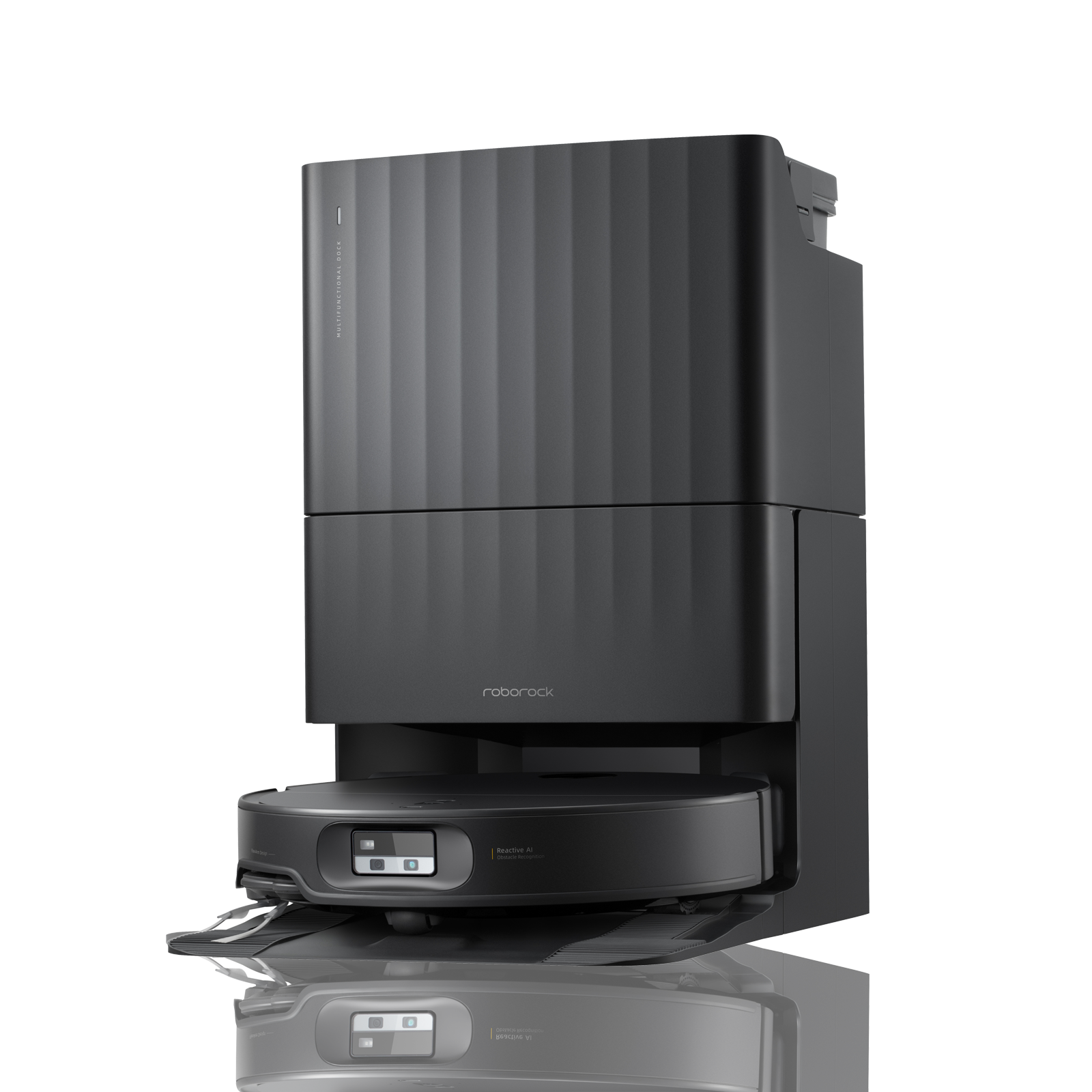
Roborock Qrevo Edge 2 Robot Vacuum and Mop
Roborock Qrevo
Buy — Vacuum Wars measured 94% carpet deep cleaning versus 85% for the original, although the Edge 2 avoided only 14 of 24 test obstacles.
This is the current successor to buy when choosing between the two, with substantially better measured carpet and pet-hair pickup. The tradeoff is below-average obstacle avoidance and a smaller 240 mL onboard bin.Available at Amazon(paid link) — opens Amazon in a new tab. Price and availability shown there.
Sources
Pages consulted while researching this article. None of these are affiliate links.
- Roborock Qrevo Edge User Manual — support.roborock.com
- What should I do when the robot cleaner cannot find its dock? — support.roborock.com
- Roborock Qrevo Edge Robot Vacuum Review – A New Top Pick — vacuumwars.com
- Roborock Qrevo Edge 2 Review: Big Cleaning Gains in a Slimmer Robot Vacuum — vacuumwars.com
- Roborock Qrevo Edge Series communication failure report — reddit.com
- Roborock Qrevo Edge 2 Official Product Page — us.roborock.com