No, the Galaxy A56 Has No microSD Slot
The questionWhere do these come from?
What's a solid value for cost mid range from the past 1-2years?
My galaxy S21 is finally on its last legs and I'm looking to replace it with a mid range phone. I don't need it to be spectacular at anything except for be future proof really, ideally another 4-5 years.
The Galaxy A56 has no microSD slot; choose the 256GB model, use USB-C storage, or buy the Galaxy A26 if expansion is essential.
No. The Samsung Galaxy A56 5G does not have a microSD card slot, so its internal storage cannot be expanded with a memory card. This is a physical hardware limitation—not a setting, firmware restriction or missing tray insert that can be fixed.
The SIM tray cannot take a microSD card
The Galaxy A56’s removable tray is for its nano-SIM, not a hybrid SIM/microSD arrangement. Samsung’s Australian specification also lists support for an embedded SIM, or eSIM, but that does not provide another storage option.
Do not try to force a microSD card into the tray. It will not sit correctly, and pushing the tray back into the phone could damage the card, tray or internal reader.
There is no menu under Settings > Device care > Storage that enables a card slot, and no software update can add one. A replacement tray advertised as “microSD compatible” will not help because the required card-reader hardware is absent inside the phone.
Samsung’s Australian A56 specification lists only internal storage under “Storage/Memory.” By contrast, Samsung explicitly lists “MicroSD (Up to 2TB)” for the Galaxy A26. That difference confirms this is intentional product design rather than an omitted specification.
What the Australian models actually provide
Samsung lists the following figures for the 128GB Galaxy A56, 256GB Galaxy A56 and 128GB Galaxy A26:
| Specification | Galaxy A56 128GB | Galaxy A56 256GB | Galaxy A26 128GB |
|---|---|---|---|
| RAM | 8GB | 8GB | 6GB |
| Internal / listed available storage | 128GB / 106.4GB | 256GB / 234.4GB | 128GB / 106.5GB |
| microSD support | No | No | Up to 2TB |
| Rear cameras | 50MP + 12MP + 5MP, OIS | 50MP + 12MP + 5MP, OIS | 50MP + 8MP + 2MP, OIS |
| Update commitment | Up to 6 OS generations and 6 years of security updates | Up to 6 OS generations and 6 years of security updates | Up to 6 OS updates and 6 years of security updates |
The 128GB and 256GB numbers are marketed capacities. Samsung’s listed available figures are more useful for planning because the operating system and preinstalled software already occupy part of the storage before personal photos, videos and apps are added.
The 256GB model is the safer buy
Choose the 256GB model unless existing usage shows that roughly 106GB of available space will comfortably last the phone’s full life. The 256GB version provides 234.4GB of Samsung-listed available storage—128GB more than the 128GB version—but it still cannot be expanded later.
This matters for someone planning to keep the phone for four or five years. Applications, offline maps, downloaded music and messaging attachments tend to accumulate, while the A56’s 4K video recording can produce files that are inconvenient to manage on a nearly full phone. Samsung’s commitment of up to six operating-system generations and six years of security updates is long enough for that ownership period, but software support does not solve an undersized storage choice.
Cloud backup can reduce local photo storage, provided the service is configured to remove backed-up local copies. It also requires an internet connection for files that are no longer retained on the device. Check current usage on the old phone under Settings > Battery and device care > Storage before choosing a capacity, and allow room for several more years rather than matching today’s usage exactly.
Just want the recommendation?
Skip to the picksUSB-C storage is the removable workaround
A USB-C flash drive or portable SSD can be connected temporarily. It is useful for copying photos, videos and documents, but it is not equivalent to an installed microSD card: it occupies the charging port, protrudes from the phone and has to be carried separately.
Samsung’s instructions use this path:
- Connect a Type-C USB drive to the phone’s USB-C port.
- Open My Files.
- Find the file under Internal Storage or its relevant category.
- Long-press the file and select Copy or Move.
- Select USB Storage 1, then choose Copy here.
- When finished, open the three-dot menu and select Unmount before disconnecting the drive.
These steps come from Samsung’s Australian USB and portable-SSD transfer guide. A Type-A drive requires a USB OTG adapter; a drive with a native USB-C plug connects directly.
The A56’s port is specified as USB 2.0. A faster USB 3.2 drive remains compatible, but the phone cannot deliver the drive’s maximum advertised transfer speed. For example, Samsung’s MUF-256DA/APC USB-C drive uses USB 3.2 Gen 1 but is backward-compatible with USB 2.0.
If an existing microSD card contains files from the old phone, copy them through a computer or connect a compatible USB-C microSD reader temporarily. Whether a particular reader is detected depends on its USB implementation and the card’s format. If it does not appear as USB Storage 1 in My Files, there is no A56 setting that can turn it into internal storage.
Choose the Galaxy A26 when microSD is essential
Choose the Australian Galaxy A26 5G instead of the A56. Its official specification provides microSD expansion up to 2TB, 6GB RAM and the same stated six-year security-support period, satisfying a requirement for at least 6GB RAM and four to five years of software usefulness.
The compromise is camera and memory hardware. The A26 has 6GB rather than 8GB RAM, and its secondary rear cameras are 8MP and 2MP rather than the A56’s 12MP and 5MP units. Both list a 50MP main rear camera with optical image stabilisation, but megapixel counts alone do not guarantee identical image quality.
The practical decision is therefore straightforward: choose the Galaxy A56 256GB when its stronger hardware matters more than removable storage; choose the Galaxy A26 5G when a built-in microSD slot is mandatory.
Retailer microSD claims need model-number checks
Treat that listing as incorrect and verify the complete model number before buying. The Australian A56 family is SM-A566B; the graphite product codes include SM-A566BZKKATS for 128GB and SM-A566BZKMATS for 256GB.
If an A56 was already purchased specifically because a retailer promised microSD support, contact that retailer about a return or exchange. Samsung support cannot activate or repair a slot that the model was never built with.
The bottom line
Two that fit, depending on the model you have:
Top pick
Buy this
Samsung Galaxy A26 5G SM-A266U 128 GB Smartphone - 6.7" Super AMOLED Full HD Plus 1080 x 2340 - Octa-core (Cortex A78Quad-core (4 Core) 2.40 GHz + Cortex A55 Quad-core (4 Core) 2 GHz - 6 GB RAM
Samsung
The article recommends the Australian A26 for essential microSD expansion, citing support for cards up to 2TB and six years of security updates.
Choose this Australian model when a built-in microSD slot is essential; it supports cards up to 2TB. The drawback is 6GB RAM and lower-resolution secondary rear cameras than the A56.Available at Amazon(paid link) — opens Amazon in a new tab. Price and availability shown there.The alternative
It depends
Samsung Type-C USB Flash Drive 256GB, USB 3.2 Gen 1, Up to 400MB/s
Samsung
The drive works for temporary file offloading, but occupies the charging port and is limited by the A56’s USB 2.0 interface rather than replacing an installed microSD card.
This connects directly to the A56 for manually offloading photos, videos and documents. It occupies the charging port, and the phone’s USB 2.0 interface limits transfer speed.Available at Amazon(paid link) — opens Amazon in a new tab. Price and availability shown there.
Recommended products
Ordered by how well each one fits the situations above. Each link below is a paid link.

Samsung Galaxy A26 5G SM-A266U 128 GB Smartphone - 6.7" Super AMOLED Full HD Plus 1080 x 2340 - Octa-core (Cortex A78Quad-core (4 Core) 2.40 GHz + Cortex A55 Quad-core (4 Core) 2 GHz - 6 GB RAM
Samsung
Buy — The article recommends the Australian A26 for essential microSD expansion, citing support for cards up to 2TB and six years of security updates.
Choose this Australian model when a built-in microSD slot is essential; it supports cards up to 2TB. The drawback is 6GB RAM and lower-resolution secondary rear cameras than the A56.Available at Amazon(paid link) — opens Amazon in a new tab. Price and availability shown there.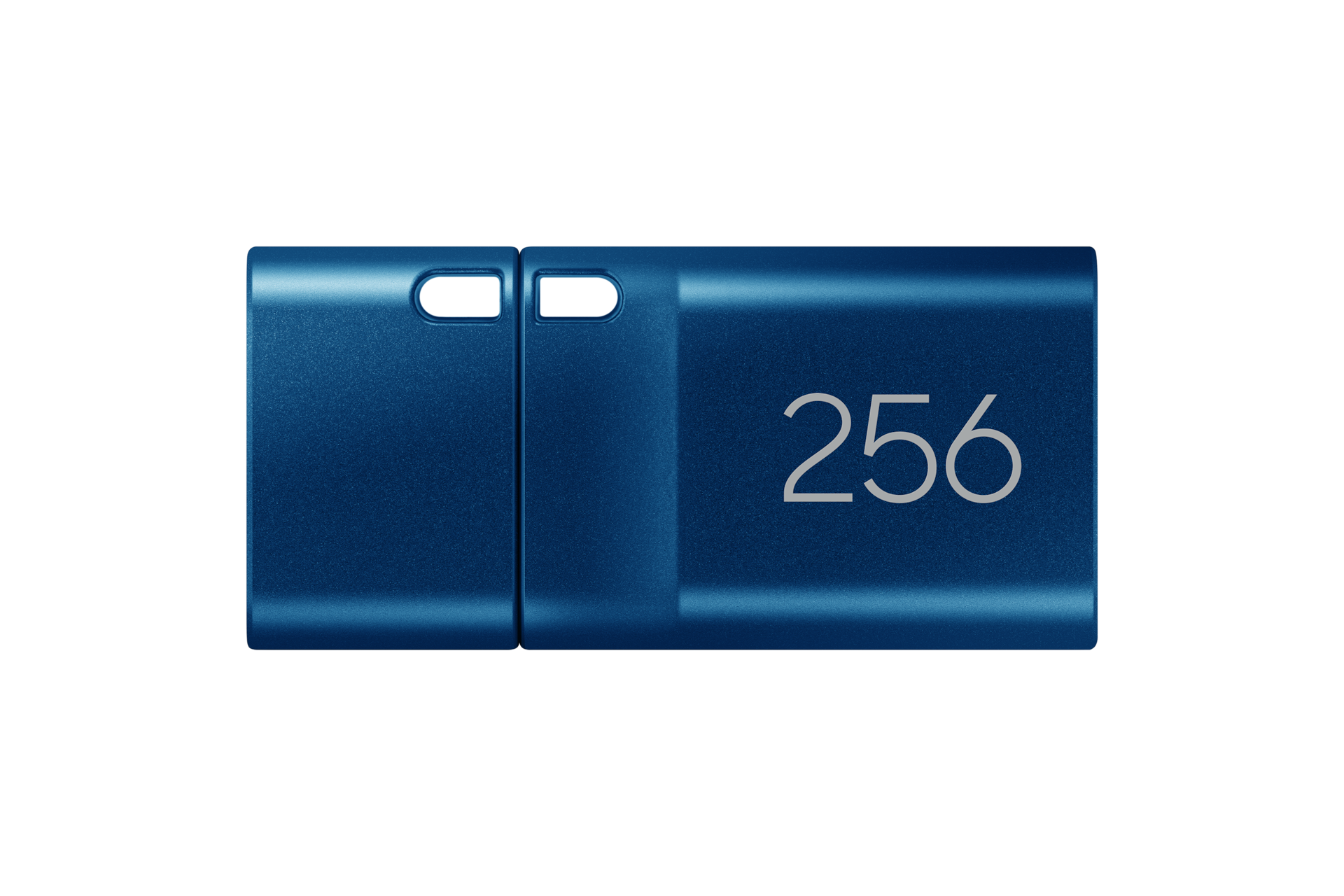
Samsung Type-C USB Flash Drive 256GB, USB 3.2 Gen 1, Up to 400MB/s
Samsung
It depends — The drive works for temporary file offloading, but occupies the charging port and is limited by the A56’s USB 2.0 interface rather than replacing an installed microSD card.
This connects directly to the A56 for manually offloading photos, videos and documents. It occupies the charging port, and the phone’s USB 2.0 interface limits transfer speed.Available at Amazon(paid link) — opens Amazon in a new tab. Price and availability shown there.
Sources
Pages consulted while researching this article. None of these are affiliate links.
- Samsung Galaxy A56 5G review — Notebookcheck — notebookcheck.net
- Samsung Galaxy A56 5G im Test — Heise — heise.de
- Samsung Galaxy A26 5G review — COMPUTER BILD — computerbild.de
- Use USB storage devices — Files by Google Help — support.google.com
- USB 3.2 — USB Implementers Forum — usb.org
- Galaxy A56 5G 128GB specifications | Samsung Australia — samsung.com
- Galaxy A56 5G 256GB specifications | Samsung Australia — samsung.com
- Galaxy A26 5G 128GB specifications | Samsung Australia — samsung.com
- Transfer files from a Galaxy device to USB | Samsung Australia — samsung.com
- Samsung USB Flash Drive Type-C 256GB specifications — samsung.com