Forerunner 255 Navigation: Routes, Not Full Maps
The question this answersWhere do these come from?
How do I load a route on my Forerunner 255 and navigate with it since it doesn't have full maps?
The Forerunner 255 follows downloaded courses without your phone, but it lacks full maps; here’s how to load routes and navigate home.
The Garmin Forerunner 255 supports breadcrumb navigation along saved courses, but it does not have built-in street or topographic maps. To navigate, send a course from Garmin Connect, then select START > your activity > hold UP > Navigation > Courses > your course > Do Course, and press START. Garmin’s course instructions document the sequence; Cycling Weekly’s review confirms the mapping limitation.
Load a route and start following it
You do not need another device or accessory to unlock the navigation already built into your 255. Start with a short course near home so you can learn the display before relying on it somewhere unfamiliar.
- Create the course. In Garmin Connect, open More > Training & Planning > Courses > Create Course. Choose the activity type, follow the route-building prompts, and save it. Garmin’s course creation instructions describe this workflow.
- Send it to the watch. Open the saved course, select the send-to-device icon, choose your Forerunner 255, and complete the synchronization. Saving a course in your account and sending it to the watch are separate steps. Garmin’s transfer instructions show the required selection.
- Find it on the watch. Press START, choose an outdoor activity such as Run, hold UP, and open Navigation > Courses. Confirm that the course appears before leaving.
- Check the route. Select the course and choose Map to inspect its shape, or Elevation Plot to inspect the climbing. Garmin also provides Do Course in Reverse when you want to follow the saved course in the opposite direction. Course detail options.
- Start navigation. Select Do Course, wait for GPS readiness outdoors, and press START. Scroll through the activity screens to view the route and navigation information.
Once the course is stored on the watch, navigation uses the watch’s GPS; you do not need a continuous phone connection to follow it. Loading the course beforehand is the essential preparation. Garmin explicitly documents navigation from courses saved on the device. Forerunner 255 navigation manual.
Have a GPX file from an event organizer? Garmin Connect accepts third-party courses in GPX, TCX, and FIT formats. Open the file on your phone with Garmin Connect, save it as a course, then send it using the same process. Check any important waypoints afterward: Garmin warns that imported waypoints may not survive and recommends creating Course Points in Connect. A route line arriving successfully does not prove every aid station or checkpoint arrived with it. Garmin’s course import guidance.
Why the map shows a line without surrounding roads
The word Map in the Forerunner 255 menu describes its navigation screen. It does not mean the watch contains a background map of nearby streets, trails, or contours. The 255, 255S, and their Music versions provide breadcrumb guidance rather than Garmin’s full onboard mapping experience. Cycling Weekly’s Forerunner 255 review.
That distinction matters at a fork. A course line can show which direction your planned route takes, but it cannot provide the surrounding trail network needed to assess an alternative. Zooming the line makes its geometry clearer; it does not reveal missing cartography. Likewise, importing another GPX file supplies another route, not a regional map.
For familiar paths and a planned run, this can be enough. For exploring interconnected trails or choosing a detour around a closure, you will want surrounding map detail on your phone or a watch that supports it. Do not assume an off-course alert means the 255 has calculated a new navigable route around the obstruction.
If your search specifically means phone-style directions, the separate guide to Google Maps on the Forerunner 255 addresses that distinction. Native Garmin course navigation is the procedure described here.
When turn prompts are missing
Check the course settings before blaming GPS. Garmin Connect manages turn notifications separately from the route itself.
In the Connect app, open More > Training & Planning > Courses, select the course, then choose three dots > Edit > three dots > View Details > Turn Notification. Enable it and synchronize the course again. Garmin says this toggle appears for Running, Trail Running, Hiking, and Other courses; cycling courses have turn notifications enabled by default. Garmin’s turn guidance instructions.
This explains a common mismatch: the breadcrumb line can work while the expected turn prompts do not. Also, Garmin cautions that turns of less than 90 degrees may not trigger a prompt. A quiet watch at a shallow trail fork therefore does not, by itself, establish a fault.
Just want the recommendation?
Skip to the picksFor a separate warning when you leave the planned line, hold UP, open Navigation > Alerts, and configure Off Course. This is distinct from an upcoming-turn notification. Forerunner 255 navigation alert settings.
If a third-party course behaves strangely, compare it with a short course created directly in Connect. If navigation still fails across courses after synchronization and a software update, contact Garmin Support with the course file and watch software version. Missing background roads, however, are a model limitation rather than a repair issue.
Get home with TracBack or Straight Line
During an activity using GPS, press STOP > Back to Start. You then have two choices:
- TracBack follows the path you recorded back toward the activity’s start.
- Straight Line navigates directly toward the start, regardless of the path you took.
These are the two options documented in Garmin’s Back to Start instructions.
Choose TracBack when you want to retrace your outing. Straight Line does not find a walkable shortcut around rivers, fences, or private land. Also distinguish Do Course in Reverse, which reverses a saved planned course, from TracBack, which uses the path recorded during your current activity. You can use the latter without having downloaded a course beforehand.
What battery testing tells you about longer routes
Garmin rates the standard Forerunner 255 for up to 30 hours in GPS-only mode, 25 hours with all satellite systems, and 16 hours with all systems plus multi-band. These figures apply to the standard 255, not automatically to the smaller 255S or music playback. Garmin’s specifications.
DC Rainmaker measured battery drain during a two-hour ride with multi-band enabled and a power meter connected; the drain rate projected approximately 21 hours of runtime. That was an extrapolation from a shorter test, not a completed 21-hour endurance test or a navigation-specific guarantee. DC Rainmaker’s Forerunner 255 testing.
The useful planning distinction is the selected satellite mode. Do not plan a long outing around the 30-hour headline while assuming it also applies to continuous multi-band operation.
Buy another watch only when you need full maps
| Feature | Forerunner 255 | Forerunner 965 |
|---|---|---|
| Follow saved courses | Yes | Yes |
| Built-in topographic maps | No | Yes |
| Display | 1.3-inch MIP | 1.4-inch AMOLED |
The display specifications come from Garmin’s 255 specifications and 965 specifications. Garmin’s 965 mapping manual confirms support for topographic contours and nearby points of interest.
Skip buying the Garmin Forerunner 255 if full onboard maps are your requirement: its breadcrumb navigation lacks the surrounding cartography you need. That is a purchasing warning for map shoppers, not a reason to replace a 255 that already follows your planned routes satisfactorily.
Consider the Garmin Forerunner 965 when that missing map detail is the reason you cannot use the 255 as intended. Its drawback is a larger 47.1 mm case compared with the 255’s 45.6 mm case. If you only need course guidance and a way to retrace your run, complete the setup above before buying anything.
The bottom line
Either works — what you already have picks one:
Top pick
Skip this
Garmin Forerunner 255
Garmin
The Forerunner 255 lacks built-in street and topographic maps, making it unsuitable for buyers who require surrounding map detail.
Skip this purchase if you need full onboard maps: it provides breadcrumb course navigation without surrounding cartography. Existing owners who only need to follow planned routes can keep using it.Available at Amazon(paid link) — opens Amazon in a new tab. Price and availability shown there.The alternative
It depends
Garmin Forerunner 965
Garmin
The Forerunner 965 supports onboard topographic mapping, but replacing a 255 is unnecessary for saved-course breadcrumb navigation alone.
Consider it when you need topographic maps and nearby points of interest on your wrist. Its 47.1 mm case is larger than the standard 255’s 45.6 mm case.Available at Amazon(paid link) — opens Amazon in a new tab. Price and availability shown there.
Recommended products
Ordered by how well each one fits the situations above. Each link below is a paid link.
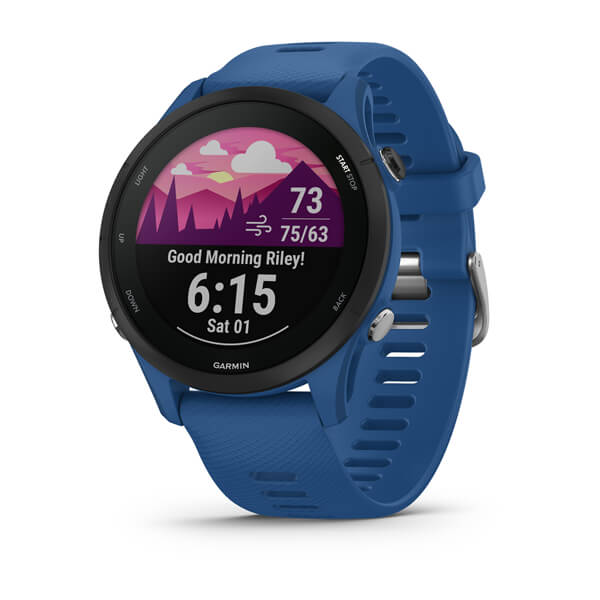
Garmin Forerunner 255
Garmin
Skip — The Forerunner 255 lacks built-in street and topographic maps, making it unsuitable for buyers who require surrounding map detail.
Skip this purchase if you need full onboard maps: it provides breadcrumb course navigation without surrounding cartography. Existing owners who only need to follow planned routes can keep using it.Available at Amazon(paid link) — opens Amazon in a new tab. Price and availability shown there.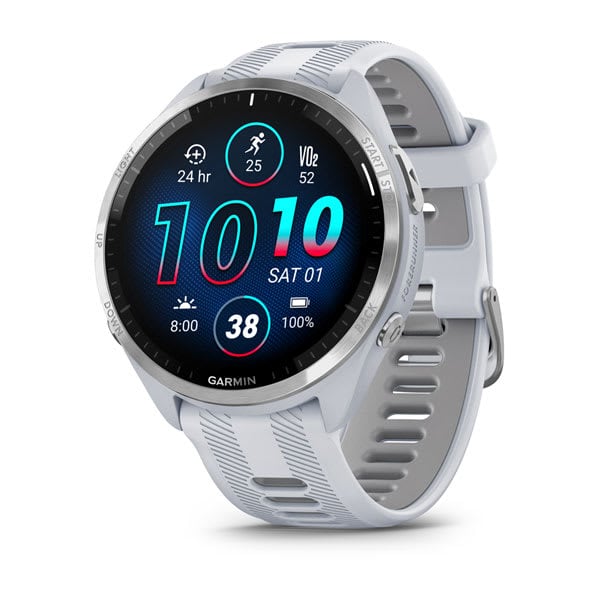
Garmin Forerunner 965
Garmin
It depends — The Forerunner 965 supports onboard topographic mapping, but replacing a 255 is unnecessary for saved-course breadcrumb navigation alone.
Consider it when you need topographic maps and nearby points of interest on your wrist. Its 47.1 mm case is larger than the standard 255’s 45.6 mm case.Available at Amazon(paid link) — opens Amazon in a new tab. Price and availability shown there.
Sources
Pages consulted while researching this article. None of these are affiliate links.
- Garmin: Following a Course on Your Device — www8.garmin.com
- Cycling Weekly: Garmin Forerunner 255 review — cyclingweekly.com
- Garmin: Creating a Course on Garmin Connect — www8.garmin.com
- Garmin: Sending a Course to Your Device — www8.garmin.com
- Garmin: Viewing Course Details — www8.garmin.com
- Garmin: Forerunner 255 Series Owner’s Manual — www8.garmin.com
- Garmin: Importing a Third-Party Course into Garmin Connect — support.garmin.com
- Garmin: Using Turn Guidance Prompts — support.garmin.com