Akai MPD218 in Cakewalk: Setup That Works
The questionWhere do these come from?
Whats the best midi controller i can get with a budget of $200?
Id much rather it be 100 or under but if its like really really worth it ill cave Going to plug it mostly into vital and drum machines through cakewalk So what i really need rn is something that has pads, knobs and sliders although that does not matter as much.
The MPD218 works in Cakewalk without a driver; enable its MIDI input, route it to an instrument, then map the pads and knobs.
Yes—the Akai MPD218 works with Cakewalk as a class-compliant USB MIDI controller. It needs no Akai driver, but it produces no sound by itself: Cakewalk must route its MIDI messages to a loaded software instrument or external sound module.
The following paths apply to Cakewalk Sonar and the older Cakewalk by BandLab desktop DAW.
The first-time connection order
- Connect the MPD218 directly to the computer before opening Cakewalk. USB supplies both power and MIDI communication; no separate power adapter is required. Akai’s MPD218 documentation specifies one USB connection and confirms that the controller is USB-powered.
- Open Cakewalk and press
P, or select Edit > Preferences. - Open MIDI > Devices.
- Check MPD218 in the Inputs list, then click Apply. For ordinary pad playing, it does not need to be selected as an output. Cakewalk’s USB MIDI setup instructions use this same input-device path.
- Click Add Track, choose Instrument, and select a drum instrument, sampler, or Vital.
- Set the new track’s input to MPD218 > MIDI Omni. If the named input is unavailable, use All Inputs > MIDI Omni temporarily.
- Enable Record Enable, click Create, and load a playable kit or preset inside the instrument.
- Select the track and make sure Input Echo is on or showing its automatic state. Pressing
Rrecords the MIDI performance; the spacebar stops recording.
Cakewalk’s software-instrument guide confirms the Instrument-track, MIDI-input, Record Enable, and recording sequence.
Do not add the MPD218 as a control surface merely to play notes. Enabling it under MIDI > Devices and choosing it as the instrument track’s input is sufficient for pads. Control-surface configuration is only needed when the knobs should operate Cakewalk or follow whichever plug-in has focus.
Trace MIDI from the pads to the track
A lit pad proves that the MPD218 has power; it does not prove that MIDI reached the correct Cakewalk track. Check the signal chain in this order:
- Strike a pad and watch the instrument track’s MIDI activity indicator. No activity means the MPD218 input is disabled, the wrong track input is selected, or Cakewalk was opened before the controller was connected.
- Click the instrument track and turn Input Echo on. Cakewalk sends live MIDI through the current track only when MIDI echo is enabled or operating automatically; its MIDI echo documentation explains the On, Auto, and Off states.
- Open the plug-in and click its on-screen keyboard or pads. If the plug-in itself makes no sound, MIDI is not the immediate problem. Check Preferences > Audio > Playback and Recording for the correct driver mode and Audio > Devices for the actual speaker or audio-interface output.
- Confirm that the instrument track ultimately feeds the Master bus and that the Master bus feeds the computer’s audio device.
- Make sure the plug-in is not muted or bypassed and that it has a kit or preset loaded.
The MPD218 is not an audio interface and must not be selected as Cakewalk’s audio output. Cakewalk’s no-sound checklist separates MIDI input, instrument routing, and audio-device routing for exactly this reason.
Fix the drum note-map mismatch
This is a note-map mismatch, not a Cakewalk compatibility failure. Each MPD218 pad sends a MIDI note number, while each drum plug-in decides which note triggers its kick, snare, or hi-hat.
| Mapping method | Mapping is stored in | Best use | Entry point |
|---|---|---|---|
| Plug-in MIDI Learn | Plug-in preset or Cakewalk project | A drum plug-in with its own learn function | Open the plug-in, enable Learn, strike a pad |
| MPD218 Editor | MPD218 hardware Program | Reusing one layout across projects | Akai MPD218 Editor v1.0.8 |
| Cakewalk Drum Map | Cakewalk project or drum-map preset | Translating incoming pad notes without changing the controller | Edit > Preferences > MIDI > Drum Map Manager |
Use plug-in MIDI Learn when available: select the desired software drum cell and strike the physical pad that should trigger it. This is usually the shortest path.
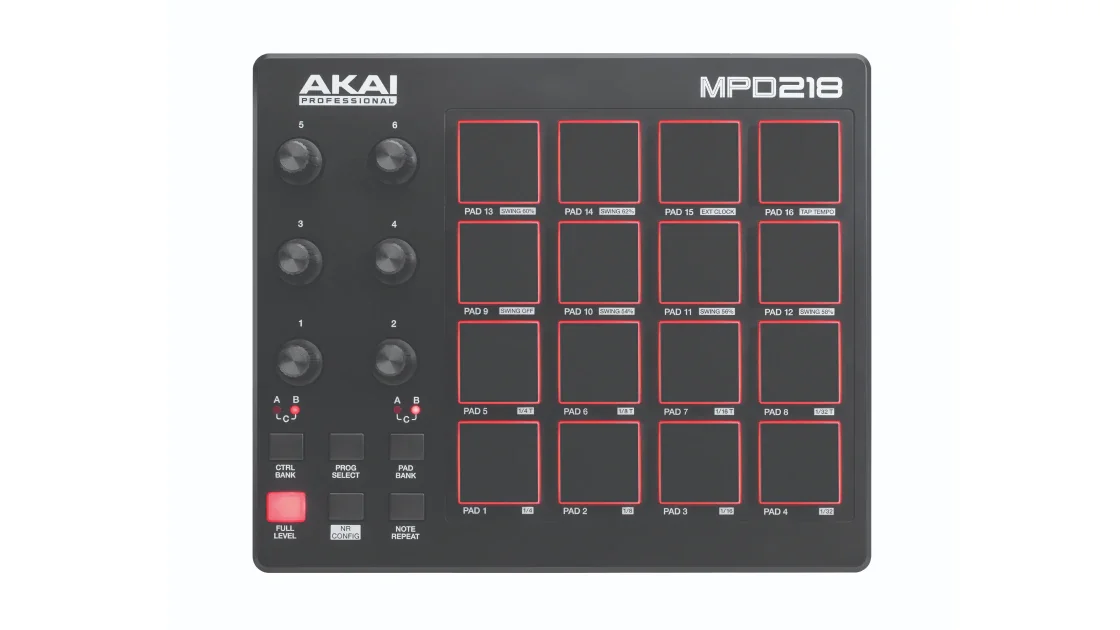
For a reusable hardware layout, download MPD218 Editor v1.0.8 from Akai’s official MPD218 downloads page. Assign each pad the note required by the instrument and send the edited Program to the controller. The physical Prog Select button chooses among Programs, while Pad Bank exposes three banks of 16 pad assignments.
To leave the hardware unchanged, create a Cakewalk drum map. Set each row’s In Note to the note received from the MPD218 and Out Note to the note required by the drum instrument. Also select the correct Chn and Out Port. Cakewalk documents those exact fields in its Drum Map Manager reference.
Record one pad strike and inspect its pitch if the incoming note is unknown. Prefer numeric MIDI note values when possible because octave labels such as C1, C2, and C3 are not displayed consistently by every host and plug-in.
Just want the recommendation?
Skip to the picksAssign the knobs to Vital or Cakewalk
The MPD218 has six physical 360-degree knobs and three Control Banks, providing 18 assignable control positions. For Vital, open Vital inside the active Instrument track, right-click the desired parameter, choose Learn MIDI Assignment, and turn an MPD218 knob. Mapping the six visible knobs to Vital’s four macros plus two frequently used parameters is more practical than trying to expose every synthesizer control.
For context-sensitive Cakewalk control:
- Open Preferences > MIDI > Control Surfaces.
- Click Add New Controller/Surface.
- Choose ACT MIDI Controller and select MPD218 as the Input Port.
- Open Utilities > ACT MIDI Controller and enable Active Controller Technology.
- Click a top-row rotary cell until it displays MIDI Learn, then turn the corresponding MPD218 knob.
- Repeat for the remaining knobs and save the ACT preset.
Cakewalk’s ACT configuration guide documents these paths and distinguishes MIDI Learn, which identifies the hardware control, from ACT Learn, which connects that control to plug-in parameters.
Use either Vital’s direct MIDI Learn or ACT for a given parameter, not both. Two simultaneous mappings can make one knob change multiple controls unexpectedly.
The Pad Bank and Ctrl Bank buttons cannot themselves be assigned to Cakewalk commands. Akai explains that bank buttons do not transmit MIDI messages; they only change what the pads or knobs send.
Sync Note Repeat to Cakewalk’s MIDI clock
The MPD218 can run Note Repeat from its internal clock or Cakewalk’s MIDI clock. To use Cakewalk’s tempo:
- In Preferences > MIDI > Devices, enable MPD218 under Outputs as well as Inputs.
- Open Preferences > Project > MIDI.
- Enable Transmit MIDI Start/Continue/Stop/Clock.
- Select MPD218 under MIDI Sync Output Ports.
- On the controller, hold NR Config and press Pad 15 (Ext Clock). Pad 15 should be lit for external clock.
Cakewalk documents the transmission settings under Cakewalk as the MIDI clock master. If external clock is off, hold NR Config and tap Pad 16 at least three times to set the MPD218’s internal tempo.
Driver and USB checks for a missing MPD218
Do not hunt for a special Cakewalk driver. Akai confirms that the MPD218 is class compliant and requires no additional driver.
Close Cakewalk, connect the controller directly rather than through a hub, and reopen Cakewalk. Then try another USB port, another known-good data cable, and another computer. On Windows, look for the controller under Device Manager > Sound, video and game controllers. On macOS, check System Information > Hardware > USB.
If the operating system sees it but Cakewalk does not, the remaining problem is Cakewalk’s device configuration. If it remains absent with two known-good cables and on another computer, stop troubleshooting software and contact Akai support or request an exchange/RMA. Akai’s class-compliant device troubleshooting guide sets the same hardware-versus-software boundary.
The MPD218 is a strong fit for finger drumming and knob control in Cakewalk, including controlling Vital. It is not a keyboard controller: there are no piano keys, so pads can trigger Vital notes but are a poor substitute for playing melodies and chords across several octaves. If keys are mandatory, use a keyboard controller alongside it or choose a combined keys-and-pads controller instead.
The bottom line
Two routes, and your existing kit decides:
Top pick
Buy this
Akai Professional MPD218 USB MIDI Pad Controller
Akai Professional
The MPD218 works with Cakewalk as a class-compliant USB MIDI controller requiring no additional driver.
Choose this for Cakewalk finger drumming, velocity-sensitive pads, and assignable knob control. The drawback is that it has no piano keys, internal sounds, or audio interface.Available at Amazon(paid link) — opens Amazon in a new tab. Price and availability shown there.The alternative
Buy this
Cable Matters 2-Pack 5Gbps USB 3.0 Cable, USB A to B Cable, 6ft, Black
Cable Matters
The article recommends trying another known-good USB data cable when the MPD218 is not detected.
A known-good replacement data cable is useful when the MPD218 powers intermittently, disconnects, or never appears in the operating system. This version requires a USB-A computer port, so USB-C-only machines need a different cable or adapter.Available at Amazon(paid link) — opens Amazon in a new tab. Price and availability shown there.
Recommended products
Ordered by how well each one fits the situations above. Each link below is a paid link.
Akai Professional MPD218 USB MIDI Pad Controller
Akai Professional
Buy — The MPD218 works with Cakewalk as a class-compliant USB MIDI controller requiring no additional driver.
Choose this for Cakewalk finger drumming, velocity-sensitive pads, and assignable knob control. The drawback is that it has no piano keys, internal sounds, or audio interface.Available at Amazon(paid link) — opens Amazon in a new tab. Price and availability shown there.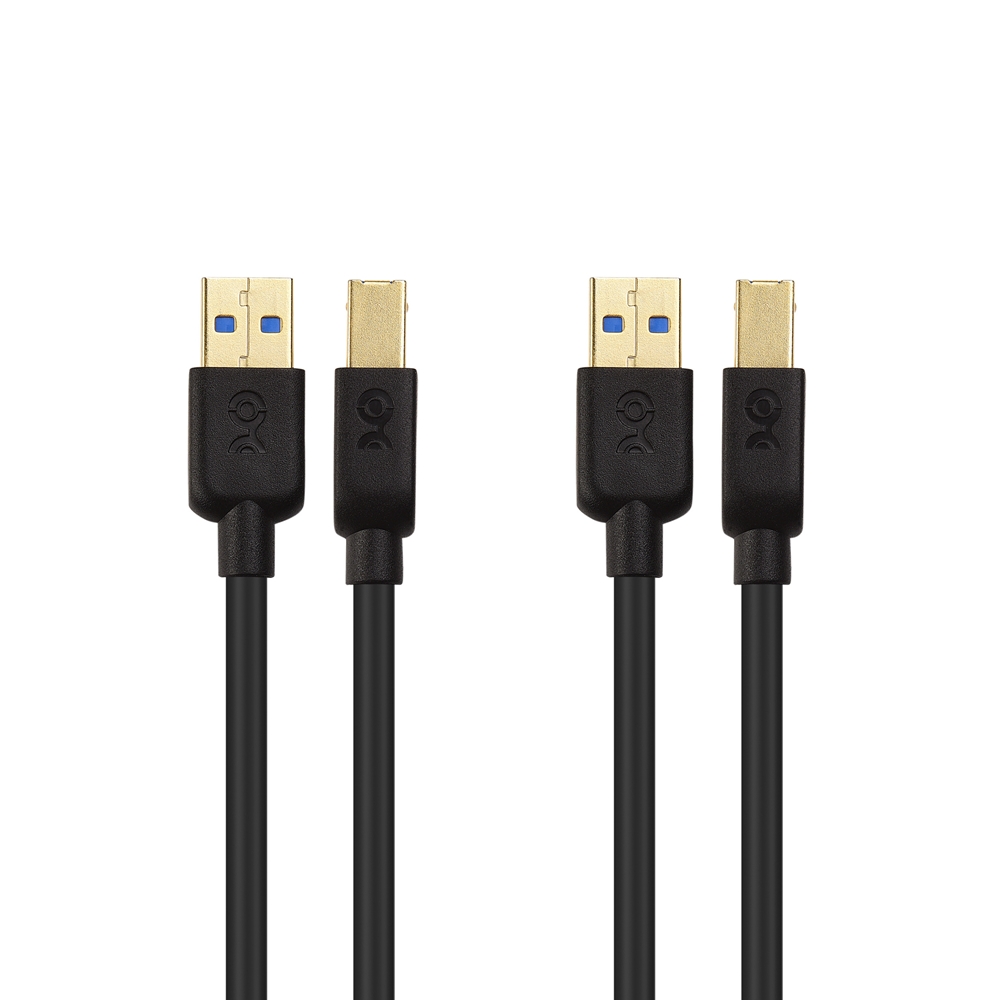
Cable Matters 2-Pack 5Gbps USB 3.0 Cable, USB A to B Cable, 6ft, Black
Cable Matters
Buy — The article recommends trying another known-good USB data cable when the MPD218 is not detected.
A known-good replacement data cable is useful when the MPD218 powers intermittently, disconnects, or never appears in the operating system. This version requires a USB-A computer port, so USB-C-only machines need a different cable or adapter.Available at Amazon(paid link) — opens Amazon in a new tab. Price and availability shown there.
Sources
Pages consulted while researching this article. None of these are affiliate links.
- Akai Professional MPD218 User Guide — cdn.inmusicbrands.com
- Akai Pro MPD218 Frequently Asked Questions — support.akaipro.com
- Connect a USB MIDI Keyboard — Cakewalk Help Center — help.cakewalk.com
- Record Using Software Instruments — Cakewalk Help Center — help.cakewalk.com
- Cakewalk Drum Map Manager Documentation — legacy.cakewalk.com
- Configuring the ACT MIDI Controller Plug-in — legacy.cakewalk.com
- Cakewalk as the MIDI Clock Master — legacy.cakewalk.com
- Troubleshooting a Class-Compliant MIDI Controller — support.akaipro.com