How to Fix Arctis Nova 7X Bluetooth Pairing
The questionWhere do these come from?
[LFH][Xbox (Series S), Android Phone/Any bluetooth device][150€][Germany]
I am looking for a wireless headsets for my Xbox Series S that can simultaneously connect Bluetooth to a second device (mainly Android Phone) so I can listen to music over my phone while I play.
Use the dedicated Bluetooth button from the off state, then pair again in Android; the Xbox dongle is a separate 2.4 GHz connection.
Start with Bluetooth switched off on the headset, hold the dedicated Bluetooth button for four seconds, then pair again from your phone’s Bluetooth settings. Do not use the headset’s main power button or the dongle’s pairing button — those control a separate 2.4 GHz connection and will not put the headset into Bluetooth pairing mode.
Pair the Nova 7X over Bluetooth
Use this exact sequence:
- Look at the headset’s Bluetooth indicator. If Bluetooth is currently on, hold the dedicated Bluetooth button for one second to turn it off.
- With Bluetooth off, hold that same Bluetooth button for four seconds. Keep holding for the full four seconds; a quick press only controls media, while a one-second hold turns Bluetooth on or off.
- On Android, touch and hold the Bluetooth Quick Settings tile, select Pair new device, and tap the discovered SteelSeries Arctis Nova 7X entry.
- Accept the pairing request and wait for Android to show the headset as connected.
These button durations come directly from the original Arctis Nova 7X product guide. The detail that trips people up is that the four-second pairing hold has to begin while Bluetooth is off — holding it while Bluetooth is already on just turns Bluetooth off instead.
If the headset already appears under Saved devices, remove the stale pairing before repeating those steps. Open Settings > Connected devices, tap the settings icon beside the headset, and choose Forget. Turn the phone’s Bluetooth off and back on, then start the headset’s four-second pairing sequence again. Google documents the same forget-and-repair procedure in its Android Bluetooth troubleshooting guide.
Also temporarily turn off Bluetooth on any other previously paired phone, tablet, or laptop. Otherwise, the Nova 7X may reconnect to that device while you are trying to establish a new connection.
Why Xbox success does not prove Bluetooth works
A working Xbox connection does not prove that Bluetooth is working. The Arctis Nova 7X supports Xbox audio and Android Bluetooth audio simultaneously, and it runs them as two independently controlled wireless connections rather than one:
| What you want to hear | Connection used | Required control | Expected state |
|---|---|---|---|
| Xbox Series S game and chat | 2.4 GHz wireless | Dongle connected with its switch set to Xbox | Dongle status LED turns solid |
| Android music or calls | Bluetooth | Dedicated Bluetooth button and Android’s Bluetooth menu | Phone reports the headset as connected |
| Xbox and Android together | Both connections | Enable each connection separately | Both audio streams play through the headset |
For Xbox Series S, plug the included dongle into the console using the supplied USB-A adapter cable and set the dongle switch to Xbox. The console does not connect to this headset through the phone-style Bluetooth pairing process. SteelSeries’ Nova 7X Xbox setup instructions confirm that Xbox uses the included 2.4 GHz dongle.
Leave that dongle connected to the Xbox while pairing the phone with the headset’s Bluetooth button. No dongle needs to be plugged into the Android phone. SteelSeries explicitly supports simultaneous Bluetooth and 2.4 GHz audio, with the two streams mixed in the headset.
Do not re-pair the Xbox dongle merely because the phone cannot discover the headset. Dongle pairing and Bluetooth pairing are separate procedures, and changing the working dongle pairing will not repair the Bluetooth side.
Restore Android audio after successful pairing
A successful pairing with no sound is usually an Android routing problem rather than a failed Bluetooth radio.
Open Settings > Connected devices, select the settings icon beside the Nova 7X, and verify that Media audio is enabled. Enable Phone audio as well if calls are the problem. Google includes both switches in its official Android Bluetooth troubleshooting steps.
Just want the recommendation?
Skip to the picksThen start music or a video on the phone and:
- Press the phone’s volume button and raise Media volume.
- Open Android’s media output selector and choose the Nova 7X instead of This phone, another headset, or a speaker.
- Raise the headset’s physical volume wheel.
- Pause audio on other Bluetooth accessories connected to the phone.
The Xbox and phone volumes remain separate even though their streams are mixed in the headset. If Xbox sound is present but the phone is inaudible, reduce Xbox volume temporarily and raise Android’s media volume to confirm that the phone stream is actually arriving.
There is one microphone limitation: the Nova 7X cannot send microphone audio to both wireless sources simultaneously. When you take a Bluetooth call, the microphone is assigned to that call rather than transmitting to both the phone and Xbox chat. That behavior is normal and does not indicate a failed connection.
Bluetooth audio and Companion app support differ
Normal Bluetooth audio and Companion app support are related but not identical. A first-generation Nova 7X may play Android audio while remaining unavailable inside the app because its firmware predates Gen 1 app support.
SteelSeries’ Companion App instructions for Nova 7 Gen 1 say to update through SteelSeries GG 103 on a Windows PC. The rollout documentation identifies Android app version 5.6.0 and iOS version 5.5.0 for this support.
After updating:
- Pair the headset in the phone’s system Bluetooth settings first.
- Open the SteelSeries Arctis Companion app.
- Grant the app Bluetooth permission when prompted.
- Wait for the headset’s main control screen to appear.
If Bluetooth audio works but only the app fails, do not treat that as a Bluetooth hardware failure until firmware and the mobile app have both been updated.
Check firmware before resetting the headset
Check for firmware updates before performing a hardware reset. Install SteelSeries GG on a PC or Mac, connect the headset as directed, and open GG > Engine. Install any Critical Update shown on the device card without unplugging the headset during the process. SteelSeries documents that workflow in its Nova headset firmware instructions.
If there is no update, or pairing still fails after installing one, reset the headset:
- Remove the cushion from the right earcup.
- Find the small reset pinhole underneath it.
- Use a paperclip or pin to hold the reset switch for one to two seconds.
- Refit the cushion, restart the phone, forget the old Bluetooth record, and repeat the four-second pairing sequence from the top of this article.
Use only the specified reset pinhole. According to SteelSeries’ Nova 7 hardware-reset guide, this restarts the headset but does not remove installed firmware or erase SteelSeries GG settings.
What to check before returning it
Test the headset with a second independent Bluetooth host, such as another phone or a Bluetooth-equipped laptop. An RMA or warranty claim is justified when all of the following are true:
- Neither device can discover the Nova 7X during the correct four-second pairing sequence.
- The dedicated Bluetooth indicator never responds, despite the headset charging and its 2.4 GHz connection working.
- Firmware has been checked in GG > Engine.
- The right-earcup hardware reset has been completed.
- Both devices can still discover and connect to another Bluetooth accessory.
At that point, contact SteelSeries Support or the retailer for a warranty replacement. There is no Android or Xbox setting that can repair a nonfunctional Bluetooth radio or button. If the Nova 7X connects successfully to the second device, however, the headset is not the likely fault; concentrate on the original phone’s saved pairing, media-audio switch, permissions, and Bluetooth software instead.
The bottom line
The fix, in one part:
Top pick
Buy this
Nova 7X
Nova
The Nova 7X supports simultaneous Xbox audio through its 2.4 GHz dongle and Android audio through a separately controlled Bluetooth connection.
Available at Amazon(paid link) — opens Amazon in a new tab. Price and availability shown there.
Recommended products
Ordered by how well each one fits the situations above. Each link below is a paid link.
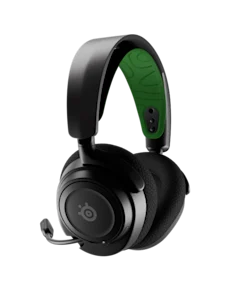
Nova 7X
Nova
Buy — The Nova 7X supports simultaneous Xbox audio through its 2.4 GHz dongle and Android audio through a separately controlled Bluetooth connection.
Available at Amazon(paid link) — opens Amazon in a new tab. Price and availability shown there.
Sources
Pages consulted while researching this article. None of these are affiliate links.
- SteelSeries Arctis Nova 7X Product Information Guide — doi-product-assets.s3.amazonaws.com
- Can Arctis Nova 7 Use Bluetooth and 2.4GHz at the Same Time? — support.steelseries.com
- How the Nova 7X Connects to Xbox — support.steelseries.com
- Fix Bluetooth Problems on Android — support.google.com
- Arctis Companion App FAQ for Nova 7 Gen 1 — support.steelseries.com
- Arctis Nova Headset Firmware Update Instructions — support.steelseries.com
- Arctis Nova 7 Hardware Reset — support.steelseries.com