Lenovo ThinkPad L14 Gen 4: Choose the Right Screen
The question this answersWhere do these come from?
Which screen should I choose on the Lenovo ThinkPad L14 Gen 4?
The ThinkPad L14 Gen 4 suits office work, but its screen matters most: choose 400-nit IPS and check Intel versus AMD connectivity.
The Lenovo ThinkPad L14 Gen 4 is a practical business laptop for documents, spreadsheets and everyday work, with replaceable memory and a useful selection of ports. Choose the 400-nit Full HD IPS screen where available; skip the ThinkPad L14 Gen 4 with the 1366 × 768 TN screen for regular work on the built-in display, because its lower resolution and 220-nit brightness are substantial compromises. Lenovo’s configuration specifications document both options.
The buying decision has three parts: which screen you will actually receive, whether you need Intel’s Thunderbolt connection, and whether the installed memory and storage suit your workload. A listing that says only “L14 Gen 4, Full HD” leaves the most consequential question unanswered.
Choose the screen before the processor upgrade
Lenovo offered four displays across the L14 Gen 4 family. These are manufacturer specifications, rather than measurements of every unit shipped:
| Display option | Resolution | Rated brightness | Rated color gamut |
|---|---|---|---|
| HD TN, non-touch | 1366 × 768 | 220 nits | 45% NTSC |
| Full HD IPS, non-touch | 1920 × 1080 | 250 nits | 45% NTSC |
| Full HD IPS, touch | 1920 × 1080 | 300 nits | 45% NTSC |
| Full HD IPS, low power | 1920 × 1080 | 400 nits | 72% NTSC |
The options appear in Lenovo’s L14 Gen 4 platform documentation. Touch capability does not identify the best screen: the brighter, wider-gamut option is non-touch.
Independent measurements show why that distinction matters. Notebookcheck measured 409 nits average brightness and 98.9% sRGB coverage on its AMD review unit’s low-power panel. Its Intel review unit, fitted with the basic Full HD panel, measured 269.7 nits and 64.2% sRGB coverage. These results describe the installed panels; they do not establish an inherent screen advantage for AMD processors. Notebookcheck’s AMD review, Notebookcheck’s Intel review.
For office work on an external monitor, the basic IPS display remains acceptable. For working near windows, reviewing photographs or using the laptop screen throughout the day, prioritize the low-power panel. Increasing RAM or choosing a faster processor will not improve a dim display’s brightness or color coverage.
The better screen has a limitation too: Notebookcheck recorded slow response times and reported visible ghosting. It is a sensible office choice, but brightness and color coverage alone do not make it a gaming display.
Before ordering, ask for the complete display specification. “IPS,” “Full HD” and “touchscreen” each describe only part of it. If the seller cannot confirm brightness and panel type, treat the screen as unverified rather than assuming that photographs show the configuration being sold.
AMD suits mobile office work; Intel adds Thunderbolt
For routine productivity without a Thunderbolt requirement, the Ryzen 5 PRO 7530U version is a sensible starting point. Choose memory capacity and the screen around your actual work before moving up the processor range.
The strongest measured argument for the AMD configuration is endurance. Notebookcheck’s Ryzen 5 review unit, with a 57Wh battery and the low-power display, lasted 13 hours 34 minutes in its Wi-Fi browsing test at 150 nits. The Intel Core i5-1335U review unit, also with a 57Wh battery but a different screen, lasted 8 hours 40 minutes. Because the panels and browser versions differed, this is evidence about those complete configurations, not a controlled measurement of processor efficiency alone. AMD battery testing, Intel battery testing.
Just want the recommendation?
Skip to the picksDo not transfer either runtime to an arbitrary refurbished machine. Battery wear, screen choice and workload can change the result substantially. Request the installed battery capacity and a recent battery-health report when assessing a used unit.
Intel becomes the more appropriate choice when your equipment requires Thunderbolt. The Intel L14 Gen 4 includes a Thunderbolt 4/USB4 40Gbps port. The AMD version instead has two USB-C 3.2 Gen 2 ports supporting charging and DisplayPort 1.4. Both platforms also provide USB-A, Ethernet and HDMI with a documented output ceiling of 4K at 60Hz. Intel port specifications, AMD port specifications.
The AMD L14 Gen 4 is the wrong version for someone who needs a Thunderbolt-only peripheral: its USB-C connectors do not provide Thunderbolt. Conversely, an ordinary USB-C display connection does not by itself justify choosing Intel. Check the dock’s host requirements and any documented USB-C fallback before deciding.
Check upgrade limits before choosing a listing
Both versions have two DDR4-3200 SO-DIMM slots, with Lenovo specifying support for up to 64GB. The storage arrangement is less flexible: each has one M.2 2242 SSD slot. AMD connects that slot through PCIe 3.0 x4; Intel uses PCIe 4.0 x4. AMD upgrade specifications, Intel upgrade specifications.
That short SSD format is easy to miss. Do not order a standard M.2 2280 drive for this laptop simply because a listing says “NVMe.” Increasing internal storage means replacing the existing drive, so plan how you will transfer your files or reinstall the operating system.
Another buried detail affects Intel graphics: Lenovo says Iris Xe capability requires dual-channel memory; with single-channel memory, it functions as Intel UHD Graphics. Ask how the advertised RAM is populated, especially when evaluating an upgraded reseller configuration.
As a buying recommendation, aim for at least 16GB for everyday multitasking. Consider 32GB when your applications, virtual machines or larger projects justify it. Those are workload recommendations, not minimum requirements imposed by Lenovo.
Before paying, obtain the full Lenovo model number and compare it with the seller’s description. Also establish which components the seller changed. A factory configuration record helps identify the original machine, but it cannot prove what is installed in a refurbished or upgraded unit today.
The most useful checks are straightforward:
- Confirm the exact screen, rather than accepting “Full HD.”
- Confirm the processor and whether your peripherals require Thunderbolt.
- Confirm RAM capacity, module arrangement and SSD capacity.
- For used machines, request battery health, keyboard-layout details and clear warranty terms.
If those answers remain unavailable, choose another listing. The L14 Gen 4 can be a sound working laptop, but the family name alone is not enough information to buy the right one.
The bottom line
Two good answers to different versions of the question:
Top pick
Buy this
Lenovo ThinkPad L14 Gen 4 AMD Ryzen 5 PRO 7530U 400 nit FHD IPS
Lenovo
The available 400-nit low-power IPS display improves on the basic panels, while two SO-DIMM slots allow memory upgrades.
Choose this configuration for office work using the laptop’s own screen. Confirm the 400-nit panel explicitly; this AMD version has no Thunderbolt.Available at Amazon(paid link) — opens Amazon in a new tab. Price and availability shown there.The alternative
It depends
Lenovo ThinkPad L14 Gen 4 Intel Core i5-1335U Full HD IPS
Lenovo
The Intel platform includes Thunderbolt 4/USB4 40Gbps, which the AMD L14 Gen 4 lacks.
Consider the Intel version when a peripheral requires Thunderbolt 4. The Full HD label alone does not guarantee the better screen.Available at Amazon(paid link) — opens Amazon in a new tab. Price and availability shown there.
Recommended products
Ordered by how well each one fits the situations above. Each link below is a paid link.
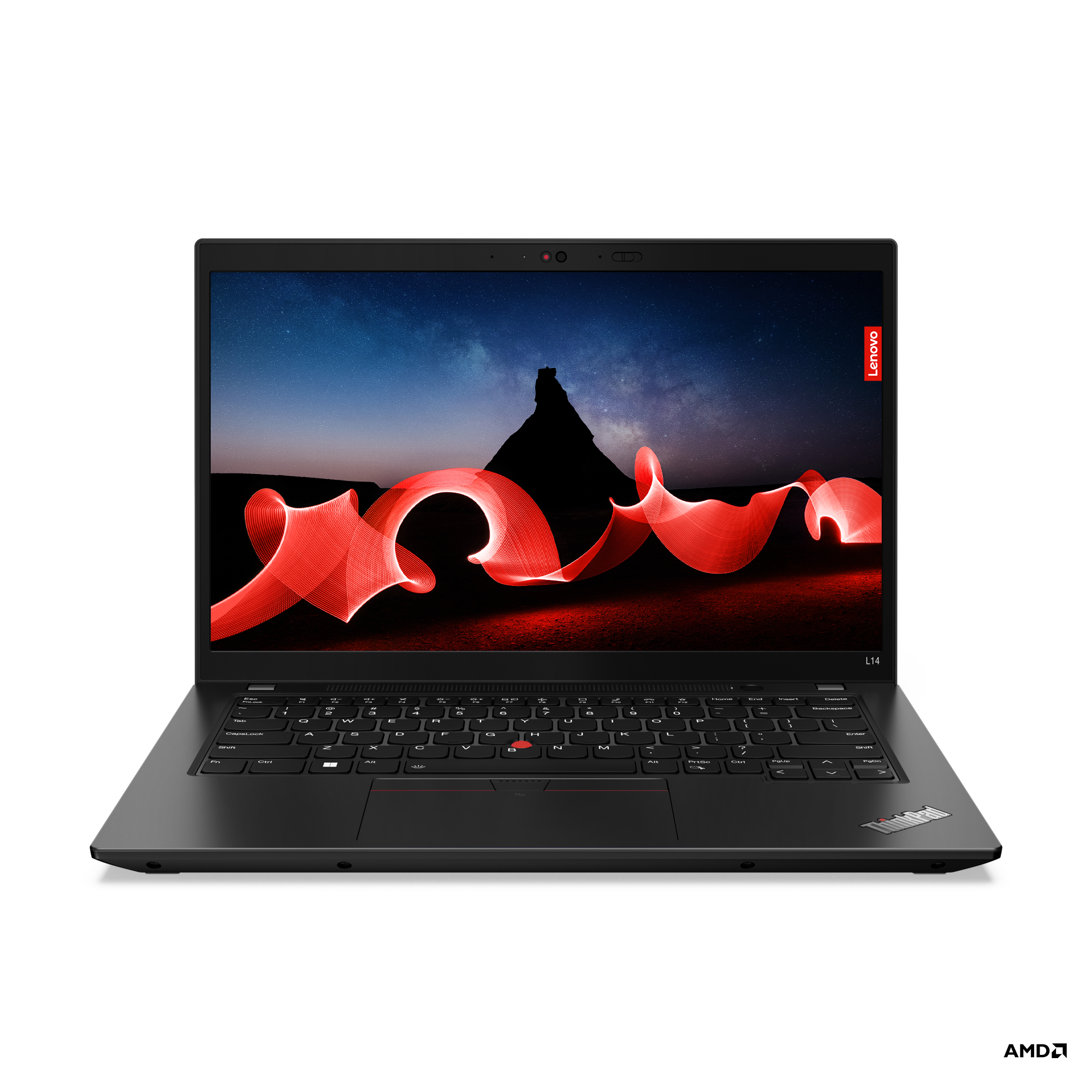
Lenovo ThinkPad L14 Gen 4 AMD Ryzen 5 PRO 7530U 400 nit FHD IPS
Lenovo
Buy — The available 400-nit low-power IPS display improves on the basic panels, while two SO-DIMM slots allow memory upgrades.
Choose this configuration for office work using the laptop’s own screen. Confirm the 400-nit panel explicitly; this AMD version has no Thunderbolt.Available at Amazon(paid link) — opens Amazon in a new tab. Price and availability shown there.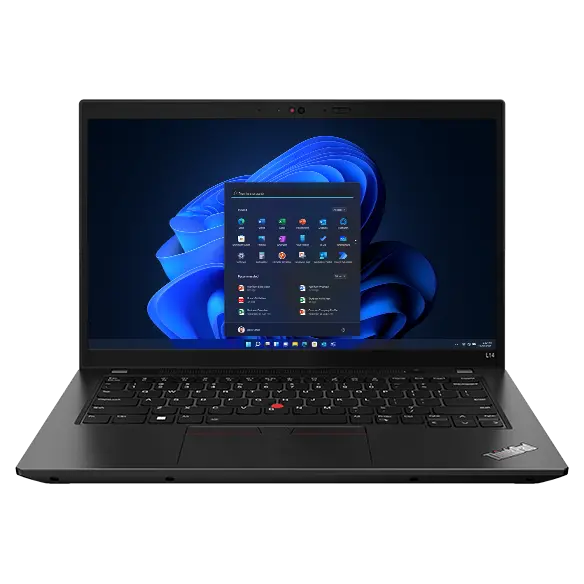
Lenovo ThinkPad L14 Gen 4 Intel Core i5-1335U Full HD IPS
Lenovo
It depends — The Intel platform includes Thunderbolt 4/USB4 40Gbps, which the AMD L14 Gen 4 lacks.
Consider the Intel version when a peripheral requires Thunderbolt 4. The Full HD label alone does not guarantee the better screen.Available at Amazon(paid link) — opens Amazon in a new tab. Price and availability shown there.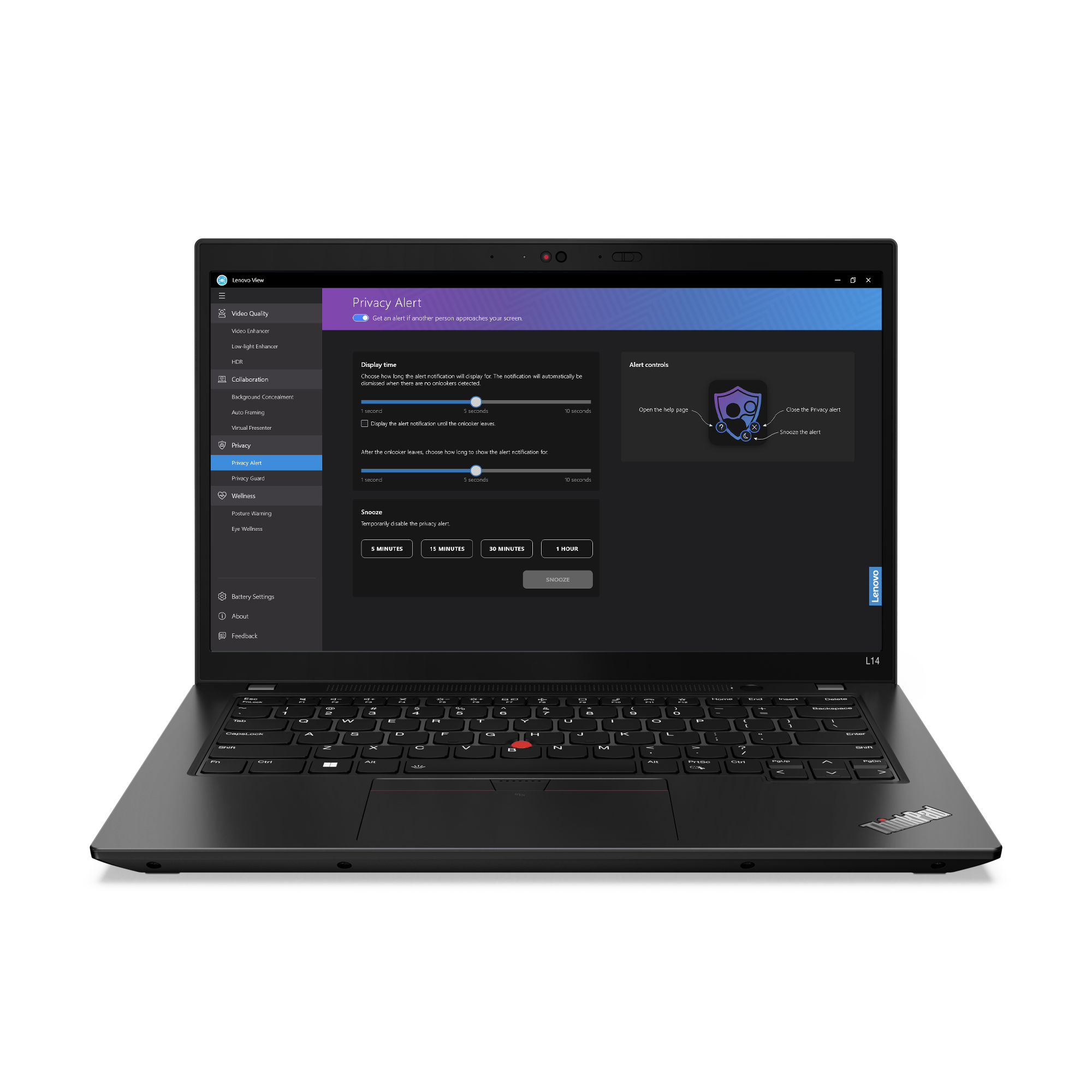
Lenovo ThinkPad L14 Gen 4 Intel Core i5-1335U 1366 x 768 HD
Lenovo
Skip — Lenovo specifies a 1366 × 768 TN panel rated at only 220 nits for the HD configuration.
Skip the HD TN configuration for regular work on the built-in screen. A larger SSD or more RAM does not fix its display limitations.Available at Amazon(paid link) — opens Amazon in a new tab. Price and availability shown there.
Sources
Pages consulted while researching this article. None of these are affiliate links.
- Lenovo ThinkPad L14 Gen 4 AMD — Product Specifications Reference — psref.lenovo.com
- Lenovo ThinkPad L14 Gen 4 Intel — Product Specifications Reference — psref.lenovo.com
- Notebookcheck: Lenovo ThinkPad L14 G4 AMD Review — notebookcheck.net
- Notebookcheck: Lenovo ThinkPad L14 Gen 4 Intel Review — notebookcheck.net