HP 435 Wireless Mouse Pairing: Bluetooth vs Dongle
The question this answersWhere do these come from?
How do I pair my HP 435 wireless mouse over Bluetooth or the USB dongle?
The HP 435 pairs via Bluetooth 5.2 or its USB-A dongle, but holds only two devices total — one per connection type.
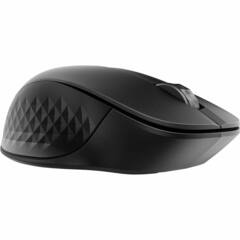
The HP 435 Multi-Device Wireless Mouse (sold as 3B4Q5AA#ABA or 3B4Q5UT) pairs two separate ways — Bluetooth 5.2, or the USB-A nano dongle in the box — and it can only hold one connection of each type at once, for two paired devices total. There’s no third Bluetooth slot and no way to store multiple 2.4 GHz pairings on a single dongle. If you need a third host, you have to re-pair over whichever connection you’re willing to give up.
Pair over Bluetooth (no dongle involved)
- Slide the on/off switch on the underside of the mouse to on.
- Find the connection-mode button next to it and set it to the Bluetooth position, then press and hold that button until the status LED starts blinking — that’s discoverable/pairing mode.
- On the host device, open Bluetooth settings and add it: Windows 10/11 → Settings → Bluetooth & devices → Add device → Bluetooth → select “HP 435 Mouse”. macOS → System Settings → Bluetooth → wait for it to appear → Connect. Chrome OS → Settings → Bluetooth → Add device.
- When pairing succeeds the LED goes solid for a few seconds, then turns off. If nothing shows up in the device list, the mouse likely timed out of pairing mode — press and hold the button again and keep the mouse within a couple of feet of the host while you pair.
Pair or re-pair the USB-A dongle
The mouse and its dongle are matched and paired at the factory, so out of the box you just plug the dongle into a USB-A port, turn the mouse on, and it connects with no button presses. You only need to manually re-pair the dongle if the mouse has stopped recognizing it — for example after buying the mouse and dongle separately, or after the pairing gets corrupted:
- Plug the dongle directly into a USB-A port on the computer — not through an unpowered hub or a USB-C adapter.
- On the mouse, set the connection-mode switch to the 2.4 GHz/dongle position.
- Press and hold the connection-mode button until the LED blinks slowly, indicating pairing mode; it should go solid, then off, once the link is re-established.
A dongle from another HP 4xx- or 6xx-series mouse is not guaranteed to pair with a 435 — the 2.4 GHz link is matched hardware, not a generic USB receiver.
Switch between your two already-paired devices
Once you have one host paired over Bluetooth and another over the 2.4 GHz dongle, a short tap (not a press-and-hold) of the connection-mode button flips the mouse’s active link between them. You don’t repeat the pairing steps for this — holding the button is only for adding or replacing a connection, not for toggling between two you’ve already set up.
Just want the recommendation?
Skip to the picksBluetooth vs. USB dongle: which to use
| Attribute | Bluetooth 5.2 | USB-A 2.4 GHz dongle |
|---|---|---|
| Devices it can hold | 1 | 1 |
| Works in BIOS/UEFI or a boot menu | No | Yes |
| Requires a free USB-A port | No | Yes |
| First-time setup | Manual pairing via OS Bluetooth settings | Plug in — pre-paired, no button press needed |
| Rated open-area range | Up to 32.81 ft | Up to 32.81 ft |
Use the dongle on desktops, docking stations, or anywhere you need mouse input before an OS loads — Bluetooth isn’t available until the operating system’s Bluetooth stack initializes, so it’s useless for BIOS setup or a boot-repair screen. Use Bluetooth on ultrabooks and tablets with no spare USB-A port, or as the fallback if the dongle is lost.
Pairing with a Mac or Chromebook
HP lists Windows 7/8/10/11, macOS, and Chrome OS as supported operating systems for the 435, and the Bluetooth pairing steps above are the same on each — the difference is in the settings path, not the mouse’s behavior. One limit worth knowing: button remapping and DPI adjustment run through HP Accessory Center, which is only available for Windows and macOS. On a Chromebook the mouse still pairs and works, but you get the default five-button behavior with no custom shortcuts.
It pairs, but the cursor doesn’t move
This gets reported as a “pairing” problem but usually isn’t one. Check these before re-pairing anything:
- Surface type — the 435’s sensor does not track on glass or other mirrored/transparent surfaces. Move it to a mousepad or a matte desk.
- Connection-mode switch mismatch — if you just paired Bluetooth but the switch on the bottom is still set to the dongle position (or vice versa), the mouse is listening on the wrong radio.
- Battery orientation and charge — reseat the AA cell and confirm the polarity markings, especially if the mouse was shipped with a battery already installed.
If the mouse won’t enter pairing mode at all
- Move the dongle off a USB 3.0 port. HP’s own troubleshooting guidance for wireless mice notes that USB 3.0 ports radiate RF noise in the same 2.4–2.5 GHz band the dongle uses, which can prevent a reliable connection; a USB 2.0 port or a short extension cable that routes the receiver away from USB 3.0 hardware often fixes it.
- Swap in a fresh AA battery. A partially drained cell is enough to stop the mouse from initiating pairing mode even though the LED still lights.
- Clear a stale Bluetooth entry. On Windows, if “HP 435 Mouse” already appears in Settings → Bluetooth & devices as a stuck or failed pairing, remove it before trying to pair again — a half-completed pairing on the host side blocks new pairing attempts from the mouse side.
- Install HP Accessory Center (Microsoft Store or Mac App Store) to confirm the mouse is actually being detected and to check its battery level directly, rather than guessing from LED behavior alone.
- Try a different USB-A port on the machine itself, not on a hub, to rule out a marginal port.
If you’ve lost the dongle
Bluetooth pairing works completely independently of the dongle, so pair over Bluetooth using the steps above and you lose nothing but the pre-OS/BIOS use case. If you specifically need the 2.4 GHz dongle back — for BIOS access, a KVM switch, or a machine with no Bluetooth radio — contact HP support for a matched replacement receiver rather than buying a generic 2.4 GHz nano dongle, since an unmatched receiver will not pair with this mouse.
When to stop troubleshooting and contact HP
If the status LED never blinks in either connection mode after you’ve confirmed a fresh AA battery and the on/off switch is set to on, that points to a hardware fault in the mouse itself rather than a pairing mistake. The HP 435 carries HP’s standard one-year limited warranty, and that’s the point to open a support case or RMA rather than repeating pairing steps that were never going to work.
The bottom line
Two ways to do it, depending on the kit you already own:
Top pick
It depends
HP 435 Multi-Device Wireless Mouse USB-A nano dongle replacement receiver
HP
A matched HP replacement receiver is needed only if you specifically require the dongle connection, since Bluetooth works independently of the lost receiver.
If the dongle that shipped with the mouse is lost, the 2.4 GHz link is dead until you get one that’s actually matched to it — a generic third-party 2.4 GHz nano receiver will not pair with this mouse.Available at Amazon(paid link) — opens Amazon in a new tab. Price and availability shown there.The alternative
It depends
short USB 2.0 extension cable
short USB
A short extension cable can help when USB 3.0 interference disrupts the receiver by moving it away from the noisy hardware.
Routes the nano receiver away from a USB 3.0 port’s RF noise, a documented cause of dropped or failed 2.4 GHz pairing on HP wireless mice; it won’t help if the pairing itself, not interference, is the problem.Available at Amazon(paid link) — opens Amazon in a new tab. Price and availability shown there.
Recommended products
Ordered by how well each one fits the situations above. Each link below is a paid link.
HP 435 Multi-Device Wireless Mouse USB-A nano dongle replacement receiver
HP
It depends — A matched HP replacement receiver is needed only if you specifically require the dongle connection, since Bluetooth works independently of the lost receiver.
If the dongle that shipped with the mouse is lost, the 2.4 GHz link is dead until you get one that’s actually matched to it — a generic third-party 2.4 GHz nano receiver will not pair with this mouse.Available at Amazon(paid link) — opens Amazon in a new tab. Price and availability shown there.
short USB 2.0 extension cable
short USB
It depends — A short extension cable can help when USB 3.0 interference disrupts the receiver by moving it away from the noisy hardware.
Routes the nano receiver away from a USB 3.0 port’s RF noise, a documented cause of dropped or failed 2.4 GHz pairing on HP wireless mice; it won’t help if the pairing itself, not interference, is the problem.Available at Amazon(paid link) — opens Amazon in a new tab. Price and availability shown there.
USB Bluetooth 5.0 adapter for Windows desktop
USB Bluetooth
It depends — A Bluetooth adapter is relevant for a host without a Bluetooth radio, while the dongle connection works without Bluetooth.
Needed only if a desktop has no Bluetooth radio at all, since the 435’s Bluetooth 5.2 pairing can’t work without a BT-capable host; irrelevant if you’re pairing through the dongle instead.Available at Amazon(paid link) — opens Amazon in a new tab. Price and availability shown there.
Energizer Ultimate Lithium AA battery
Energizer
Buy — The article recommends a fresh AA battery because a partially drained cell can prevent pairing mode even while the LED still lights.
HP’s 24-month battery estimate assumes a healthy, fresh AA cell; a partially drained or bargain alkaline battery is a common hidden cause of a mouse that won’t even enter pairing mode.Available at Amazon(paid link) — opens Amazon in a new tab. Price and availability shown there.
Sources
Pages consulted while researching this article. None of these are affiliate links.
- Troubleshoot Bluetooth not connecting in Windows — Microsoft Support — support.microsoft.com
- Connect Chromebook to Bluetooth devices — Chromebook Help — support.google.com
- Connect a Bluetooth device with your Mac — Apple Support — support.apple.com
- HP Accessory Center — Mac App Store — apps.apple.com
- USB 3.0 Radio Frequency Interference Impact on 2.4 GHz Wireless Devices — USB-IF/Intel White Paper — usb.org
- HP 435 Multi-Device Wireless Mouse - Datasheet — www8.hp.com
- HP 435 Multi-Device Wireless Mouse - Setup and User Guides — support.hp.com
- HP PCs - Troubleshooting Wireless Mouse Issues — support.hp.com
- HP PCs - Using HP Accessory Center (Windows 11, 10) — support.hp.com