Razer Basilisk V3 Pro Chroma Profiles: The Answer
The questionWhere do these come from?
Need chroma-compatible mouse, old one broke. Suggestions?
I've used the deathadder V2 pro for the longest time and suddenly it's been starting to cut out after being used for so long.
The Basilisk V3 Pro can use Chroma profiles in Synapse, but lighting effects need Synapse running and do not live in onboard memory.
The Razer Basilisk V3 Pro can use Chroma profiles through Razer Synapse and Chroma Studio, but the lighting effects require Synapse to remain running. Button bindings, DPI stages, polling behavior, and stored mouse profiles can travel with the mouse; custom Chroma lighting cannot be saved to its onboard memory.
| Setting | Available without Synapse? |
|---|---|
| Button bindings | Yes — through an onboard profile |
| DPI stages | Yes — through an onboard profile |
| Polling rate | Yes — through an onboard profile |
| Stored Synapse mouse profiles | Yes — up to 5, cycled with the profile button |
| Chroma Studio lighting effects | No — Synapse must be running on the PC |
Razer lists the original Basilisk V3 Pro (RZ01-04620) with 13 Chroma lighting zones and 16.8 million color options. Its onboard-memory support page states directly that lighting effects cannot be saved to onboard memory and require Razer Synapse to be installed and running.
That distinction resolves most reports about profiles failing to switch. A Synapse mouse profile stores device behavior. A Chroma profile or effect controls lighting. Synapse can associate the two while the software is running, but it cannot write the Chroma effect into a self-contained lighting slot on the mouse.
What the profile button actually switches
The button on the underside of the Basilisk V3 Pro cycles its onboard mouse profiles. Those profiles can change button assignments, sensitivity stages, and polling settings. The lighting profile remains under Synapse’s control.
Use this check to separate expected behavior from a fault:
- Close Synapse from the system tray with
Exit All Apps. - Press the profile button on the underside of the Basilisk V3 Pro.
- Watch the profile indicator rather than the logo or underglow.
- Check whether the DPI stages or assigned button behavior change.
- Reopen Synapse and confirm whether the selected profile appears in the application.
If the profile indicator and mouse behavior change but the Chroma lighting does not, the mouse is behaving within Razer’s documented onboard-memory limitation. If nothing changes, the Chroma limitation does not explain the problem; firmware, connection, profile storage, and Synapse detection need to be checked.
What onboard memory keeps
Razer’s Basilisk V3 Pro master guide says the mouse can store up to 5 profiles from Synapse and cycle through them with the profile button. Profiles are assigned by selecting the On-board Profiles button and dragging a profile to the preferred memory slot.
The guide identifies these profile indicator colors:
| Profile state | Indicator color | Meaning |
|---|---|---|
| Active Profile | White | Current active profile state |
| Profile 1 | Red | First stored onboard slot |
| Profile 2 | Green | Second stored onboard slot |
| Profile 3 | Blue | Third stored onboard slot |
| Profile 4 | Cyan | Fourth stored onboard slot |
These slots are useful when the mouse needs to retain its button behavior and sensitivity on another PC, a work laptop, or a system without Synapse. They do not carry a full Chroma Studio scene between computers. Onboard memory holds device behavior, not Chroma Studio lighting layers.
Razer’s support page describes the original Basilisk V3 Pro as having Hybrid On-board and Cloud Storage with 4+1 profiles. It does not state whether a cloud-synced profile also carries its associated Chroma lighting layer. That remains unverified and should not be treated as a way around the documented lighting-memory restriction.
Creating a Chroma profile in Synapse
The original Basilisk V3 Pro is identified by Razer as model RZ01-04620 and Synapse 3-enabled. Its Chroma configuration path is:
Just want the recommendation?
Skip to the picks- Install Razer Synapse 3 from Razer.
- Connect the Basilisk V3 Pro by USB-C cable or its 2.4 GHz HyperSpeed dongle.
- Open Synapse and select the mouse.
- Use the mouse page for button assignments, DPI, polling rate, and basic lighting.
- Open Chroma Studio to build layered Chroma effects.
- Save the effect in Synapse.
- Leave Synapse running whenever that lighting profile needs to remain active.
Razer’s Chroma Studio guide names the Studio tab and lists Breathing, Fire, Reactive, Ripple, Spectrum Cycling, Starlight, Static, and Wave among its effects. The Basilisk V3 Pro master guide says the Lighting subtab controls brightness, power-saving behavior, and quick effects including Audio Meter, Breathing, Fire, Reactive, Spectrum Cycling, Starlight, Static, and Wave.
The mouse can therefore participate in a wider Razer Chroma setup and use per-zone effects through Chroma Studio. It simply cannot reproduce those software-managed effects independently after Synapse closes.
Original model and 35K instructions differ
The Basilisk V3 Pro and Basilisk V3 Pro 35K require different Synapse generations and firmware packages. Instructions for one should not be applied blindly to the other.
| Model | Model number | Synapse support | Onboard storage |
|---|---|---|---|
| Razer Basilisk V3 Pro | RZ01-04620 | Synapse 3-enabled | Hybrid onboard and cloud storage, 4+1 profiles |
| Razer Basilisk V3 Pro 35K | RZ01-0524 | Synapse 4-enabled | Onboard memory, 5 profiles |
The lighting restriction applies to both. Razer’s general onboard-memory support article says lighting effects are managed through Synapse and cannot be saved to onboard memory. Five stored profiles on the 35K revision do not make it a hardware-only Chroma Studio device.
Firmware must also match the exact model number. Razer lists firmware updater v2.01.01_r1, released December 14, 2024, for the original RZ01-04620. For the RZ01-0524 Basilisk V3 Pro 35K, Razer lists v2.52.00_r1 for the standard model and v2.53.00_r1 for the Phantom Edition. The wrong updater is a model-mismatch risk, not a Chroma fix.
Chroma compatibility versus DeathAdder shape
The Basilisk V3 Pro is Chroma-compatible, but it is not shaped like a DeathAdder. It is a right-handed ergonomic mouse with a thumb rest, multi-function trigger, 11 programmable buttons, a tilt wheel, and underglow zones. Someone accustomed to the DeathAdder’s palm shape may find the Basilisk more feature-heavy and wider-feeling than expected.
Choose the Basilisk V3 Pro when the priority is Chroma compatibility combined with more controls, including the thumb trigger, tilt wheel, scroll modes, and stored mouse profiles. Do not choose it expecting a hardware-only Chroma profile that remains unchanged with Synapse closed. When the old DeathAdder feel matters more, compare the shell shape before buying; Chroma compatibility alone does not make the Basilisk a DeathAdder replacement.
Checks worth making before a return
Work through these conditions before treating Chroma profile behavior as a defect:
- Confirm the model number: RZ01-04620 for the original Basilisk V3 Pro or RZ01-0524 for the Basilisk V3 Pro 35K.
- Use Synapse 3 for the original model and Synapse 4 for the 35K revision.
- Update Synapse before changing firmware.
- Install firmware only from the support page for that exact model.
- Connect directly to the PC by USB, or use only the intended 2.4 GHz dongle while troubleshooting.
- Keep Synapse running while testing Chroma effects.
- Close Synapse only when testing onboard mouse profiles.
- Do not expect Chroma Studio lighting layers to remain active on a PC without Synapse.
Razer’s mouse troubleshooting guide also recommends connecting directly rather than through a hub, updating firmware, testing on another system without Synapse, checking for conflicting software, and performing a clean Synapse reinstall when the mouse is not detected or its buttons and DPI behave incorrectly.
When the documented limitation is not the answer
Contact Razer support or begin a warranty case when any of these symptoms remain:
- Synapse does not detect the Basilisk V3 Pro after direct USB testing.
- The profile button never changes stored profile behavior while Synapse is closed.
- The correct firmware updater for the exact model cannot be applied.
- Lighting zones fail while Synapse is running and a basic Static effect is selected.
Those symptoms are separate from the onboard-Chroma limitation. Razer’s public documentation provides no further user-side fix for them, so the unresolved cause may be software corruption, a connection problem, or hardware failure. No documented combination of Synapse version, model number, or firmware establishes which of those causes applies without further support or warranty diagnosis.
The bottom line
The first thing to buy:
Top pick
It depends
Razer Basilisk V3 Pro Customizable RGB Wireless Gaming Mouse, Black
Razer
Choose the Basilisk V3 Pro for Chroma effects only if Synapse can remain running, because custom lighting cannot be saved to its onboard memory.
This is the right product when the reader wants a Basilisk V3 Pro that can join a Razer Chroma setup and store mouse behavior profiles. The drawback is that Chroma lighting profiles still require Synapse to be running.Available at Amazon(paid link) — opens Amazon in a new tab. Price and availability shown there.
Recommended products
Ordered by how well each one fits the situations above. Each link below is a paid link.
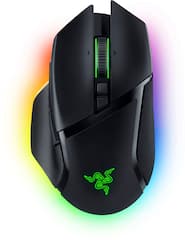
Razer Basilisk V3 Pro Customizable RGB Wireless Gaming Mouse, Black
Razer
It depends — Choose the Basilisk V3 Pro for Chroma effects only if Synapse can remain running, because custom lighting cannot be saved to its onboard memory.
This is the right product when the reader wants a Basilisk V3 Pro that can join a Razer Chroma setup and store mouse behavior profiles. The drawback is that Chroma lighting profiles still require Synapse to be running.Available at Amazon(paid link) — opens Amazon in a new tab. Price and availability shown there.
Sources
Pages consulted while researching this article. None of these are affiliate links.
- Razer Basilisk V3 Pro Review: Does It All, Wirelessly — tomshardware.com
- Test de la Razer Basilisk V3 Pro : une souris parfaite, mais hors de prix — frandroid.com
- Análisis: Razer Basilisk V3 Pro 35K — geektopia.es
- Razer Basilisk V3 Pro | RZ01-04620 Support & FAQs — mysupport.razer.com
- Razer Basilisk V3 Pro Master Guide — dl.razerzone.com
- What is On-board Memory and how does it work? — mysupport.razer.com
- How to add lighting effects on Razer Chroma Studio — mysupport.razer.com
- Razer Basilisk V3 Pro 35K | RZ01-0524 Support & FAQs — mysupport.razer.com
- How to assign a Razer mouse button to switch profiles in Razer Synapse — mysupport.razer.com
- How to resolve DPI, button, and detection issues on a Razer mouse — mysupport.razer.com